

SignCut Pro 2 Vinyl Cutting Software Full Version Lifetime – Professional Plotter Tool
20,00 $
SignCut Pro 2 for preparing vector artwork and sending cutting jobs to a compatible plotter.
- Review contour cutting, tiling and color-separation tools.
- Confirm the supplied edition, cutting-width limit and computer compatibility.
- Listed offer: one-time payment with lifetime activation and digital delivery.
- Installation guidance and remote setup support available.
SignCut Pro 2 for vinyl cutting and plotter output
SignCut Pro 2 prepares vector artwork for output to a cutting plotter. It is useful for lettering, decals, multi-color vinyl work and contour-cut printed graphics when the software and cutter configuration support that workflow. Start by identifying whether you need to create artwork, prepare an existing vector file or align cutting with a printed sheet.
Needlic’s listed offer includes a one-time payment with lifetime activation, digital download after payment, installation guidance and remote setup support. Confirm the exact build, edition, activation method, permitted cutting width and device allowance before ordering. The manufacturer’s current subscription plans should not be treated as the terms of this particular offer.
SignCut Pro 2 and SignCut Draw serve different tasks
SignCut Pro 2 focuses on cutting preparation and output. The publisher also provides SignCut Draw for artwork creation and describes export connections from Illustrator, CorelDRAW and Inkscape. Confirm which companion applications and export plugins are included and compatible with your supplied build.
If your customer already supplies clean vector artwork, your priority may be scale, color separation and cutting order. If you start from a photograph or a flattened logo, you also need an artwork-preparation stage. Opening an image does not automatically produce a usable blade path.
Production tools to check for your workflow
The official feature overview describes color separation, weeding lines, registration marks, manual and automatic tiling, contour cutting and object-level cutting controls. Check the required functions in the supplied edition, along with the cutter’s capabilities.
- Multi-color vinyl: organize each color as a deliberate production step and plan how the layers will be aligned during application.
- Large signs: tiling divides artwork into sections that fit the available material. Plan overlaps and installation alignment before cutting.
- Printed stickers: contour cutting needs a suitable registration workflow. Confirm the cutter’s sensor or manual alignment method and test the printed scale.
- Detailed jobs: review cutting order and repeat passes. Extra passes or duplicated paths can damage a small design or its backing.
Supported files: vector content matters
The official helpdesk lists AI, EPS, PS, CDR, PDF, SVG, EMF and HPGL/PLT among supported file types, as well as SignCut’s own formats. It specifically recommends Illustrator 8 format for AI exchange and says artwork should be properly vectorized before opening.
A PDF containing only a scanned image is different from a PDF containing clean vector shapes. Likewise, the extension alone does not establish that every effect, font or file version will transfer correctly. Test a representative file from the application you normally use.
- Keep an untouched copy of the original artwork.
- Confirm the file version accepted by your SignCut build.
- Check dimensions immediately after import.
- Inspect for missing text, duplicate outlines, open paths and small unwanted objects.
- Review the cut preview before sending the job to the plotter.
Computer, cutter and edition checklist
The SignCut helpdesk describes Pro 2 as a 64-bit application for Windows and macOS. It does not list Android, iOS, Chrome OS or Linux as supported platforms. Confirm that this Needlic package includes the installer and activation appropriate to your exact operating system.
For hardware requirements, use the documentation for the supplied build. The publisher’s compatibility article includes legacy minimum specifications, which should not be treated as a recommendation for buying a modern production computer.
- Computer: provide the operating-system version, processor, memory and available disk space.
- Cutter: provide the full model number and connection method, not just the brand.
- Working width: confirm the permitted cutting width in the supplied edition as well as the machine’s usable width.
- Companion tools: confirm whether SignCut Draw, Spooler or a required export plugin is included.
- Activation: confirm device limits and transfer conditions before replacing a production computer.
A first-cut workflow that limits wasted material
Use a small test design containing a curve, a corner and lettering at a realistic finished size. Confirm that the selected cutter and connection match the hardware, then check the orientation and width in the preview.
Load a small piece of the intended material and follow its manufacturer’s guidance for blade and cutting settings. Inspect the result before changing anything: the vinyl should separate cleanly while the backing remains suitable for handling. Record successful settings for that material rather than assuming one setup fits every roll.
For printed contour work, run a separate alignment test. If the error grows across the sheet, record that behavior; if it is a constant offset, record the direction and amount. Include the print settings and registration procedure when requesting support.
Frequently asked questions
Is SignCut Pro 2 a complete artwork-design package?
It is primarily a cutting-preparation and output application. SignCut Draw and compatible external vector applications can handle artwork creation. Confirm the companion tools included in your package.
Can I cut a JPG or PNG immediately?
A bitmap is not automatically a vector cutting path. Prepare or trace it in an appropriate design application, then inspect the paths before cutting.
Does every edition allow the same cutting width?
No. The publisher distinguishes editions with different limits. Confirm the width and device allowance attached to the supplied offer before ordering for a large cutter.
Can I use it on a Mac?
The product family supports macOS, but confirm the compatible installer, build and activation included in this particular offer before purchase.
Is remote installation available?
Yes. Needlic offers installation guidance and remote setup support for this listing. Send your computer and cutter details so the setup can be checked.
Compare related cutting workflows
Use our vinyl cutting software guide to compare by task. Review SignMaster V5 for its level-based design and cutting options, or Sure Cuts A Lot Pro against your specific artwork and cutter requirements.
Official references: SignCut features and editions; supported file extensions; computer compatibility.
Only logged in customers who have purchased this product may leave a review.
Related products
Vinyl Cutting Software
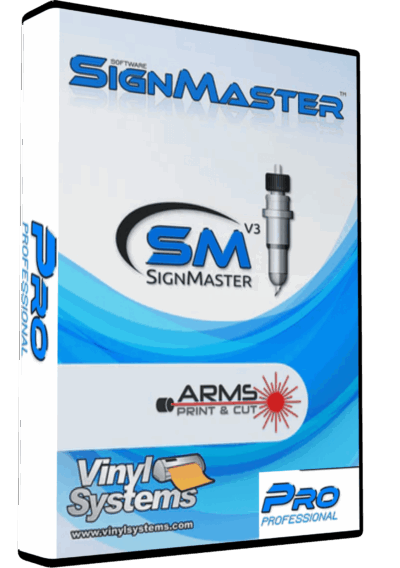
SignMaster V3.5 PRO Vinyl Cutting Software – Lifetime Activation & Installation

Vinyl Cutting Software
Vinyl Cutting Software
Reviews
There are no reviews yet.