

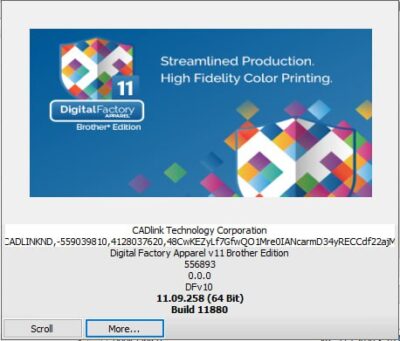
CADLINK 11 DTF RIP Software – Full Version for DTF Printing + Easy Install
Original price was: 60,00 $.30,00 $Current price is: 30,00 $.
CADlink Digital Factory 11 DTF RIP software for preparing transfer artwork, managing color and white ink, and organizing print jobs.
- Digital delivery and lifetime activation under the listed Needlic offer
- Installation guidance and remote setup assistance
- Confirm your exact printer, controller and required edition before purchase
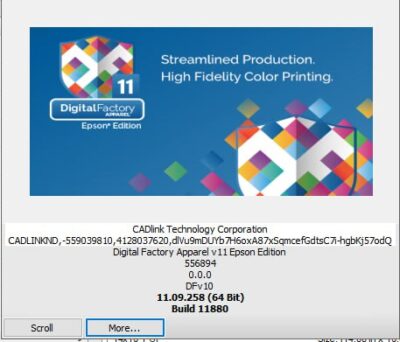
CADlink Digital Factory 11 DTF RIP Software
CADlink Digital Factory 11 Direct to Film prepares artwork for a compatible DTF printer, manages color and white ink, and organizes jobs for production. It is intended for shops printing transfers for garments, rather than for cutting vinyl or creating embroidery stitches.
Needlic’s listed offer includes digital delivery, lifetime activation, installation guidance and remote setup assistance. Before ordering, confirm the exact printer and edition with us: a product name or printhead model alone does not establish compatibility.
Desktop or Production Printer: Which Edition Do You Need?
The manufacturer’s v11 DTF brochure distinguishes two packages:
- DTF Desktop Edition: A2-or-smaller sheets or rolls up to 17 inches/43.2 cm. Certain production-class printers and controller types are excluded even within that size.
- DTF Edition: A1-and-larger sheets or rolls of 24 inches/60 cm and larger.
These are package descriptions, not a guarantee that every printer of that width works. Contact Needlic before buying to confirm the package supplied, the exact driver and the number of printers you need to operate.
Features That Matter in a DTF Workflow
- White ink handling: transparency-based white management and separate highlight and underbase volumes.
- Job preparation: color removal, image layout and automatic nesting.
- Color workflow: profiles, print modes and color correction tools.
- Production management: queues, scheduling, hot folders and job history.
The practical benefit depends on your printer, artwork and settings. A RIP cannot compensate for missing nozzles, an unsuitable ink profile or incorrect transfer settings. Establish a repeatable test before using a new queue for customer orders.
Printer Compatibility Checklist
Send the following information when requesting a compatibility check:
- Exact manufacturer and model: include the machine label, not only “Epson-based” or the printhead family.
- Controller and connection: identify the printer controller if known, the connection method and any existing driver.
- Print width and ink configuration: state the working width and the color/white channel arrangement.
- Current setup: tell us your Windows version and the RIP or printer utility currently used.
- Production requirements: explain whether you run one printer or several and need a particular workflow.
If you cannot identify the controller, ask your printer supplier for the exact model and recommended driver. Keep a copy of working profiles and settings before changing an established production system.
File Formats and Artwork Preparation
The v11 DTF brochure lists PDF, PNG, SVG, JPG, AI, EPS, BMP and TIF support. File contents and export settings still matter.
For a transfer, confirm the finished dimensions before processing the job. Inspect the background and transparent edges, small text and any intentionally white areas. A white rectangle in the artwork can produce a different result from a transparent background; do not assume the software can infer your intention.
When sharing artwork for setup assistance, provide the original file where possible and explain which areas should print white or remain unprinted. Check the output preview before consuming film and ink.
Computer Requirements
The manufacturer’s v11 DTF brochure lists Windows 10/11, an Intel i5–i7 at 2.6–3.0 GHz and 8–12 GB RAM. Verify the supplied build and printer-driver requirements before installation.
Keep adequate free storage for artwork, processed jobs and archives. The size and number of queued files affect how much working space you need. Do not replace the requirements for version 11 with a table intended for a newer release.
From Artwork to a Repeatable Print
- Confirm the supported printer, driver and queue before importing a production job.
- Select the profile and print mode appropriate to the printer and consumables.
- Check dimensions, orientation, transparent areas and white-ink output in the preview.
- Print a small test containing fine text, color patches and an area requiring white ink.
- Complete the transfer using the consumable supplier’s instructions and assess the finished result.
- Record the successful settings. Change one variable at a time when troubleshooting.
Screen color alone is not a final proof of the printed result. Evaluate the completed transfer on the intended garment and retain the test settings with the job.
Digital Delivery and Installation Support
This is a digital product; no physical package is shipped. The existing Needlic offer includes download access after payment, installation guidance and remote setup support. Confirm compatibility before purchase and keep your order reference available when contacting support.
Installation assistance helps with the supplied software setup. Printer servicing, replacement hardware and consumables are separate from installing a RIP. Ask about your particular setup if you need help beyond installation.
Frequently Asked Questions
Will CADlink 11 work with any DTF printer?
No universal compatibility should be assumed. The exact machine, controller, driver and software package must match. Two printers with similar printheads can require different support.
Does the DTF edition also include DTG, UV and sublimation support?
Do not assume that all Digital Factory editions are included. This page concerns the DTF workflow. If you use another production process, review the relevant product and confirm its printer support.
Can I use a PNG with a transparent background?
PNG is a listed supported format. Inspect the transparency and intended white areas before printing, then run a small transfer test to confirm the output.
Will changing the RIP fix every color or white-ink problem?
No. Artwork, profiles, printer condition, consumables and transfer settings all influence the result. Start by identifying whether the issue occurs in the file preview, on the film or after transfer.
Is remote installation available?
Yes, Needlic’s offer includes installation guidance and remote setup assistance. Send your computer and printer details before ordering so the setup can be checked.
Compare Related Printing Software
Browse our RIP software collection. For UV work, see Digital Factory v11 UV Edition; for sublimation, see Digital Factory v11 Sublimation Edition. Choose by printer and production method, not by price alone.
Version reference: CADlink Digital Factory 11 DTF brochure. Manufacturer specifications describe the software family; confirm the exact package and included services with Needlic.
Only logged in customers who have purchased this product may leave a review.
Related products
Reviews
There are no reviews yet.