

Embrilliance Embroidery Software – Package Guide
35,00 $
Embrilliance embroidery software: confirm the supplied title, level and version before ordering.
- Essentials focuses on editing existing designs and adding lettering.
- StitchArtist provides digitizing tools and has separate levels.
- The guide below explains the differences; do not assume every title or level is included in this offer.
Embrilliance: choose between editing and digitizing
Before ordering, confirm the exact Embrilliance title and level supplied in this package. The guide below explains Essentials and how it differs from StitchArtist; it does not promise that both titles are included.
Embrilliance Essentials is designed to help you customize existing embroidery designs. It is useful when your project starts with a stitch file and you need to combine elements, add lettering, adjust colors or prepare a layout for your hoop.
Choose software by the job you need to complete. Personalizing an existing design is different from creating a new digitized logo from artwork. Confirm the exact Embrilliance titles and version included in this Needlic offer before ordering.
Essentials versus StitchArtist Level 3
Essentials and StitchArtist Level 3 are different products. The publisher positions Essentials for customization of existing embroidery designs, while StitchArtist is its design-creation and digitizing product. Level 3 belongs to StitchArtist; it is not an Essentials edition name.
The products can work within the same Embrilliance platform, but a shared interface does not mean every title is included in a purchase. If you need both editing and digitizing, ask Needlic to confirm the registered titles in the supplied package. Do not infer a bundle from a product image or URL.
What Essentials helps you do
- Combine designs: merge existing embroidery elements into a project.
- Adjust size: resize designs with stitch recalculation, then inspect the result.
- Personalize with text: add lettering and arrange names or monograms.
- Plan colors: change design colors and work with thread-brand information.
- Prepare placement: print full-size templates and check the arrangement before stitching.
- Save for your machine: export to supported embroidery formats.
These are core capabilities documented by the publisher. Confirm version-specific functions and any separately supplied fonts, libraries or other Embrilliance titles with your order.
A practical project: add a name to a purchased design
- Keep your original. Make a copy of the embroidery file and record its size. Check that the design’s usage terms allow your intended project.
- Choose the final layout. Set the hoop and decide where the name belongs relative to the design. Use the dimensions of the finished item rather than guessing from a screen preview.
- Check the lettering. Confirm spelling, spacing and readability at the actual stitch size. Avoid shrinking detailed letters until they become difficult to stitch cleanly.
- Review the combined design. Inspect overlaps and color changes. Check that the full design fits the machine’s permitted embroidery area.
- Save and test. Keep the editable working project as well as the machine file. Stitch a sample on the intended fabric and stabilizer before producing the finished item.
File formats and machine compatibility
The publisher lists export formats including PES, DST, EXP, JEF and VP3, among others. Match the output to your exact machine model and check hoop dimensions and transfer requirements. A supported file extension does not remove the machine’s size limits.
When sending a file for a compatibility check, identify the application that created it and the format you need to export. Keep source and exported files separate so you can return to the working project if the result needs adjustment.
Mac and Windows setup
Embrilliance provides native Mac and Windows versions. Confirm the operating-system version supported by the specific build supplied in your order. Do not assume that every historical installer supports the newest operating system.
Before installation, back up existing projects, note any Embrilliance titles already registered on the computer and confirm which installer and registration details you will receive. Ask about the support and licensing scope of this offer before payment.
Frequently asked questions
Does Essentials turn a JPG logo into embroidery?
Creating an embroidery design from artwork is digitizing. Embrilliance’s support documentation directs that task to StitchArtist, while Essentials handles customization such as lettering, sizing and colors. Check which task you need before choosing a package.
Is Essentials the same as StitchArtist Level 3?
No. They are separate titles with different purposes. Confirm the included titles explicitly if you need a combined package.
Can I resize any design without checking it?
Essentials includes stitch recalculation, but you should still review the output and make a sample. Tiny letters, narrow details and heavily overlapping designs deserve particular attention.
Does it work on a Mac?
The publisher offers a native Mac version. Match the supplied build to your macOS version and confirm that the order includes the platform you need.
Are additional fonts and other modules included?
Do not assume that every Embrilliance font collection or title is included. Ask for the package contents, especially if a specific font, digitizing level or extra tool is essential to your project.
Compare your embroidery workflow
Use our embroidery software buying guide to compare editing and digitizing needs. For another modular approach, read the Embird 2017 module guide. You can also review Hatch 2 as a separate offer.
Contact Needlic with your computer, machine model and intended project to clarify the package before ordering.
Official references
Only logged in customers who have purchased this product may leave a review.
Related products
Embroidery Software
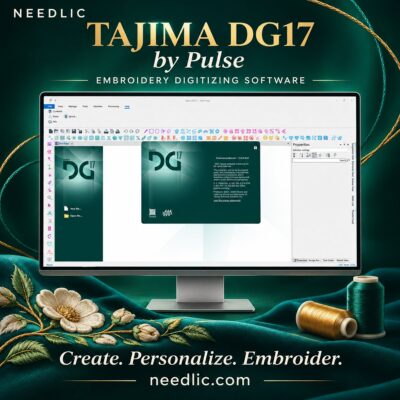
Tajima DG17 by Pulse – Embroidery Digitizing Software – 1 Key Activation For Lifetime
Embroidery Software
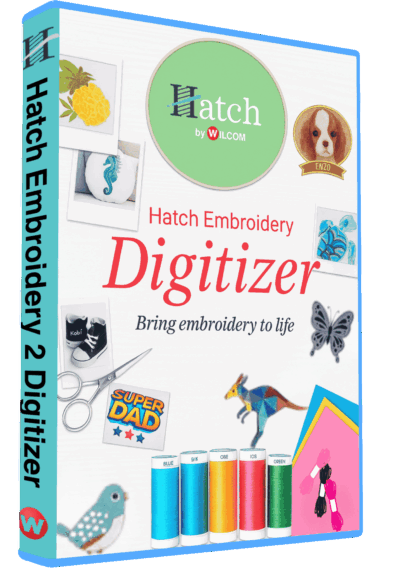
Hatch Embroidery 2 Professional Digitizing Software – 1 Key per PC Lifetime License
Embroidery Software
Vinyl Cutting Software
SignMaster V3.5 PRO Vinyl Cutting Software – Lifetime Activation & Installation
Embroidery Software
Melco DesignShop 11.3 Pro Embroidery Software Full Version Lifetime – Instant Download
Embroidery Software
DesignShop V9 Professional Embroidery Software Full Version Lifetime – Instant Download
Embroidery Software
Tajima DGML 16 Pulse Embroidery Software Full Version Lifetime – Instant Download
Embroidery Software
Reviews
There are no reviews yet.