
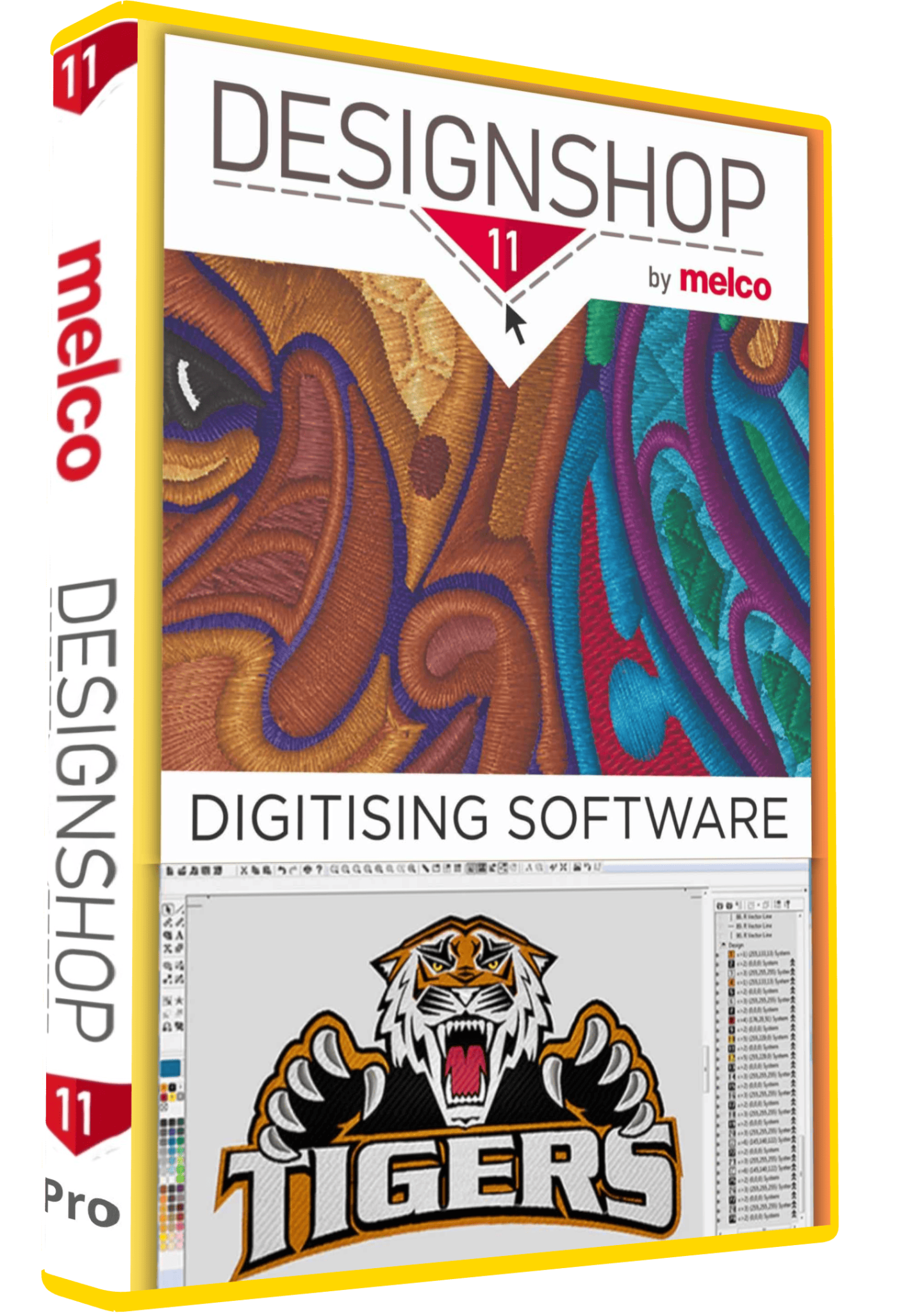
Melco DesignShop 11.3 Pro Embroidery Software Full Version Lifetime – Instant Download
89,00 $
Melco DesignShop 11.3 Pro for embroidery digitizing, lettering and design editing. Review the Professional level, OFM workflow and Windows requirements before ordering.
- One-time payment with lifetime activation as listed.
- Digital download and installation guidance.
- Remote setup support available.
- Confirm supplied build, activation requirements and machine-file compatibility.
Melco DesignShop 11.3 Pro for embroidery digitizing
DesignShop helps you turn artwork and lettering into embroidery designs, edit existing work and prepare files for production. This Needlic listing is for Melco DesignShop 11.3 Pro. It is useful to compare the software generation, level and file workflow before choosing a package, especially if you already exchange designs with another workshop.
The listed offer includes a one-time payment with lifetime activation, digital download after payment, installation guidance and remote setup support. Confirm the supplied build, activation requirements and device allowance before ordering. An offer for version 11 does not by itself include an upgrade to DesignShop 12.
Features and software levels
Melco offers DesignShop v11 in Lettering, Editor, Vector and Professional levels. Its v11 tools include lettering, stitch and wireframe editing, vector conversion and advanced design effects, with availability depending on the level. The Professional tier adds tools such as distortion effects, a shadow tool, custom density blends and font creation. Confirm the Professional level supplied with this listing if one of those tools is essential to your work.
For personalization, start by checking the lettering tools you actually need: a short name on a uniform presents a different task from a curved monogram or a logo with small text. For artwork digitizing, consider how much manual control you need over shapes and stitches. Automatic conversion is a starting point to review, not a guarantee that every image will sew correctly.
OFM project files versus machine output
Melco’s OFM format retains wireframe edits, machine settings and color information. The official v11 overview also lists formats including DST, EXP, EPS and PES; ART8 and EMB are marked as import/open only. Reading a format does not necessarily mean that the software can export to it.
- Keep the editable master: save your working project separately from the file prepared for the machine. This makes later lettering or layout changes easier to manage.
- Confirm the required output: check the exact machine model, supported format and hoop size before exporting.
- Test a customer file: ask for a representative file if your main job is editing work supplied by another digitizer. Different file versions can preserve different amounts of editable information.
- Include a production reference: supply the intended dimensions, thread-color list and preview alongside the machine file.
A repeatable workflow for personalized workwear
- Define the job. Record the garment, embroidery position, finished size and list of names. Confirm spelling before starting a batch.
- Prepare the design. Open a suitable existing project or digitize the approved artwork. Check spacing at the actual embroidery size rather than judging only a zoomed-in view.
- Review the stitch plan. Look for unnecessary travel, dense overlapping areas and tiny details. Use the available review tools, then inspect the design yourself.
- Save and export. Retain an editable master and create the required machine output. Use filenames that identify the customer, size and revision.
- Run a sample. Sew on the intended fabric and stabilizer. Inspect lettering clarity, alignment and fabric distortion before producing the full order.
A useful production record includes the final approved file, fabric and stabilizer combination, thread colors and any changes made after the sample. This helps a repeat order match the earlier job without relying on memory.
Windows and computer requirements
Melco’s version reference lists DesignShop v11 build 11.3.88 and Windows compatibility through Windows 11. Check the precise build supplied by Needlic rather than assuming that every 11.3 installer is identical.
Melco’s published system-requirements sheet specifies a 2.2 GHz or faster multicore Intel or AMD processor, at least 4 GB RAM with 8 GB or more recommended, and an 80 GB or larger drive with at least 40 GB free after installation. It also specifies Intel HD 4000-compatible graphics or better, internet access and administrator rights for installation. DesignShop v11 supports 4K displays.
Before purchase, provide your Windows version, processor, RAM and free disk space. Also mention any existing DesignShop installation and the machine you use. Keep a backup of your designs and settings before changing a working production computer. This listing does not promise native macOS support.
DesignShop and machine operating software are different
Melco lists DesignShop under digitizing software and Melco OS, Bravo OS and AMAYA OS separately under machine operating software. Buying a design application should not be treated as confirmation that the operating software required by your machine is included.
If your problem is connecting a machine, choosing needles or running production, describe that issue before ordering. If your task is creating or editing the embroidery itself, explain the designs and files you need to work with. This distinction helps avoid buying software for the wrong part of the workflow.
Frequently asked questions
Is DesignShop 11.3 the latest generation?
No. Melco also lists DesignShop 12. This page concerns version 11.3; features or licensing arrangements for version 12 should not be assumed to apply.
Can I edit an EMB file and save it back as EMB?
The official v11 overview labels EMB support as import/open only. Keep an OFM working copy and verify the required export format before committing to a file-exchange workflow.
Does this replace Bravo OS or AMAYA OS?
DesignShop is the digitizing application. Machine operating software is listed separately by Melco and must match the machine and configuration. Confirm what your setup requires.
Will automatic digitizing produce a finished logo?
Results depend on the artwork, size and fabric. Review the converted shapes and stitch choices, and sew a sample before using the design for a paid production run.
Can Needlic help with installation?
Installation guidance and remote setup support are offered. Confirm the installer, activation procedure and computer compatibility before arranging the session.
Compare related embroidery workflows
See our embroidery software buying guide for a task-based comparison. You can also compare Tajima DG16 by Pulse and Hatch Embroidery 2 by their supplied levels, editing tools and machine-file requirements.
Official references: DesignShop v11 features and formats, Melco system requirements, and Melco software versions and compatibility.
Only logged in customers who have purchased this product may leave a review.
Related products
Embroidery Software
Embroidery Software
Embroidery Software
Embroidery Software
Embroidery Software
PE-Design 11.40 Embroidery Software Full Version Lifetime – Professional Digitizing
Embroidery Software
DesignShop V9 Professional Embroidery Software Full Version Lifetime – Instant Download
Embroidery Software
Hatch Embroidery 2 Professional Digitizing Software – 1 Key per PC Lifetime License
Embroidery Software
Bravo Amaya OS 12.06.42 Full Version Lifetime – Embroidery Machine Software
Reviews
There are no reviews yet.