
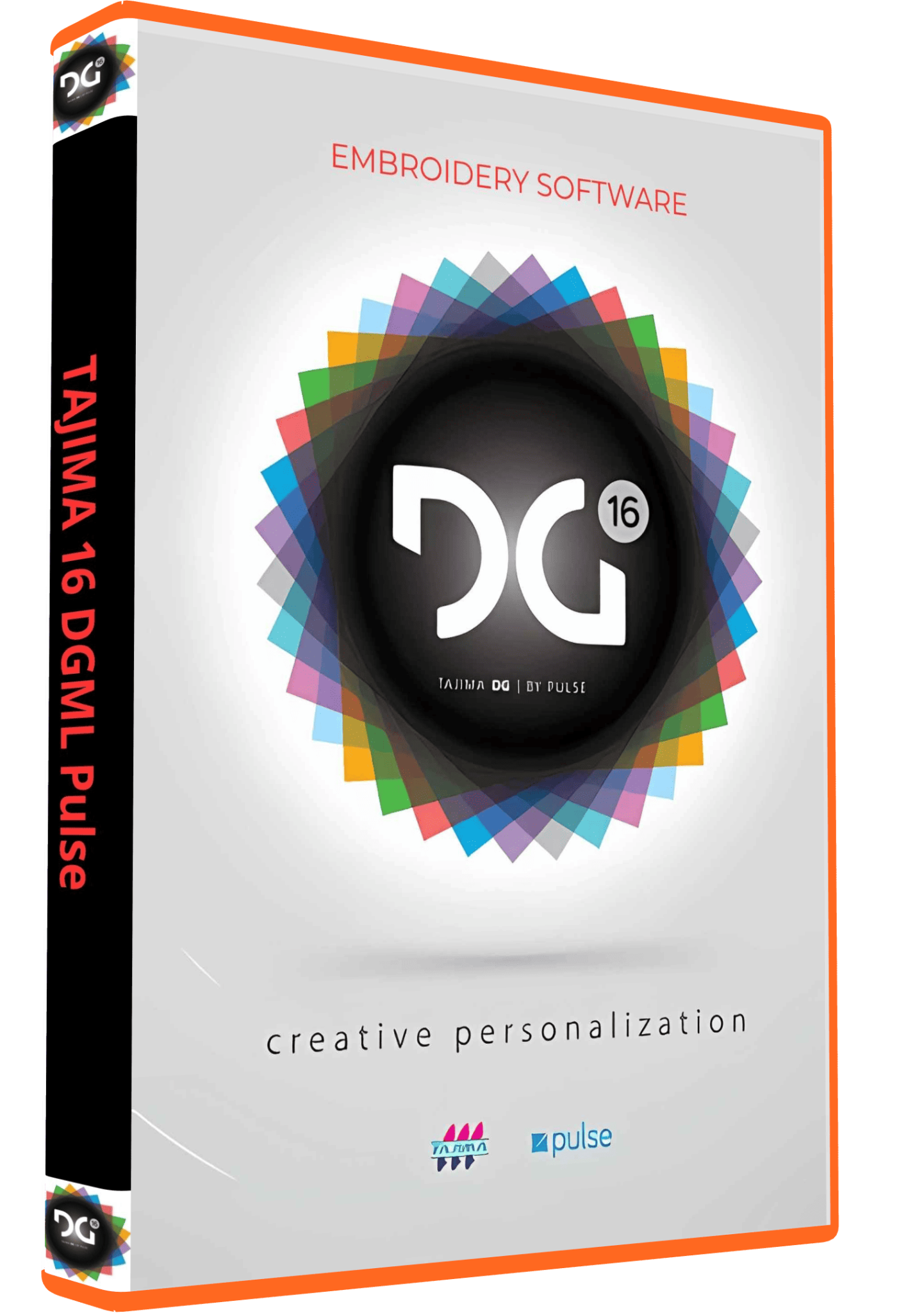
Tajima DGML 16 Pulse Embroidery Software Full Version Lifetime – Instant Download
Original price was: 99,00 $.89,00 $Current price is: 89,00 $.
Tajima DG16 by Pulse embroidery software for digitizing, lettering and design editing. Confirm the supplied DG16 level and build for the tools your workflow requires.
- One-time payment with lifetime activation as listed.
- Digital download and installation guidance.
- Remote setup support available.
- Confirm 64-bit Windows compatibility, activation requirements and machine output before ordering.
Tajima DG16 by Pulse: embroidery digitizing and lettering
Tajima DG16 by Pulse is embroidery software for preparing and editing designs for machine stitching. This listing concerns version 16, also searched for as Tajima DGML 16 or DG/ML 16. When comparing offers, check the version and software level together: a page describing DG15 or DG17 does not establish what is available in DG16.
Needlic’s listed offer includes a one-time payment, lifetime activation, digital download after payment and installation guidance, with remote setup support available. Before ordering, confirm the exact DG16 level and build supplied, the activation requirements and the number of computers covered. A lifetime activation offer should not be read as a promise of free upgrades to later major versions.
Which DG16 level do you need?
Pulse lists five DG16 levels: Composer, Creator, Illustrator Extreme, Artist Plus and Maestro. Composer focuses on lettering and outline personalization, while the higher levels add different digitizing capabilities. Maestro is the top level in that range. The version number alone does not identify the level supplied with an order.
The official DG16 overview describes a ribbon interface, personalization tools and editing of stitch segments. Some specialized tools depend on the level: for example, Font Creator is identified with Maestro. Treat those as features of the product family, not as confirmation that every feature or optional component is included in this Needlic package.
- Adding names to existing designs: explain whether you need simple lettering, curved text or frequent changes to customer names.
- Digitizing original artwork: identify the drawing and stitch-creation tools your projects require, then confirm that the supplied level includes them.
- Production editing: describe the adjustments you expect to make, such as stitch sequence, travel paths or design size.
- Specialty work: ask specifically about any required font creation, sequin or other specialist tool rather than relying on the phrase “full version.”
A practical workflow for a small business logo
Start with the intended embroidered size, garment material and hoop, not just the artwork. A logo that looks clear on a large monitor can contain lettering or gaps that are too small to sew cleanly at chest-logo size.
- Prepare the reference: use clean artwork and identify which small details can be simplified. Check that you have permission to reproduce the design.
- Plan the stitching: divide the design into workable areas and consider the order in which they will sew. Avoid unnecessary travel between distant areas.
- Build and review the design: use tools available in your confirmed software level. Check stitch direction, overlapping areas and the relationship between outlines and fills.
- Prepare the machine output: select a format supported by your specific machine and verify the finished dimensions against its sewing field.
- Sew a sample: use the intended fabric, stabilizer and thread. Inspect registration, puckering and small text before running a customer batch.
Keep an editable project copy as well as the machine-ready output. An exported stitch file may not preserve the same editing structure as the original project. Reopen the output and check it before transfer; successful export alone does not prove that a design will stitch well.
Windows compatibility and installation checks
Tajima Europe’s compatibility FAQ explicitly lists Windows 10 and Windows 11 in its DG16 compatibility information and specifies a 64-bit operating system. Confirm your exact Windows release and the supplied DG16 build before purchase. This listing does not promise native macOS installation.
For a useful compatibility check, send Needlic your Windows version, processor, installed RAM, available disk space, machine model and the work you plan to do. If your workflow depends on another graphics application or a machine-network connection, include its exact version or model as well. Compatibility with a related product or another DG generation is not sufficient evidence.
- Back up existing designs, fonts and production settings before installing or replacing software.
- Confirm the installer version, activation procedure and any required hardware before arranging remote support.
- Keep access to your current production setup until a sample project opens, exports and stitches successfully.
- Review the scope of remote installation help separately from digitizing lessons or ongoing machine support.
Files and machine compatibility: what to verify
Give support the exact machine model and a representative file before ordering. Ask whether the supplied build can read the input file and write the output format your machine requires. Also check hoop limits, color-change instructions and how the design will be transferred. A statement that software supports a machine brand is less useful than confirmation of your actual model and workflow.
If you exchange editable designs with another workshop, confirm the project version they use. For production handoff, include dimensions, thread-color information and a reference image so the operator can compare the loaded file with the intended result.
Frequently asked questions
Is this DG16 or the latest DG version?
This page is for DG16. Do not assume that features, operating requirements or upgrade terms advertised for a newer DG generation apply to this listing.
Does DG16 mean Maestro?
No. DG16 identifies the software generation. Maestro is one of its levels. Confirm the level supplied by Needlic before buying for a particular advanced tool.
Can a JPG be sent straight to an embroidery machine?
A normal image is not a machine stitch program. Artwork must be interpreted as embroidery, with suitable stitching choices and a tested machine output. A clean image helps preparation, but it does not replace a sew-out.
Will this work with my embroidery machine?
That depends on the machine, required file format and your workflow. Provide the model and a sample file for a compatibility check rather than assuming universal support.
Is installation help available?
Needlic offers installation guidance and remote setup support for this listing. Confirm your computer details and the activation requirements before scheduling assistance.
Compare embroidery software by task
Browse our embroidery software guide to compare editing, lettering and digitizing needs. You can also review Hatch Embroidery 2 and Embird 2017. Compare the supplied edition and modules, not just a feature list for the wider software family.
Manufacturer references: Pulse DG16 overview and levels; Tajima Europe compatibility FAQ, including DG16 information.
2 reviews for Tajima DGML 16 Pulse Embroidery Software Full Version Lifetime – Instant Download
Only logged in customers who have purchased this product may leave a review.
Related products
Embroidery Software
DesignShop V9 Professional Embroidery Software Full Version Lifetime – Instant Download
Embroidery Software
Hatch Embroidery 2 Professional Digitizing Software – 1 Key per PC Lifetime License
Embroidery Software
Melco DesignShop 11.3 Pro Embroidery Software Full Version Lifetime – Instant Download
Embroidery Software
Embroidery Software
PE-Design 11.40 Embroidery Software Full Version Lifetime – Professional Digitizing
Embroidery Software
Embroidery Software
Bravo Amaya OS 12.06.42 Full Version Lifetime – Embroidery Machine Software
Embroidery Software
Lora –
Everything works and I am very happy about it. It is an excellent and creative programme
olivier –
Good product good seller