
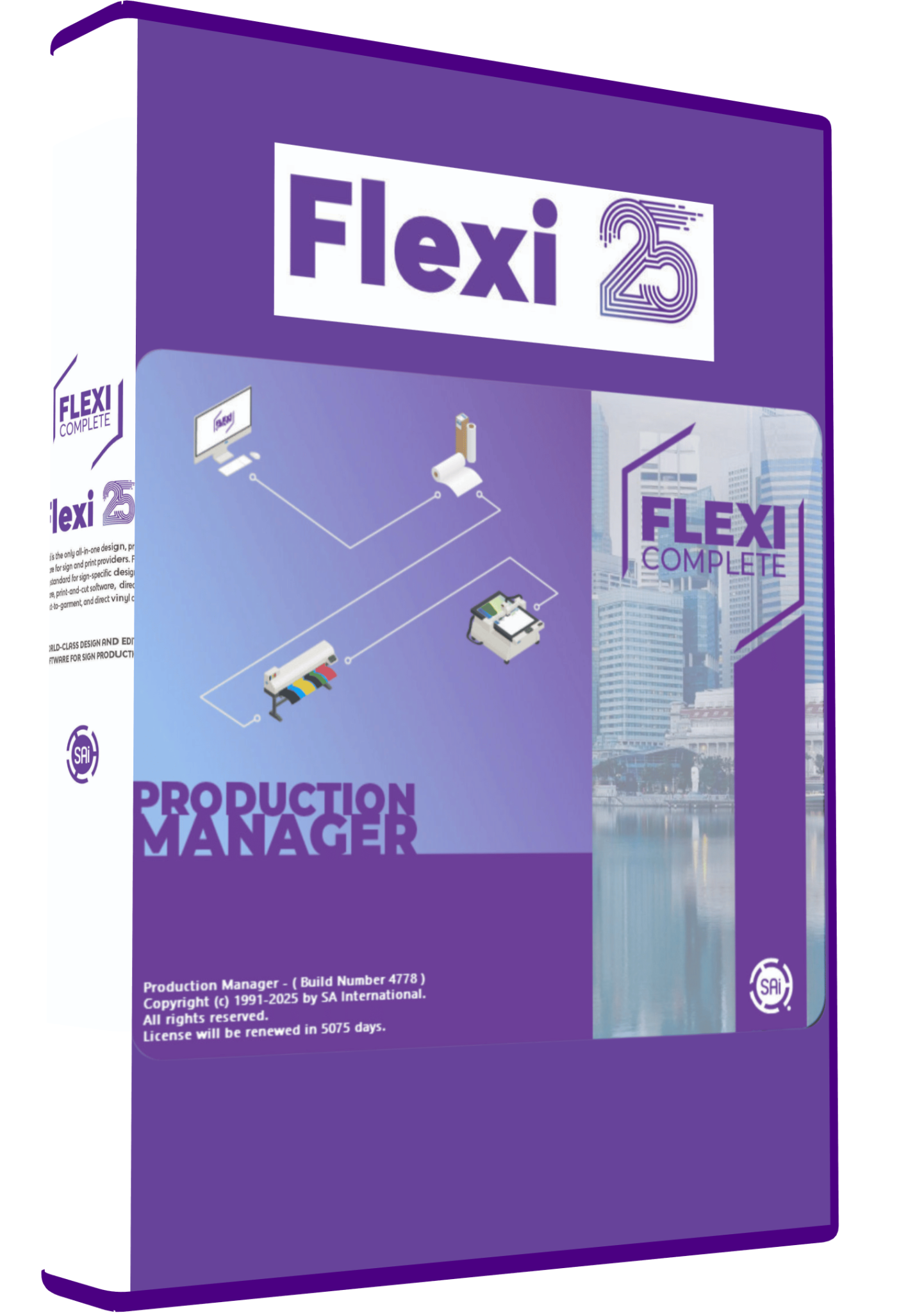


Flexi 25 for sign design and vinyl production
Flexi 25 is offered here for sign-design, vinyl-cutting and print-production workflows. Typical projects include shop lettering, decals, labels and printed signage. Choosing the software starts with the work you need to output: creating artwork, cutting coloured vinyl and managing printed graphics involve different production requirements.
Needlic provides digital download access after purchase, step-by-step installation guidance and remote setup assistance when needed. Before ordering, confirm the supplied Flexi edition and build, together with your cutter or printer model. The number “25” alone does not establish which modules, device drivers or licence terms are included.
Understand the edition before comparing features
SAi publishes separate feature comparisons and build-specific release notes. Its Flexi Complete documentation covers both design tools and Production Manager, including changes to PDF export, contour previews, nesting and finishing tools. These are references for the Flexi product family, not a guarantee that every feature in the newest release is present in this listing.
When comparing an offer, ask for the full product name and installed build. Also check whether the package includes the production functions you need, how many output devices it permits and what its update entitlement covers. Do not assume a description of a current Flexi Complete subscription applies to a differently supplied package.
Choose a workflow around your equipment
Cut-vinyl lettering and decals
Prepare artwork at its finished dimensions, inspect the outlines and separate the colours needed for the job. Check fine lettering and enclosed shapes before output. A short test containing the smallest detail helps establish whether the blade, material and selected settings can produce a result that is practical to weed.
Printed stickers and contour cutting
A printed image and a cut path are separate parts of the job. Keep their scale and position consistent, use the registration method required by your cutter and inspect one completed sample before duplicating the design. If the workflow includes lamination, test alignment after lamination as well.
Large-format printing and RIP production
For printing, verify the exact printer driver, ink configuration and media profile available in the supplied package. A supported brand name is not enough to establish compatibility with every model or modified printer. Review the output size and colour setup before sending a production run.
DTF projects
If DTF is your intended use, confirm the specific edition and printer configuration first. Ask about the required white-ink workflow and supported output settings. A general sign-design description does not establish that a particular converted printer or DTF setup is supported.
Preparing artwork for reliable output
- Keep an editable original. Save the source project before making output-specific changes.
- Check dimensions. Compare the imported artwork against the requested finished size.
- Inspect text and images. Check for substituted fonts, missing linked artwork and low-quality raster images.
- Review cutting paths. Remove unintended duplicate contours and check that the selected paths match the job.
- Approve a sample. Record the successful setup before producing repeated copies.
When exchanging artwork with another application, verify the supported format and export settings for the installed build. Test a representative file containing the effects you actually use. A file that opens successfully still needs inspection for text, transparency, scale and contour behaviour.
Compatibility and installation support
Send Needlic your operating-system version, exact device model and connection type before purchase. Confirm the computer requirements for the supplied installer rather than relying on a requirements list for a different Flexi release. If you already run production software, back up your artwork and record your device settings before changing the setup.
Installation assistance helps configure the software. Physical blade adjustment, material handling and printer calibration still require testing on your equipment. Keep passwords and activation details private during support sessions.
Frequently asked questions
Is Flexi 25 the same as every Flexi Complete offer?
Do not assume that from the version label. Compare the exact edition, build, included modules and licence terms before purchase.
Will it work with my cutter or printer?
Compatibility needs to be checked against the exact model and intended workflow. Ordinary cutting, automatic registration and RIP printing are separate requirements.
Can a JPG logo be sent directly as a cut path?
A JPG is a raster image. Cutting normally requires usable vector paths, which may need tracing and manual cleanup. Inspect the result at its final size before using material.
Is installation assistance included?
Yes. This listing includes installation guidance, with remote setup assistance available if needed. Confirm the support arrangement for your computer and equipment before ordering.
Compare related cutting software
Explore VinylMaster XPT 5 for another design, cutting and RIP workflow, or SignCut Pro 2 for dedicated cutting output. The vinyl cutting software guide helps organise the alternatives by production needs.
Publisher references: SAi feature comparison and build-specific Flexi Complete features.
Only logged in customers who have purchased this product may leave a review.
Related products
Vinyl Cutting Software
SignMaster V3.5 PRO Vinyl Cutting Software – Lifetime Activation & Installation
Reviews
There are no reviews yet.