
eCut v7.4.12.57 for CorelDRAW 2026 – CNC & Cutting Plugin


35,00 $
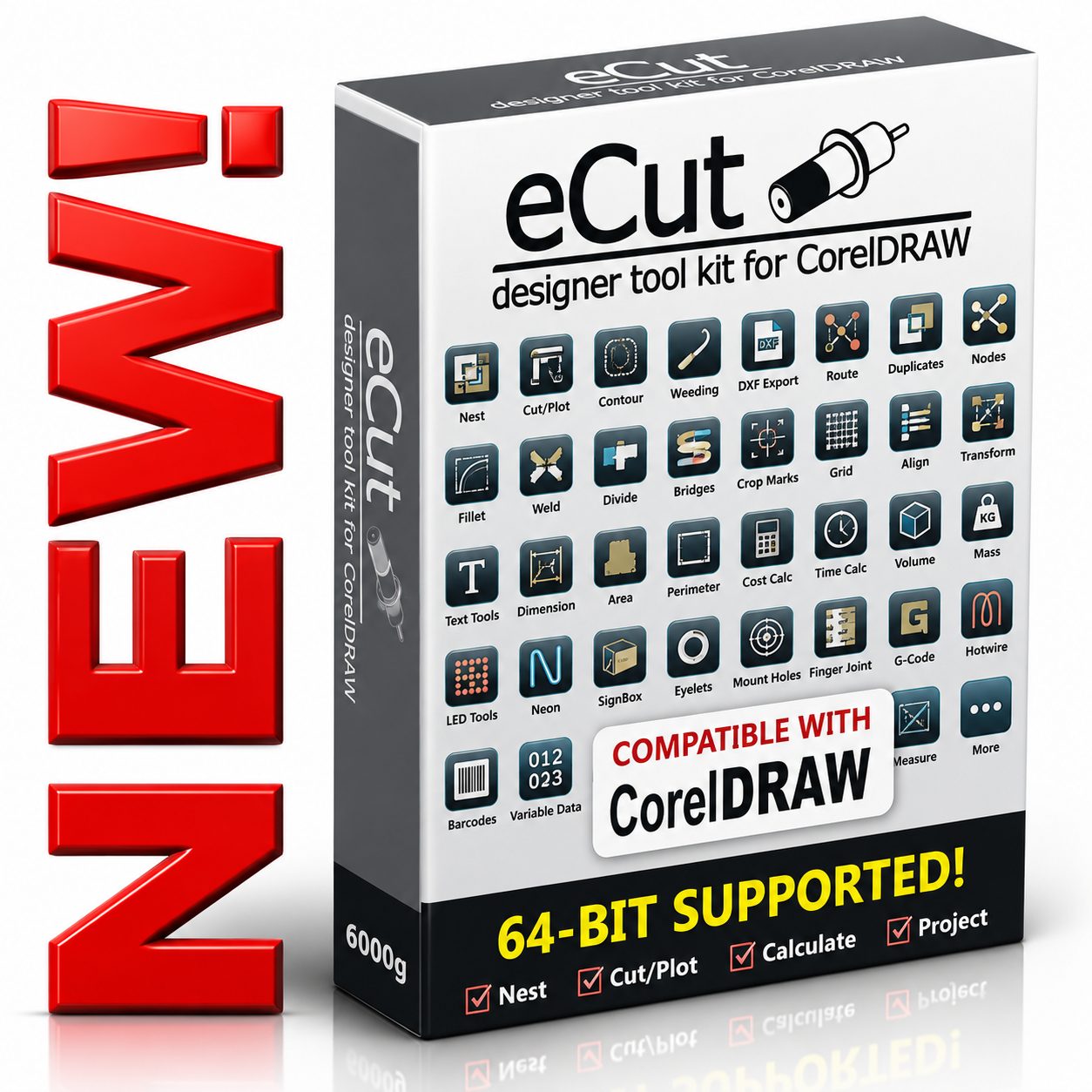
eCut v7.4.12.57 for CorelDRAW 2026 is a professional production plugin for vinyl cutting, CNC routing, laser cutting, sign making, nesting, contour cutting, DXF export, G-code generation, route optimization, LED and neon layouts, cost calculation, and more. Requires a compatible full version of CorelDRAW on Windows. Digital delivery with installation and activation assistance from Needlic.
In stock Digital product
- Digital DeliveryBy email after processing
- Secure CheckoutProtected payment
- Installation AssistanceSetup guidance included
Delivery & Activation
From checkout to installation
-
1
Place your order
Complete checkout securely with your preferred payment method.
-
2
Receive your product
Once your order is processed, your product details are sent to the email address used at checkout.
-
3
License & activation
Any license or activation information included with this product is delivered together with your order.
-
4
Install with support
Follow the included installation instructions. If you get stuck, our team provides installation assistance.
eCut v7.4.12.57 for CorelDRAW 2026 – Professional CNC, Laser and Vinyl Cutting Plugin
eCut v7.4.12.57 for CorelDRAW 2026 is a professional production plugin designed to extend CorelDRAW with advanced tools for vinyl cutting, CNC routing, laser cutting, sign making, light-box design, channel letters, material nesting, DXF export, contour cutting, cost calculation, and production automation.
Instead of preparing every production file manually, eCut adds a large collection of specialized tools directly inside the CorelDRAW workspace. These tools help designers and machine operators arrange objects on material sheets, calculate measurements, remove duplicated cutting lines, optimize machine routes, create crop marks, prepare contour-cutting files, build finger-joint boxes, generate G-code for selected 2D paths, and complete many repetitive production tasks more efficiently.
The plugin is suitable for sign makers, vinyl plotter operators, CNC workshops, laser-cutting businesses, acrylic fabricators, woodworking companies, LED and neon sign manufacturers, composite-panel fabricators, advertising agencies, and professional designers who use CorelDRAW for production work.
Version 7.4.12.57 adds support for CorelDRAW 2026 and includes an improvement to the Nesting function. Exact compatibility still depends on the installed CorelDRAW edition, Windows configuration, system architecture, and availability of the required CorelDRAW components.
What Is eCut for CorelDRAW?
eCut is a specialized add-on that works inside CorelDRAW. It is intended to simplify the preparation of vector artwork for cutting, routing, engraving, sign manufacturing, and other production processes.
CorelDRAW remains the main design environment, while eCut adds industry-focused commands that are not normally included in a standard graphic-design workflow.
The plugin can assist with tasks such as:
- Preparing files for vinyl plotters
- Creating contour-cutting workflows
- Arranging shapes efficiently on sheets
- Exporting curves to DXF
- Calculating perimeter, area, cost, time, volume, and mass
- Removing duplicated cutting edges
- Optimizing CNC, laser, and cutter tool paths
- Creating crop marks and weeding lines
- Building composite sign boxes
- Designing LED and neon signs
- Creating finger-joint boxes and parts
- Generating basic G-code for selected 2D paths
- Preparing hot-wire cutting paths
- Automating variable-data production
Why Choose eCut v7.4.12.57?
Production artwork often requires many repetitive operations before it can be sent to a cutter, CNC router, laser machine, or plotter.
Designers may need to calculate material use, separate curves, remove overlapping edges, organize shapes on a sheet, create registration marks, define bridges, simplify nodes, export DXF files, and determine the correct cutting order.
Performing these steps manually can take significant time and may increase the risk of errors. eCut brings these tools into one integrated CorelDRAW workflow.
- Works directly inside CorelDRAW
- Official support for CorelDRAW 2026 in version 7.4.12.57
- Compatible with full CorelDRAW versions starting from X3
- True-shape nesting for complex vector objects
- Dedicated tools for CNC, laser, and vinyl cutting
- Contour-cutting and plotter-output functions
- DXF export using arcs and polylines
- Route optimization for production machines
- Duplicate-line and duplicate-edge detection
- Cost, perimeter, area, time, volume, and mass calculations
- Tools for illuminated signs, neon, and LEDs
- Finger-joint construction tools
- G-code generation for selected 2D paths
- Variable-data and numbered-object workflows
- Production automation without leaving CorelDRAW
Main Features of eCut v7.4.12.57
True Shape Nesting
Nesting is one of the main functions of eCut. It automatically arranges selected objects on a defined sheet to reduce unused material and prepare layouts for CNC machines, laser cutters, or plotter cutters.
Unlike simple rectangular placement, true-shape nesting considers the actual outline of vector objects. This allows irregular shapes to be arranged more efficiently.
The Nesting workspace allows the operator to preview the result before applying it to the CorelDRAW document. Parameters can be changed and the nesting process can be repeated until a suitable layout is achieved.
Available nesting controls include:
- Sheet width and height
- Use of the active CorelDRAW page as the sheet
- Left, right, top, and bottom sheet reductions
- Edge padding
- Minimum distance between shapes
- Placement of small objects inside larger shapes
- Search for the best result
- Division by object color or layer
- Shape approximation quality
- Rotation restrictions
- Nesting origin point
- Bounding-box creation
- Block ordering
- Distance between blocks
- Multiple container support
- Pre-positioned objects that remain fixed during nesting
For reliable results, the selected vector shapes should be clean and free from self-intersections.
Rectangle Nesting
Rectangle Nesting is an additional layout function for arranging rectangular objects or objects that can be treated through their bounding boxes.
It can also be useful when the artwork contains images or shapes that do not require true-outline nesting.
This function may allow the minimum spacing between arranged objects to be set to zero, making it suitable for selected panel, label, tile, and rectangular-product workflows.
Multiply
The Multiply function creates multiple copies of selected objects and arranges them according to the specified parameters.
It can be used to fill a defined area with one or more repeated objects and is useful for:
- Labels
- Stickers
- Small signs
- Repeated logos
- Product tags
- Engraved plates
- Vinyl graphics
- Laser-cut components
Cut and Plot
The Cut/Plot function is designed for sending vector paths to compatible plotter and cutting workflows.
According to the available device and configuration, output may be sent through a Windows system driver or through a supported communication workflow.
The function includes algorithms intended to improve plotted curves and support cleaner cutting and easier weeding.
Exact device communication depends on the plotter, driver, connection, Windows configuration, and supported eCut workflow.
Contour Cutting
eCut includes tools for preparing and processing contour-cutting jobs.
Contour cutting is commonly used when printed artwork must be cut around its outline, including:
- Printed stickers
- Labels
- Heat-transfer graphics
- Vehicle decals
- Printed vinyl graphics
- Promotional products
The workflow can include the preparation of the cutting contour and the required marks or production file for a compatible cutter.
Actual contour-reading capability depends on the cutter, optical sensor, driver, registration system, and configured workflow.
Contour Cutting File
The Contour Cutting File tool helps prepare artwork for print-and-cut production.
It may be used to separate or organize printing and cutting information so the correct production data can be sent to the printer and cutter.
Operators should verify the final size, orientation, crop marks, contour line, and registration method before starting production.
Weeding Lines
Weeding lines divide large vinyl areas into smaller sections, making excess vinyl easier to remove after cutting.
This is especially useful for:
- Large text
- Window lettering
- Vehicle graphics
- Wall graphics
- Long vinyl signs
- Complex logos
Appropriate weeding-line placement can reduce the risk of lifting or damaging the required vinyl elements.
Separate Curve
The Separate Curve function helps divide complex curve structures into separate objects.
This can be useful when imported artwork contains many combined paths that must be processed individually for cutting, routing, engraving, or editing.
Slice Object
The Slice Object tool divides selected shapes according to the chosen cutting or separation method.
It can assist with panel creation, segmentation, machine-size limitations, and preparation of large artwork.
Find Intersections
This tool identifies areas where vector paths intersect.
Finding intersections is useful before CNC routing, laser cutting, vinyl cutting, or welding operations because unintended intersections may cause incorrect tool movement or damaged output.
Find Duplicates
The Find Duplicates function searches for duplicated objects or paths in the CorelDRAW document.
Duplicate vectors may cause:
- Double cutting
- Repeated laser passes
- Excessive engraving
- Material burning
- Longer production time
- Premature blade or tool wear
Remove Duplicated Edges
This function is useful when two adjacent shapes share the same cutting edge.
Instead of cutting the shared line twice, the tool can help remove duplicated geometry so that the common edge is processed once.
This is useful for panel layouts, tiles, signs, boxes, letters, and tightly arranged parts.
Search Shapes
The Search Shapes function helps locate objects according to selected geometric or document properties.
This can simplify large production documents containing many pages, objects, curves, colors, or repeated components.
Reduce Nodes
Imported or automatically traced artwork may contain excessive vector nodes.
Too many nodes can result in:
- Slow editing
- Large file sizes
- Irregular machine motion
- Longer cutting time
- Uneven curves
The Reduce Nodes tool simplifies vector paths while attempting to preserve the required shape.
Always inspect the simplified result before production, especially for logos, mechanical parts, and precision components.
Connect Opened Paths
Open vector paths can cause problems during cutting, routing, filling, contour creation, or DXF export.
The Connect Opened Paths function assists in joining suitable open endpoints and preparing cleaner production curves.
Smart Divide
Smart Divide helps break complex artwork into separate usable shapes.
It is particularly useful for:
- Separating words into individual letters
- Preparing signs for CNC cutting
- Dividing combined curves
- Separating overlapping objects
- Preparing individual production parts
Fillet
The Fillet function creates rounded corners according to the selected method and radius.
This is useful for CNC routing, laser cutting, panel production, furniture components, mechanical pieces, and signs that require controlled corner geometry.
Central Line
The Central Line tool creates a center path through suitable shapes using eCut’s built-in algorithm.
Centerline paths can be useful for:
- Single-line engraving
- Routing
- Plotter drawing
- Neon paths
- Wire bending
- Decorative line work
Create Bridges
Bridges are small connections that keep internal or separated parts attached to the main material during cutting.
They are frequently used for:
- Stencil production
- Laser-cut letters
- CNC-routed parts
- Templates
- Signs with internal islands
The bridge size and position should be chosen according to the material, tool diameter, artwork size, and required finishing process.
Route Optimizer
The Route Optimizer is designed to improve the processing order of vector paths for CNC machines, laser cutters, and plotter cutters.
A poorly ordered file may cause the machine head to travel unnecessarily across the material. Route optimization can reduce non-cutting movement and organize the path sequence more efficiently.
This may help reduce production time and unnecessary machine movement.
The official documentation notes that the function uses a greedy algorithm. Operators should still inspect the final route and confirm that it is suitable for the material and machine workflow.
DXF Export
eCut includes a dedicated DXF export function for transferring selected CorelDRAW curves to compatible CAD, CAM, CNC, and cutting applications.
The exporter can represent suitable curves using arcs and polylines, helping preserve production geometry more effectively than some basic export workflows.
DXF files may be used with:
- CNC router software
- Laser-control software
- CAD programs
- CAM applications
- Plasma-cutting software
- Waterjet workflows
- Other compatible manufacturing systems
Always verify the exported units, scale, curve direction, layer structure, arc conversion, and machine-software compatibility before production.
G-Code Generator
eCut includes a basic G-code generator for selected paths.
This function is intended for selected 2D cutting tasks and can generate machine-control commands from suitable vector paths.
Before sending generated code to any machine, the operator must review:
- Units
- Origin position
- Cutting order
- Feed rate
- Tool movement
- Safe height
- Machine limits
- Controller compatibility
Always simulate or test the G-code using safe material and appropriate machine precautions.
Hotwire Cutting
The Hotwire Cutting function prepares suitable paths for hot-wire cutting equipment.
Hot-wire systems are commonly used with foam and similar materials for:
- Large letters
- Architectural shapes
- Decorative elements
- Packaging components
- Display structures
- Prototypes
Create SignBox
The Create SignBox function helps produce construction patterns for boxes and trays made from composite material.
It can be used for sign cabinets, light boxes, facade panels, aluminum composite material, and similar sheet-fabrication projects.
The operator can prepare folds, edges, and construction geometry according to the chosen box method.
Material thickness, bending radius, groove type, machine process, and assembly method must be considered before production.
Edge Roll
The Edge Roll tool generates side-wall or edge-development geometry for volumetric letters and similar sign-production applications.
It can also mark relevant control points, turns, and production references according to the selected method.
This is useful for preparing channel-letter returns and other dimensional-sign components.
LED Tools
eCut includes tools for arranging LED modules inside suitable sign shapes.
LED layout can assist with estimating module quantities and preparing illuminated-sign production.
Final LED spacing should also consider:
- Sign depth
- Face material
- LED beam angle
- Module power
- Required brightness
- Power-supply capacity
- Manufacturer recommendations
Neon Tools
The Neon function assists with the preparation of paths for neon-style signage.
It may be used for traditional neon planning or selected flexible LED-neon production workflows.
The final path must account for bending limits, connection points, minimum radius, mounting method, and the selected neon material.
Liquid Acrylic Calculator
The Liquid Acrylic function calculates the approximate quantity of material required for selected liquid-acrylic sign-production workflows.
This can support planning and cost estimation, but actual consumption may vary according to channel depth, material behavior, waste, mixing, and application technique.
Eyelets
The Eyelets tool places eyelet or grommet positions around selected objects.
It can be used for:
- Banners
- Tarpaulins
- Fabric signs
- Hanging displays
- Printed panels
Eyelets can be positioned along rectangular or more complex shapes according to the chosen arrangement method.
Mounting Holes
Mounting-hole tools help place holes or fixing points on signs, panels, letters, plaques, and manufactured components.
The operator should consider screw size, spacer size, material strength, edge distance, and installation method.
Create Cropmarks
The Create Cropmarks function adds crop or production marks around selected artwork.
Crop marks are useful for:
- Printed graphics
- Manual trimming
- Print-and-cut workflows
- Panel alignment
- Registration
- Finishing processes
Create Carrier or Bounding Box
This tool creates a surrounding box around selected shapes using a specified gap.
Bounding boxes may be useful for vinyl handling, transfer tape, positioning, panel preparation, nesting, or machine-output organization.
Create Lines
The Create Lines function provides a quick method for generating straight production lines using defined parameters.
Create Grid
The Create Grid function creates a regular grid based on the specified cell width, cell height, row count, and column count.
It can be used for:
- Panel layouts
- Labels
- Product templates
- Drilling patterns
- Cutting guides
- Repeated production areas
Align and Distribute
The Align and Distribute tool provides production-focused methods for positioning selected objects relative to each other, the page, or a chosen reference.
Accurate alignment is important for signs, panels, templates, multi-part products, and repeated layouts.
Set Size
The Set Size function adjusts selected objects according to defined maximum or minimum dimensions.
This can speed up preparation when many objects must fit within consistent production limits.
Reference Scale
Reference Scale helps resize artwork according to a known measurement or scaling reference.
This can be useful for imported drawings, scanned plans, photographs, architectural work, and files received without a reliable scale.
Replace
The Replace tool swaps selected objects with a master shape while preserving selected positioning or sizing relationships.
This is useful for:
- Replacing repeated symbols
- Updating logos
- Changing product markers
- Correcting repeated components
- Building variable layouts
CAD Functions
eCut includes practical CAD-oriented tools for editing and preparing technical vector geometry inside CorelDRAW.
These functions are intended to simplify selected operations commonly required before CNC, laser, cutting, or fabrication output.
Perimeter Calculation
The Perimeter tool calculates the total length of selected vector outlines.
This can be useful for estimating:
- Cutting length
- Routing distance
- Laser-processing length
- Neon requirements
- Edge material
- Machine time
- Production cost
Area Calculation
The Area function calculates the area of selected shapes and can process suitable curves with or without overlaps according to the selected workflow.
Area calculations can assist with estimating sheet material, paint, vinyl, acrylic, composite panels, coating, and other production resources.
Cost Calculation
The Cost function helps estimate the price of sheet materials and production services based on configured values.
This can support quick quotations for signs, cut parts, engraving jobs, panels, and other manufactured products.
Final prices should also include labor, setup, machine depreciation, electricity, waste, finishing, delivery, taxes, and profit margin.
Time Calculation
The Time function helps estimate production time based on selected paths and configured processing values.
Actual machine time may vary because of acceleration, corner behavior, tool changes, machine controller settings, and material conditions.
Volume and Mass Calculator
The Volume Calculator estimates the volume and mass of an item produced from sheet material according to its shape, thickness, and configured material properties.
This can help estimate material weight, handling requirements, transport, and production cost.
Variable Data
The Variable function supports production workflows where text, numbers, or other elements change between copies.
Variable-data applications may include:
- Serial numbers
- Asset labels
- Room signs
- Name badges
- Numbered products
- Identification plates
- Personalized graphics
Numbering Objects
Numbering tools can assign sequential values to selected objects or layouts.
This is useful for manufacturing, inventory, seat numbers, equipment labels, doors, lockers, rooms, and product identification.
Finger Joint Box
The Finger Joint Box tool creates a basic box layout with interlocking joints for laser-cutting and similar manufacturing workflows.
It can assist in creating:
- Plywood boxes
- Acrylic boxes
- Storage containers
- Display products
- Prototype packaging
- Decorative objects
The joint size must be tested according to the material thickness, laser kerf, tool diameter, fit tolerance, and assembly method.
Finger Joint Shape
The Finger Joint Shape function creates interlocking edge geometry for suitable custom shapes.
This is useful when manufacturing enclosures or three-dimensional assemblies that are not simple rectangular boxes.
Finger Joint Change Size
This tool helps modify the dimensions of existing finger-joint designs while retaining suitable joint relationships.
The final design should always be checked for material thickness and machine kerf before cutting.
Door Panels
The Door Panels function assists with selected panel-construction workflows for furniture, cabinet, decorative, or routed-door production.
The exact result depends on the selected geometry and manufacturing method.
Scripts
The Scripts function can create parameter-based shapes for selected production tasks.
This helps automate repeated geometry and custom manufacturing patterns.
Effects
eCut includes vector effects intended to simplify selected design and production operations.
Effects should be reviewed and converted into clean production geometry before machine output.
Draft
The Draft function helps create a simplified production preview or drawing containing selected dimensions, shapes, or job information.
This may be useful for customer approval, workshop instructions, technical documentation, or production references.
Applications of eCut v7.4.12.57
Vinyl Cutting
eCut helps vinyl businesses prepare text, logos, signs, vehicle graphics, window lettering, wall graphics, and heat-transfer vinyl.
Useful tools include Cut/Plot, weeding lines, contour preparation, crop marks, route optimization, duplicate removal, and nesting.
CNC Routing
CNC operators can use eCut to clean curves, create bridges, divide shapes, round corners, optimize routes, export DXF files, and prepare selected G-code workflows.
Laser Cutting and Engraving
Laser businesses can prepare finger-joint boxes, decorative panels, acrylic products, wooden items, templates, labels, and production parts.
Sign Making
Sign makers can use eCut for light boxes, channel letters, LED signs, neon layouts, composite sign boxes, eyelets, mounting holes, and material calculation.
Acrylic Fabrication
The plugin can help prepare acrylic letters, displays, signs, boxes, promotional products, and custom fabricated parts.
Woodworking and Furniture
Woodworking businesses can use eCut for routed panels, decorative parts, finger-joint products, templates, door panels, and material layouts.
Composite Panel Fabrication
Create SignBox and related tools can assist with the preparation of aluminum composite trays, sign boxes, facade elements, and folded panels.
LED and Neon Sign Production
Dedicated LED and neon tools can help prepare module layouts and paths for illuminated-sign production.
Supported CorelDRAW Versions
The official eCut website states that the plugin works with full versions of CorelDRAW starting from X3. Version 7.4.12.57 specifically adds CorelDRAW 2026 support.
- CorelDRAW Graphics Suite X3
- CorelDRAW Graphics Suite X4
- CorelDRAW Graphics Suite X5
- CorelDRAW Graphics Suite X6
- CorelDRAW Graphics Suite X7
- CorelDRAW Graphics Suite X8
- CorelDRAW Graphics Suite 2017
- CorelDRAW Graphics Suite 2018
- CorelDRAW Graphics Suite 2019
- CorelDRAW Graphics Suite 2020
- CorelDRAW Graphics Suite 2021
- CorelDRAW Graphics Suite 2022
- CorelDRAW Graphics Suite 2023
- CorelDRAW Graphics Suite 2024
- CorelDRAW Graphics Suite 2025
- CorelDRAW Graphics Suite 2026
A full compatible CorelDRAW installation is required. CorelDRAW subscription restrictions, educational editions, special editions, missing VBA components, and modified installations may affect plugin operation.
System Requirements
According to the official developer, eCut supports Windows systems only, and its hardware requirements generally follow the requirements of the installed CorelDRAW version.
Recommended Configuration
- Compatible Microsoft Windows operating system
- Full supported version of CorelDRAW
- CorelDRAW VBA or required macro components installed
- Modern Intel or AMD processor
- At least 8 GB RAM recommended for current CorelDRAW versions
- SSD storage recommended
- Display resolution of at least 1400 × 900
- Administrator privileges for installation
- Stable internet connection for download, activation, and support
The official system-requirements page specifies Windows-only operation and a recommended screen resolution of 1400 × 900.
Installation Requirements
- Install a compatible full version of CorelDRAW first.
- Confirm that CorelDRAW opens and operates correctly.
- Close CorelDRAW before installing the plugin.
- Run the supplied installer with the required permissions.
- Import or enable the eCut toolbar if it does not appear automatically.
- Confirm that the required macro or VBA components are enabled.
- Restart CorelDRAW after installation.
Manual toolbar installation may be required when the installer cannot detect the CorelDRAW workspace automatically.
License Information
The official eCut license is intended for use on one computer per purchased license.
The developer states that activation data is connected to the system drive. Formatting or replacing that drive may require reactivation.
License conditions, reactivation availability, machine transfers, and update rights depend on the license supplied with the purchase.
Review the exact Needlic offer and included activation conditions before ordering.
What You Will Receive from Needlic
- Digital Download: Receive the supplied installation files electronically.
- Installation Instructions: Follow the included installation guidance.
- Activation Assistance: Receive assistance with the supplied activation procedure.
- Remote Installation Support: Remote help may be available when required.
- Fast Delivery: No physical shipping or delivery delays.
- Compatibility Review: CorelDRAW and Windows compatibility can be reviewed before installation.
- Customer Support: Contact Needlic for common installation and setup questions.
Why Buy eCut from Needlic?
Needlic provides specialized software for sign making, CNC production, vinyl cutting, laser workflows, embroidery, printing, graphic design, and professional manufacturing.
Plugins require the correct host application, supported operating system, installation permissions, and compatible software build. Our goal is to provide clear product information, fast digital delivery, and practical setup assistance.
- Fast digital delivery
- Professional installation guidance
- Remote assistance when available
- CorelDRAW compatibility review
- Clear product information
- No physical shipment required
- Customer-focused support
- Experience with design and production software
- Support for international customers
Important Information Before Purchase
- This product is delivered digitally.
- No physical package will be shipped.
- CorelDRAW is not included.
- A compatible full version of CorelDRAW is required.
- Confirm the exact CorelDRAW year and build before ordering.
- Confirm that the required VBA or macro components are installed.
- Only compatible Windows systems are supported.
- Back up important CorelDRAW workspaces, macros, presets, and customer files.
- Create a Windows restore point before changing production software.
- Do not remove an existing working version until compatibility is confirmed.
- Test DXF, contour-cutting, and G-code output before commercial production.
- Verify all dimensions, units, paths, and machine settings before cutting.
- Machine compatibility is not guaranteed solely by installing the plugin.
- Available functions may vary according to the software build and license.
Order eCut v7.4.12.57 for CorelDRAW 2026 Today
Improve your CorelDRAW production workflow with eCut v7.4.12.57. Arrange complex parts using true-shape nesting, prepare vinyl and contour-cutting jobs, remove duplicated edges, optimize cutting routes, calculate material requirements, export DXF files, generate basic G-code, and create professional CNC, laser, and sign-production files directly inside CorelDRAW.
Whether you operate a sign shop, CNC workshop, laser-cutting business, vinyl-production studio, acrylic-fabrication company, woodworking shop, or illuminated-sign business, eCut provides practical tools that can reduce repetitive work and simplify production preparation.
Order from Needlic and receive fast digital delivery, installation guidance, activation assistance, compatibility review, and professional customer support.
FAQ
Frequently Asked Questions
What is eCut v7.4.12.57?
eCut v7.4.12.57 is a professional plugin that adds CNC, laser, vinyl cutting, nesting, measurement, sign-making, DXF, and production tools to CorelDRAW.
Does eCut v7.4.12.57 support CorelDRAW 2026?
Yes. The official update history states that version 7.4.12.57 added support for CorelDRAW 2026.
Is CorelDRAW included?
No. eCut is a plugin and requires a separate compatible full installation of CorelDRAW.
Does eCut work without CorelDRAW?
No. The CorelDRAW version of eCut operates as an add-on inside CorelDRAW.
Can eCut be used for CNC routing?
Yes. It includes tools such as nesting, smart divide, fillet, centerline, bridges, DXF export, G-code generation, and route optimization.
Can it be used with laser machines?
Yes. It can prepare vector files for compatible laser software and includes tools useful for boxes, joints, nesting, duplicate removal, and path optimization.
Does eCut control every CNC or laser machine directly?
No. Device control depends on the machine, controller, driver, communication method, and production software. eCut mainly prepares vector and production data inside CorelDRAW.
Can it export DXF files?
Yes. eCut includes a dedicated DXF export function that can use arcs and polylines for suitable geometry.
Does it generate G-code?
Yes. It includes a basic G-code generator for selected 2D paths. Generated code must be reviewed and tested before machine use.
Does it include true-shape nesting?
Yes. Nesting is one of eCut’s primary functions and can arrange complex shapes on defined sheets.
Can nesting place objects inside other objects?
Yes. The official nesting options include the ability to allow smaller objects inside larger suitable shapes.
Can objects be fixed before nesting?
Yes. Objects can be manually positioned and kept fixed while the remaining objects are nested.
Can it calculate material cost?
Yes. eCut includes perimeter, area, cost, time, volume, and mass calculation tools.
Can it prepare contour-cutting files?
Yes. It includes Cut/Plot and contour-cutting tools. Exact printer and cutter compatibility depends on the equipment and configured workflow.
Can it remove duplicate cutting lines?
Yes. The plugin includes tools for finding duplicates and removing duplicated edges.
Can it optimize the cutting order?
Yes. Route Optimizer can help reduce unnecessary movement for CNC, laser, and cutter workflows.
Can it make finger-joint boxes?
Yes. eCut includes Finger Joint Box, Finger Joint Shape, and related resizing tools.
Can it create LED layouts?
Yes. eCut includes dedicated LED-sign tools for arranging modules inside suitable shapes.
Can it prepare neon signs?
Yes. The Neon tool can assist with preparing suitable paths for neon and selected LED-neon workflows.
Does it work on macOS?
No. The official system-requirements page states that only Windows systems are supported.
Does it work with CorelDRAW Home and Student or special editions?
Compatibility is not guaranteed. The official developer specifies full CorelDRAW versions, and editions without the required VBA or macro support may not work.
Why does the eCut toolbar not appear?
The toolbar may need to be imported manually into the CorelDRAW workspace. The correct plugin files and macro components must also be installed.
Can the same license be used on several computers?
The official standard license is intended for one computer. Multiple computers require the appropriate number of licenses.
Will I receive a physical product?
No. This is a digitally delivered product. No DVD, USB drive, printed manual, or physical package will be shipped.
Does Needlic provide installation assistance?
Yes. Needlic provides installation guidance and may offer remote assistance. Machine configuration, tool selection, cutting settings, material testing, and production safety remain the responsibility of the machine owner or qualified operator.
Used this software? Write a review
Only logged in customers who have purchased this product may leave a review.
Reviews
There are no reviews yet.