
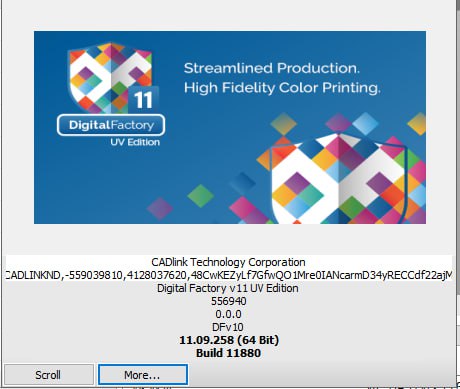
Digital Factory v11 UV Edition – Professional UV RIP Software

35,00 $
Digital Factory v11 UV Edition is professional RIP and print-production software designed for compatible UV flatbed, desktop, hybrid, roll-to-roll, and specialty printers. It provides advanced control over color…
In stock Digital product
- Digital DeliveryBy email after processing
- Secure CheckoutProtected payment
- Installation AssistanceSetup guidance included
Delivery & Activation
From checkout to installation
-
1
Place your order
Complete checkout securely with your preferred payment method.
-
2
Receive your product
Once your order is processed, your product details are sent to the email address used at checkout.
-
3
License & activation
Any license or activation information included with this product is delivered together with your order.
-
4
Install with support
Follow the included installation instructions. If you get stuck, our team provides installation assistance.
Digital Factory v11 UV Edition – Professional UV RIP Software
Digital Factory v11 UV Edition is professional RIP and print-production software designed for compatible UV flatbed, desktop, hybrid, roll-to-roll, and specialty printers. It provides advanced control over color output, white ink, clear varnish, spot channels, layered printing, textures, job positioning, production queues, templates, and ICC color management.
Created for UV printing businesses, promotional-product companies, sign shops, personalized-gift producers, industrial decorators, and commercial print studios, Digital Factory v11 UV Edition helps operators prepare artwork and manage complex UV printing jobs from one organized production environment.
The software processes graphic files before they are sent to the printer. It converts artwork into production-ready color, white ink, clear ink, spot-channel, resolution, layer, and positioning information according to the selected printer and print mode.
Whether you print on acrylic, wood, glass, metal, plastic, leather, promotional products, signage, packaging prototypes, phone cases, plaques, or other suitable substrates, Digital Factory v11 UV Edition provides professional tools for accurate, repeatable, and efficient UV production.
What Is Digital Factory v11 UV Edition?
Digital Factory v11 UV Edition is specialized RIP and workflow software developed for compatible ultraviolet-curing printers.
A RIP processes artwork before printing and converts the design into data that the printer can understand. It controls factors such as color channels, white ink, clear varnish, spot colors, print resolution, layer order, ink limits, output profiles, and artwork position.
Unlike a basic Windows printer driver, Digital Factory provides greater control over the complete UV workflow. It can help operators automate white underbases, add clear finishes, create raised textures, organize multiple print layers, manage reusable queues, and prepare artwork for different materials.
Digital Factory UV is available in different license configurations for smaller desktop devices and larger production environments. Exact capabilities depend on the supplied edition, activated modules, printer driver, and software build.
Why Choose Digital Factory v11 UV Edition?
UV printing often requires more than CMYK color output. Many jobs need a white underbase, clear varnish, primer, texture, several passes, or precise object placement.
Preparing these layers manually can take significant time and may produce inconsistent results between operators. Digital Factory v11 brings these production tasks into one RIP environment and allows reusable workflows to be saved as production queues.
- Professional RIP workflow for compatible UV printers
- Automatic white ink underbase generation
- Clear varnish and spot-channel control
- Multiple print-layer management
- Raised texture and dimensional-print workflows
- Advanced ICC color management
- Reusable printer and media queues
- Color-only, white, clear, and layered print modes
- Artwork positioning and template tools
- Step and Repeat, nesting, and tiling workflows
- Job preview before production
- Support for common raster, vector, and PDF formats
- Hot-folder and production-automation options
- Suitable for desktop and production UV environments
Main Features of Digital Factory v11 UV Edition
Professional UV RIP Processing
Digital Factory processes artwork and converts it into optimized output for a compatible UV printer.
The RIP engine applies the selected printer driver, print mode, resolution, color profile, ink configuration, layer order, and production settings.
This provides more control than a basic printer driver and helps operators maintain repeatable settings across different products, materials, and customer orders.
Automatic White Ink Underbase
White ink is essential when printing color artwork on transparent, dark, metallic, or colored materials.
Without a white underbase, the substrate can affect the appearance of the color layer. Colors may appear weak, transparent, or significantly different from the original design.
Digital Factory v11 UV Edition can automatically generate white ink beneath the required areas of the artwork. The software analyzes the design and transparency, then prepares the white layer according to the selected production queue.
This can reduce the need to create a separate white object manually in CorelDRAW, Adobe Illustrator, or Photoshop.
White Ink Strength and Choke Control
Operators can adjust the strength and behavior of the white underbase according to the substrate and desired result.
A stronger white layer may improve opacity on dark or transparent materials, while a reduced white level may help lower ink use or create a partially transparent effect.
Choke settings can reduce the white layer slightly beneath the color artwork. This helps prevent a visible white edge around the printed design when minor registration differences occur.
Official workflow guidance shows that white strength, choke, separation curves, and output levels can be adjusted in UV production queues. :contentReference[oaicite:1]{index=1}
Clear Varnish Control
Digital Factory UV can manage clear ink or varnish as a separate print layer when supported by the printer.
Clear varnish can be used to:
- Add a glossy finish
- Create selected spot-gloss areas
- Protect printed artwork
- Highlight logos or text
- Create decorative effects
- Build raised or textured surfaces
- Add contrast between matte and glossy areas
The clear layer can be applied across the complete image or limited to selected objects and areas.
Clear ink behavior depends on the printer, curing system, substrate, number of passes, ink level, and selected print mode.
Automatic White and Clear Queues
Digital Factory can use predefined automatic queues that generate a white underbase, color layer, and clear finish according to the selected workflow.
Automatic queues are useful for standard production because operators do not need to prepare every layer manually.
For more specialized jobs, custom queues can be used when white, clear, primer, or spot-layer information is already included in the artwork.
Official Fiery workflow documentation describes Auto White Clear, Custom, Color Only, and Texture queue options for UV output. :contentReference[oaicite:2]{index=2}
Multiple Print Layers
Digital Factory v11 UV Edition can manage jobs containing several production layers.
A typical layered workflow may include:
- Primer or adhesion layer
- White ink underbase
- CMYK color artwork
- White highlight layer
- Clear varnish or protective finish
- Repeated texture layers
The required order depends on whether the artwork is printed directly onto an opaque object, onto transparent material for viewing through the reverse side, or through another specialized process.
Each layer may use different ink levels, resolutions, passes, and production settings depending on the available printer driver.
Day/Night and Backlit Printing
Layered white and color workflows can be used to prepare selected backlit or day/night graphics.
For example, a multi-layer job may combine color, white ink, and an additional color layer so that the artwork remains visible under both reflected and transmitted light.
The exact layer structure must be tested according to the printer, ink density, transparent media, lighting system, and final application.
Raised Texture Printing
Compatible UV printers can build dimensional effects by printing repeated layers of clear or other supported ink channels.
Digital Factory can use texture queues and multi-layer workflows to build raised surfaces, decorative patterns, embossed-style text, Braille-like elements, and tactile graphics.
Texture printing may require multiple passes and a UV curing system capable of curing the increased ink thickness efficiently.
Fiery’s UV workflow guidance notes that multiple channels can be printed to build texture and increase output speed when the UV curing setup is suitable. :contentReference[oaicite:3]{index=3}
Clear Texture and Embossed Effects
Clear varnish can be printed repeatedly over selected parts of a design to create a raised glossy effect.
This can be useful for:
- Raised logos
- Decorative lettering
- Luxury packaging samples
- Premium promotional products
- Textured photographs
- Product prototypes
- Accessibility and tactile applications
The final height and appearance depend on the number of layers, ink type, curing, print resolution, and substrate surface.
Primer and Specialty Ink Channels
Some UV printers include primer, gloss, or other specialty channels.
Primer may improve adhesion on selected materials such as glass, metal, or certain plastics. Digital Factory can manage supported spot channels when the correct printer driver and workflow are available.
The need for primer depends on the ink, substrate, surface treatment, cleaning process, and printer-manufacturer recommendations.
Transparent Media Printing
Printing on transparent acrylic, glass, film, or other clear materials often requires white ink behind the color artwork.
Digital Factory can prepare the required white and color layer order according to the viewing side and production method.
For reverse-side printing, artwork may need to be mirrored and the color and white layers printed in a specific order.
Operators should perform a sample test to confirm orientation, opacity, adhesion, and final viewing appearance.
Advanced Color Management
Digital Factory v11 includes professional color-management tools designed to improve color accuracy, gradients, photographic detail, neutral tones, brand colors, and repeatability.
The RIP converts artwork colors into printable values for the selected printer, ink configuration, substrate, and print mode.
Digital Factory’s current UV product family is built around custom drivers and color profiles for a wide range of UV printers. :contentReference[oaicite:4]{index=4}
ICC Profile Support
ICC profiles describe how a specific printer, ink set, substrate, and print mode reproduce color.
Digital Factory can use compatible ICC profiles to create more predictable output. The selected profile should match the exact printer, ink, material, resolution, and production settings.
Digital Factory also includes tools for creating ICC profiles when the required spectrophotometer and supported workflow are available. Fiery recommends using the correct media, printer, and print mode when building a profile. :contentReference[oaicite:5]{index=5}
Spot Color and Named Color Management
Digital Factory can process spot colors and named colors used in logos, product graphics, packaging, labels, and promotional items.
Operators may adjust selected colors to improve matching with brand requirements or production samples.
Exact matching is limited by the printer’s color gamut, ink configuration, substrate, white underbase, ICC profile, and environmental conditions.
Transparency Processing
UV artwork may contain transparent backgrounds, soft shadows, gradients, semi-transparent pixels, and special effects.
Digital Factory processes transparency while generating color, white, and clear layers.
The Flatten option can reduce color output according to image transparency, while color-boost controls may increase vibrancy in partially transparent areas. :contentReference[oaicite:6]{index=6}
Production Queue Management
Digital Factory organizes print jobs through configurable production queues.
Each queue can contain settings for a specific printer, substrate, resolution, ink configuration, white layer, clear layer, ICC profile, and production method.
UV businesses can create reusable queues for workflows such as:
- Color-only printing
- Color plus white underbase
- White, color, and clear printing
- Transparent acrylic printing
- Reverse-side printing
- Raised texture printing
- Spot varnish production
- Primer-based printing
- Phone-case production
- Promotional-product printing
- High-quality photographic output
- Fast production mode
- Sample and test printing
Reusable queues reduce setup time and help maintain similar production settings across repeat orders.
Job Preview and Raw Data Inspection
Operators can preview jobs before printing to confirm artwork position, size, orientation, transparency, and layer structure.
Digital Factory also allows processed channel data to be inspected. Individual color, white, or clear films can be viewed separately to check the generated output before production.
This is particularly useful for identifying unwanted white ink, missing clear varnish, transparency issues, or incorrect layer coverage.
Artwork Positioning and Templates
UV printing often requires precise placement on physical objects, jigs, fixtures, and repeated product layouts.
Digital Factory includes tools for positioning artwork and preparing reusable templates according to the available print area.
A template can represent the dimensions and positions of items such as:
- Phone cases
- Pens
- Keychains
- USB drives
- Bottles
- Coasters
- Signs
- Name badges
- Promotional products
- Multiple objects placed inside a jig
Reusable templates can reduce positioning time and help improve consistency across repeat orders.
Step and Repeat
Step and Repeat duplicates artwork across the printable area.
This is useful when producing multiple identical products, labels, logos, plaques, or promotional items.
Operators can adjust the number of copies, spacing, orientation, and placement according to the jig or media layout.
Nesting and Layout Optimization
Nesting tools arrange multiple designs within the available print area to reduce unused space.
This can be useful for irregular shapes, mixed customer jobs, small products, sample printing, or batch production.
Effective layout can reduce material waste and improve printer utilization.
Tiling Oversized Artwork
Artwork larger than the available print area can be divided into multiple panels using tiling tools.
Tiling may be useful for large signs, wall graphics, decorative panels, displays, and industrial applications.
Operators should configure panel overlap, alignment, final assembly, and installation requirements before production.
Hot Folder Automation
Hot folders can automate the process of sending artwork into predefined production queues.
A file placed into a configured folder can be imported using predetermined printer, substrate, color, white, clear, and layout settings.
This is useful for online-order workflows, production teams, repeat products, and businesses processing large numbers of files.
Direct RIP Workflow
Digital Factory may support direct RIP workflows from compatible versions of Adobe Illustrator, CorelDRAW, and other design applications.
Artwork can also be exported as a supported PDF, EPS, PNG, TIFF, or other production format and imported into Digital Factory.
Exact integration depends on the installed Digital Factory build, design-software version, plugins, and Windows configuration.
Supported Artwork and File Formats
Digital Factory v11 UV Edition can process common raster, vector, and professional print formats. Exact support may vary according to the software build and file structure.
- EPS
- PNG
- TIFF
- JPG and JPEG
- PSD
- BMP
- Common raster image formats
- Common vector and print-ready formats
Files containing complex transparency, unsupported fonts, linked images, damaged objects, or unusual PDF effects may require correction or flattening before production.
Artwork Preparation Recommendations
- Use high-resolution artwork whenever possible.
- Remove unwanted backgrounds.
- Use transparent files where required.
- Check final physical dimensions carefully.
- Confirm whether the artwork must be mirrored.
- Convert or embed fonts before production.
- Prepare clean spot-color objects when using custom white or clear layers.
- Keep important artwork away from object edges.
- Save an editable master copy before printing.
- Perform a sample print before processing a large order.
Materials and Products You Can Print
With a compatible UV printer, ink, surface preparation, and curing system, Digital Factory v11 UV Edition can be used to prepare artwork for many rigid and flexible products.
- Acrylic sheets
- Wood products
- Glass items
- Metal panels
- Plastic products
- PVC sheets
- Leather and synthetic leather
- Phone cases
- Promotional products
- Keychains
- Pens
- USB drives
- Name badges
- Coasters
- Signs and plaques
- Packaging prototypes
- Decorative panels
- Personalized gifts
- Industrial components
Not every UV ink adheres to every substrate. Some materials may require cleaning, flame treatment, plasma treatment, primer, or another surface-preparation method.
Perfect for Professional UV Printing Businesses
- UV flatbed print shops
- Personalized-gift businesses
- Promotional-product companies
- Sign-making businesses
- Packaging and prototype studios
- Industrial-decoration companies
- Phone-case printing businesses
- Commercial print studios
- Photo-product companies
- Interior-decoration suppliers
- Label and plaque manufacturers
- Small and high-volume production environments
Digital Factory UV Desktop vs UV Production Edition
Digital Factory UV is available in license configurations designed for different printer sizes and production environments.
UV Desktop Edition
The Desktop Edition is generally intended for small- to mid-format UV devices and businesses printing promotional products, small signs, personalized items, and compact rigid media.
UV Production Edition
The Production Edition is intended for larger-format and higher-volume UV workflows. Current Fiery product information highlights white ink, varnish, multi-layer printing, advanced queue management, Step and Repeat, nesting, tiling, direct RIP workflows, and multi-printer support. :contentReference[oaicite:7]{index=7}
The exact printer-size limitations and included devices must be verified against the supplied v11 license. Customers should provide the complete printer manufacturer and model before ordering.
Compatible UV Printers
Digital Factory v11 UV Edition is designed for supported UV printer models through compatible drivers and licenses.
The name “UV Edition” does not automatically guarantee compatibility with every UV printer.
Compatibility depends on:
- Printer manufacturer
- Exact printer model
- Printer width and production class
- Available Digital Factory driver
- Software edition and build
- Activated license modules
- Ink-channel configuration
- White, clear, and primer support
- Printer firmware and controller
- USB, Ethernet, or other connection method
- Windows operating-system compatibility
Please provide the complete UV printer manufacturer and model before ordering.
System Requirements
System requirements may vary according to the Digital Factory v11 build, printer driver, artwork complexity, print size, number of layers, and production volume.
Recommended Windows Configuration
- Compatible 64-bit Windows operating system
- Modern Intel or AMD multi-core processor
- 8 GB RAM minimum
- 16 GB RAM or more recommended
- SSD storage recommended
- Sufficient free storage for RIP and temporary production files
- Compatible USB or network printer connection
- Stable internet connection for download, licensing, and support
- Monitor resolution suitable for professional production software
Large layered files, textures, high-resolution images, oversized panels, and multi-printer production may require additional RAM, a faster processor, and greater SSD capacity.
A dedicated production computer is recommended to reduce interruptions from automatic updates, antivirus scans, and unrelated applications.
What You Will Receive from Needlic
- Digital Download Access: Receive the supplied installation resources electronically.
- Installation Instructions: Follow the provided setup guidance.
- Activation Assistance: Receive help with the supplied activation procedure.
- Remote Installation Support: Remote assistance may be available when required.
- Fast Digital Delivery: No physical shipping or delivery delay.
- Customer Support: Contact Needlic for common installation and setup questions.
- Printer Compatibility Review: Compatibility can be reviewed after receiving the complete printer model.
Why Buy Digital Factory v11 UV Edition from Needlic?
Needlic provides professional software for UV printing, DTF production, DTG printing, signage, embroidery, graphic design, RIP workflows, and CNC manufacturing.
UV production software requires the correct printer driver, ink configuration, color profile, queue, connection method, and Windows environment.
Our objective is to provide clear product information, fast digital delivery, and practical installation assistance.
- Fast digital delivery
- Professional installation guidance
- Remote assistance when available
- UV printer compatibility review
- Clear product information
- No physical shipping required
- Customer-focused support
- Experience with RIP and specialty-printing software
- Support for international customers
Important Information Before Purchase
- This product is delivered digitally.
- No physical package will be shipped.
- Provide the complete UV printer manufacturer and model before ordering.
- Confirm whether the required printer belongs to the Desktop or Production class.
- Confirm that a compatible printer driver is included or available.
- Verify that the Windows computer meets the system requirements.
- Back up existing queues, profiles, templates, and customer artwork.
- Do not remove existing production software until compatibility is confirmed.
- Perform adhesion and curing tests on every new substrate.
- Test white, clear, primer, and texture workflows before commercial production.
- Final output depends on the printer, inks, UV lamps, substrate, surface preparation, profiles, and production settings.
- Available features vary according to the software build, edition, driver, license, and optional modules.
Order Digital Factory v11 UV Edition Today
Upgrade your UV printing workflow with Digital Factory v11 UV Edition. Manage professional color, automate white underbases, control clear varnish, prepare multi-layer jobs, build raised textures, position artwork, create reusable templates, and operate compatible UV printers from one organized RIP environment.
Whether you produce promotional products, acrylic signs, phone cases, personalized gifts, packaging prototypes, industrial graphics, or high-volume UV output, Digital Factory v11 UV Edition provides professional tools for faster and more consistent production.
Order from Needlic and receive fast digital delivery, installation guidance, activation assistance, printer compatibility review, and professional customer support.
FAQ
Frequently Asked Questions
What is Digital Factory v11 UV Edition?
It is professional RIP and production software for compatible UV printers. It manages color output, white ink, clear varnish, textures, print layers, queues, artwork placement, and other UV production tasks.
Does it automatically create a white underbase?
Yes. Automatic white queues can generate white ink beneath compatible artwork according to the selected production settings.
Can it control clear varnish?
Yes, when the printer and driver include a supported clear or varnish ink channel.
Can it create raised texture?
Yes, supported printers can use repeated clear or specialty-ink layers to build raised texture. The result depends on the printer, curing system, ink, number of passes, and substrate.
Can I print on transparent acrylic?
Yes, when using a compatible UV printer and correct white and color-layer workflow. Adhesion and orientation should be tested before production.
Can I use custom white and clear layers?
Yes. Custom queues can process artwork containing predefined white, clear, primer, or spot-channel information when supported by the printer driver.
Does it support ICC profiles?
Yes. Digital Factory supports ICC color-management workflows. Profiles should match the printer, ink, substrate, resolution, and print mode.
Can I inspect the white layer before printing?
Yes. Processed channel data can be viewed separately to inspect white, color, and clear output before production.
Can I position several products on one template?
Yes. Layout and template tools can be used to position several designs or products within the available print area.
Does it support Step and Repeat and nesting?
Digital Factory UV workflows can include Step and Repeat, nesting, and tiling tools. Exact availability depends on the supplied edition and license.
Can Digital Factory replace CorelDRAW or Illustrator?
Digital Factory includes practical production and layout tools, but it is mainly RIP and print-management software. Complex design creation should still be completed in professional design software.
Will it work with every UV printer?
No. Compatibility depends on the exact printer model, available driver, Digital Factory edition, license, and ink configuration.
Can I use it on macOS?
A compatible native Windows computer is recommended. Verify the exact operating-system requirements before installation.
Will I receive a physical product?
No. This is a digitally delivered product. No DVD, USB drive, printed manual, or physical package will be shipped.
Does Needlic provide installation support?
Yes. Needlic provides installation guidance and may offer remote assistance. Printer maintenance, surface preparation, ink configuration, curing, calibration, adhesion testing, and production testing remain the responsibility of the printer owner or qualified technician.
Used this software? Write a review
Only logged in customers who have purchased this product may leave a review.
Reviews
There are no reviews yet.