

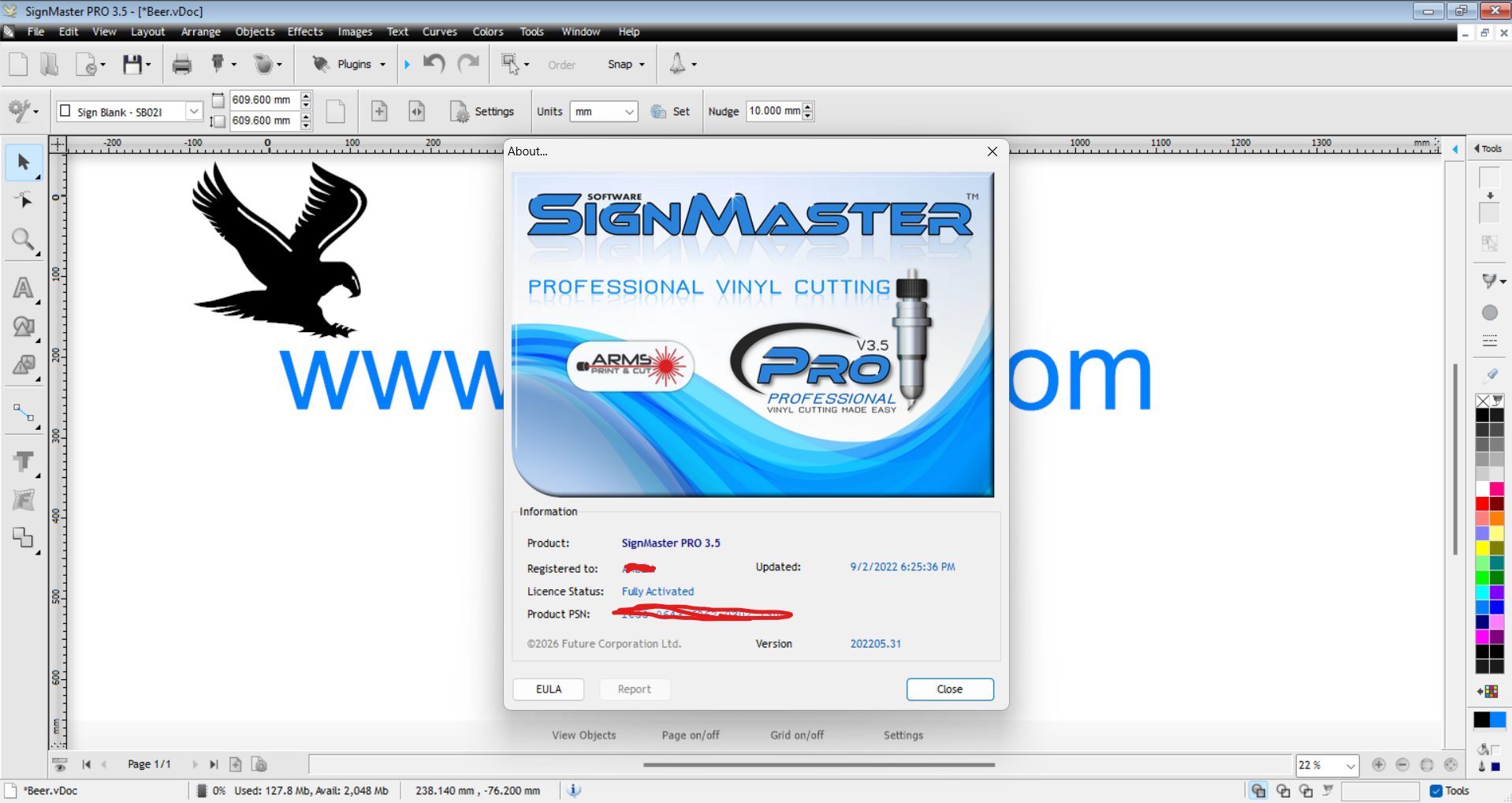
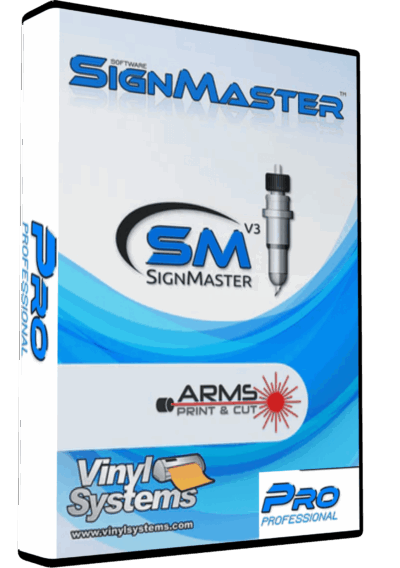
SignMaster V3.5 PRO Vinyl Cutting Software – Lifetime Activation & Installation
35,00 $
Get SignMaster V3.5 PRO vinyl cutting software with lifetime activation for one device. Choose remote installation assistance or install it yourself with clear step-by-step instructions.
- ✓ SignMaster V3.5 PRO
- ✓ Lifetime Activation
- ✓ Activation for 1 Device
- ✓ Windows 10/11 Compatible
- ✓ Digital Delivery
- ✓ Remote Installation Assistance
- ✓ Self-Installation Instructions
One-Time Payment – No Recurring Fee from Needlic
SignMaster V3.5 PRO Vinyl Cutting Software
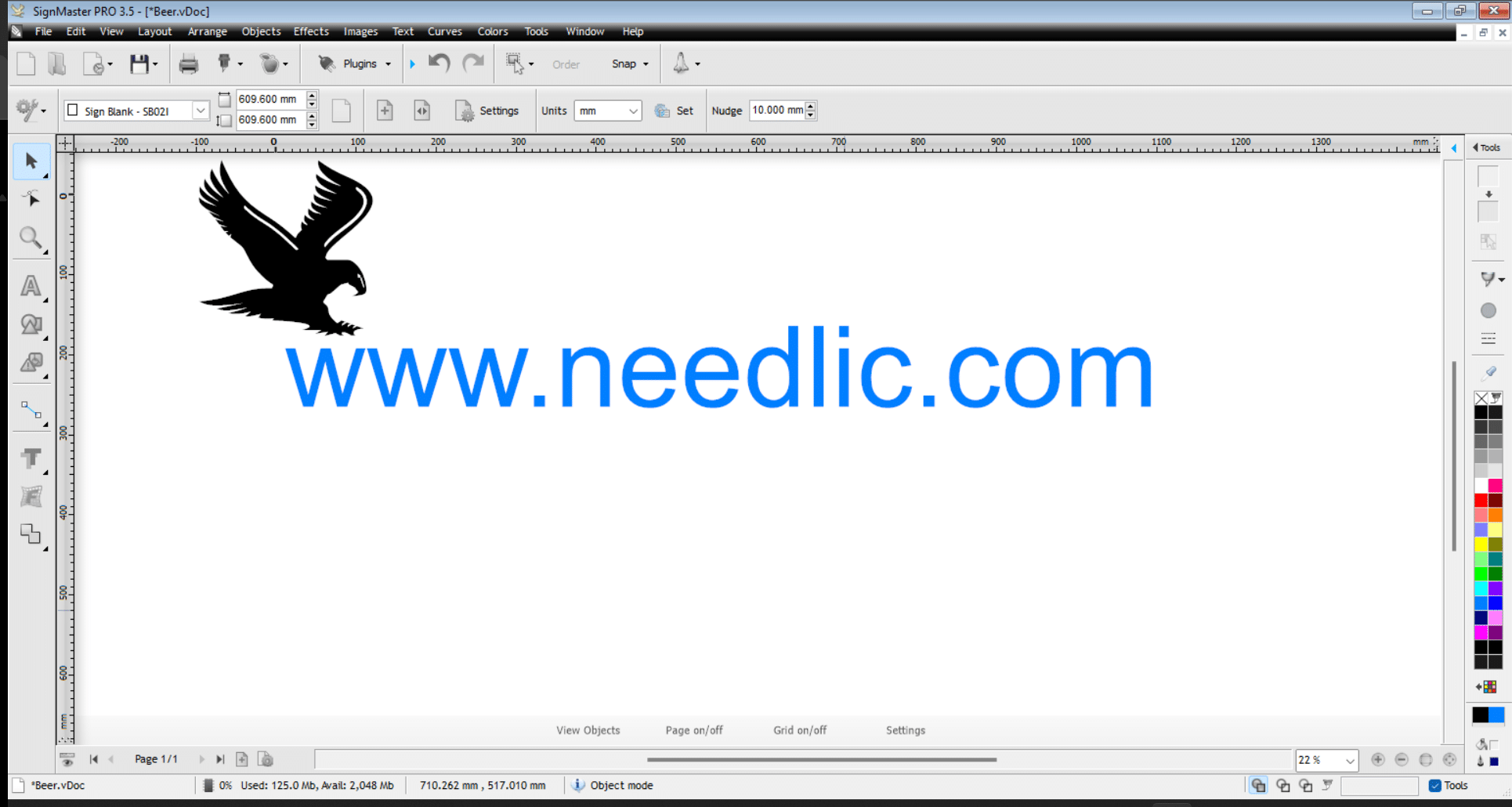
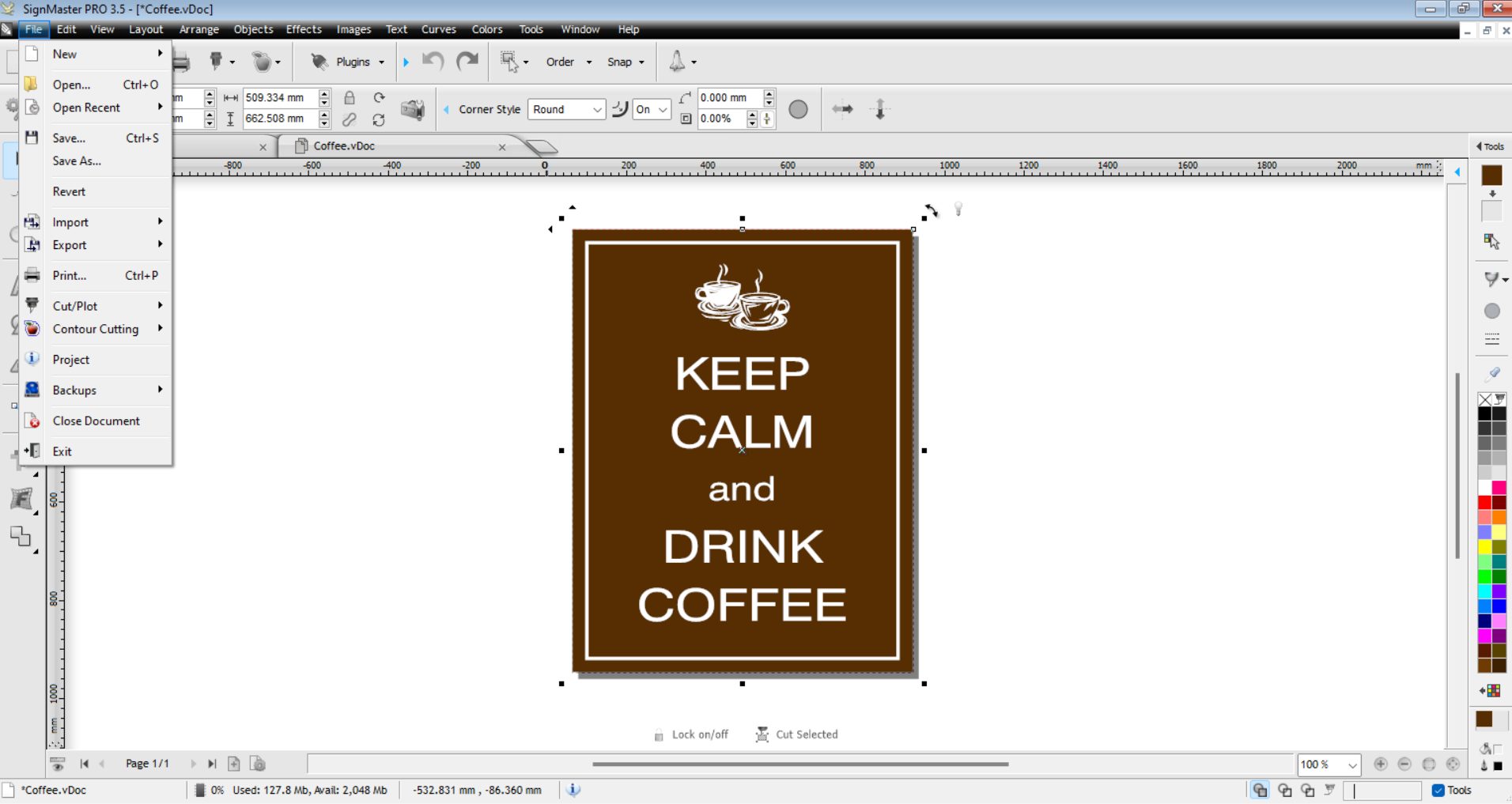
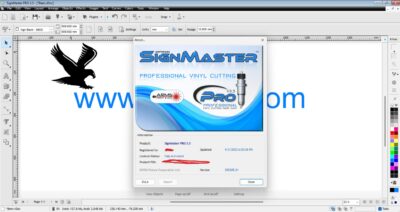
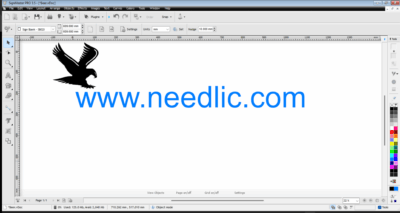
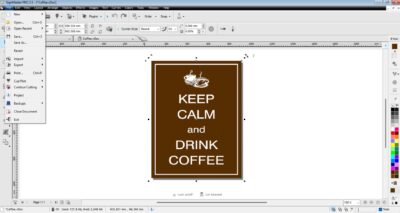
SignMaster V3.5 PRO is professional vinyl cutting and sign-making software designed for creating lettering, signage, logos, decals, vinyl graphics and other cutting projects.
This offer includes SignMaster V3.5 PRO for one device, lifetime activation, digital delivery and installation assistance. You can choose remote installation assistance or follow step-by-step instructions to install the software yourself.
I Will Install and Activate SignMaster V3.5 PRO for You
If you prefer assistance, we can help you install, set up and activate SignMaster V3.5 PRO on your Windows PC.
Option 1 – Remote Installation Assistance
We can assist you remotely with the installation and setup of SignMaster V3.5 PRO on one device. This option is ideal if you want help getting the software installed and ready to use.
Option 2 – Self-Installation
Prefer to install the software yourself? You can follow clear step-by-step installation instructions. If you need assistance during the setup process, support is available.
What You Receive
- SignMaster V3.5 PRO Vinyl Cutting Software
- Lifetime activation for one device
- Digital delivery
- Remote installation assistance if needed
- Step-by-step self-installation instructions
- Setup and activation assistance
SignMaster V3.5 PRO Features
- Professional vinyl cutting and sign-making tools
- Vectorizer for tracing images into vector artwork
- Vector effects
- Image editing tools and special effects
- Contour Cutting Wizard
- Text, curve and object design tools
- Tools for vinyl lettering, signs, logos and decals
- Artwork import and export support
What Can You Create with SignMaster PRO?
SignMaster PRO can be used for a wide range of vinyl cutting and sign-making projects, including:
- Vinyl lettering
- Signs and signage
- Logos
- Decals and stickers
- Vehicle graphics
- Banners
- Custom vinyl cutting projects
SignMaster V3.5 PRO, CUT and V5: what are you comparing?
V3.5 is the software version; PRO is the feature level. This listing is for V3.5 PRO. It should not be compared with a CUT package or a V5 upgrade solely by price: the included tools, supported cutter and eligibility requirements may differ.
The publisher currently presents CUT, CUT + ARMS, PRO, XPT and ART as separate levels. Its current PRO page also promotes upgrades to V5. Those current feature counts and hardware requirements should not automatically be treated as specifications for this V3.5 offer.
Before replacing software supplied with a cutter, record the existing version, edition and machine model. Confirm that the offered package supports that combination. An installer, an upgrade and a new activation are not interchangeable purchases.
Vinyl lettering or printed stickers?
Cutting adhesive vinyl and lettering
For a single-color window graphic, the important output is the blade path: clean outlines, correct dimensions and details large enough to weed. Prepare the design at its intended size and check the cut preview for duplicate or overlapping paths before using a full sheet.
Contour cutting around printed artwork
For printed stickers, there are two outputs to coordinate: the printed image and its cut contour. The software prepares the artwork and cutting path; the cutter still needs a supported alignment workflow. Check the registration system and calibrate using the instructions for your machine before production.
Do not scale the printed sheet independently of the cutting layout. Keep the artwork, contour and registration marks from the same job, and test a small sheet first. Adding a contour line does not add an optical sensor to a cutter.
First-cut troubleshooting checklist
- The cutter does not respond: check the connection and whether Windows detects the device, then verify the selected cutter and port in the software. Note any error message before asking for help.
- A design cuts twice: inspect the preview for duplicate paths or multiple objects occupying the same position. Test a simple shape to separate artwork issues from machine setup.
- Printed outlines and cuts do not align: check print scaling, registration-mark placement and the machine-specific alignment procedure. Record whether the error is constant or grows across the sheet.
- Small details tear while weeding: test a simpler shape and consult the material and cutter instructions for blade depth, speed and force. Do not assume a software change alone will fix every cutting problem.
For support, send your exact cutter model, Windows version, software version, a screenshot of the cutting preview and a description of the failed test. Keep license keys and private customer artwork out of public messages.
Windows Compatibility
SignMaster PRO supports Windows systems including Windows 8.1, Windows 10 and Windows 11. A 64-bit Windows system is recommended for a modern setup.
Check Your Cutter and Computer Before Ordering
Send Needlic support the exact cutter manufacturer and model, your Windows version, and the type of work you want to produce. Include whether you need ordinary vinyl lettering or contour cutting around printed artwork. A brand name alone is not enough to confirm compatibility.
- Cutter model: check the model label on the machine, rather than relying on its appearance.
- Connection: tell us whether you use USB, a serial connection or another connection, and whether Windows already detects the cutter.
- Print-and-cut work: identify the cutter’s registration-mark or alignment system. Software tools do not add optical hardware to a machine.
- Existing setup: mention any cutter driver or previous SignMaster installation already on the computer.
Supported devices can differ between supplier-specific editions. Confirm the exact combination before purchasing; do not assume that a compatibility list for another SignMaster package applies to this offer.
Prepare Artwork for Vinyl Cutting
Cutting requires a usable path for the blade to follow. A photograph or flattened logo may need tracing and cleanup before it is ready. Inspect small details, overlapping shapes and duplicate outlines, and check the final dimensions before sending a job to the cutter.
When asking about file compatibility, send the file extension and the application that created it. If possible, include a small sample. This helps distinguish a file that opens from artwork that is actually suitable for cutting; fonts, embedded images and effects may need attention.
Your First Test Cut
- Confirm that Windows detects the cutter and that the selected cutter model and connection match your machine.
- Open a simple shape and check its size and orientation in the cutting preview.
- Use a small offcut of the intended material. Set blade depth, force and speed according to the cutter and material manufacturer’s guidance.
- Check that the vinyl weeds cleanly without cutting through the backing before running the full design.
For printed stickers, test alignment separately before committing a full sheet. Keep a note of the working settings for each material.
Compare Vinyl Cutting Software
Considering a different generation? Read our SignMaster V5 guide for the differences between CUT, CUT+ARMS and PRO, plus a print-and-cut compatibility checklist. Compare the supplied level and cutter support before changing a working V3.5 setup.
Choosing software starts with your cutter, artwork and workflow. Browse our vinyl cutting software category to compare available products, or ask for a compatibility check if you are replacing an existing setup.
Lifetime Activation for One Device
This offer includes lifetime activation for one device. You make a one-time payment to Needlic for the activation included with this offer.
If you want to use the software on another computer or plan to change devices, contact us first so we can confirm the available options.
Digital Delivery and Installation Support
This is a digital product. No physical package will be shipped.
You can install SignMaster V3.5 PRO yourself using the provided instructions, or choose remote installation assistance if you would like help with the installation and setup.
Frequently Asked Questions
Is this SignMaster V3.5 PRO?
Yes. This offer is for the PRO edition of SignMaster V3.5.
Can you install SignMaster V3.5 PRO for me?
Yes. Remote installation assistance is available if you need help installing and setting up the software.
Can I install the software myself?
Yes. You can follow the provided step-by-step installation instructions and contact us if you need assistance.
How many devices are included?
This offer includes activation for one device.
Is the activation lifetime?
Yes. This offer includes lifetime activation for the activated device.
Does SignMaster PRO work on Windows 11?
Yes. SignMaster PRO supports Windows 11.
Does SignMaster PRO work with my vinyl cutter?
Cutter compatibility depends on the manufacturer and model. If you are unsure, contact us with the exact model of your vinyl cutter before purchasing.
Is this the latest SignMaster version?
This offer is specifically V3.5 PRO. The publisher also markets V5. Confirm any upgrade eligibility and cost separately rather than assuming a later release is included.
Does PRO mean that every cutter is supported?
No. PRO identifies the software level; compatibility also depends on the supplied package and exact cutter model. Check your machine before ordering.
Can I use a photo directly as a vinyl cutting path?
A photo is not automatically a clean blade path. It may need tracing, simplification and inspection at the finished size. Test a small sample before cutting the final material.
Official version and product references
See the publisher’s current SignMaster PRO overview and FCL product and OEM overview for product-family context. These references do not establish the licensing terms or cutter coverage of this particular Needlic offer.
Get SignMaster V3.5 PRO
Get SignMaster V3.5 PRO Vinyl Cutting Software with lifetime activation for one device. Choose self-installation with step-by-step instructions or remote installation assistance if you need help with the setup.
Only logged in customers who have purchased this product may leave a review.
Related products

Vinyl Cutting Software
Vinyl Cutting Software
SignCut Pro 2 Vinyl Cutting Software Full Version Lifetime – Professional Plotter Tool
Vinyl Cutting Software
Embroidery Software
Reviews
There are no reviews yet.