
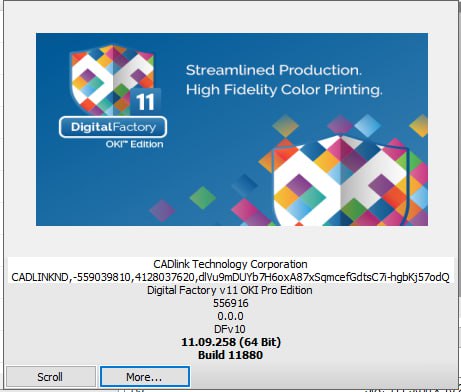
DigitalFactory v11 OKI Pro Edition – White Toner RIP Software


35,00 $
DigitalFactory v11 OKI Pro Edition – Professional White Toner RIP Software
DigitalFactory v11 OKI Pro Edition is a professional RIP, color-management, and print-production workflow solution designed for compatible OKI white toner and professional color printers. It provides advanced control over color output, white toner layers, image preparation, media profiles, print queues, job layout, toner optimization, and transfer-production workflows.
Developed for commercial print shops, custom apparel businesses, transfer-printing companies, promotional-product suppliers, graphic-production studios, and personalized-product businesses, DigitalFactory v11 OKI Pro Edition helps transform customer artwork into accurate, production-ready output.
The software goes beyond the capabilities of a standard printer driver by offering professional color processing, automated white toner management, preset production queues, interactive layout tools, job preview, file preparation, and optimized printing workflows for supported OKI devices.
Whether you produce heat-transfer graphics, custom garments, labels, promotional products, personalized gifts, packaging prototypes, decals, stationery, or specialty printed products, DigitalFactory v11 OKI Pro Edition provides an organized workflow designed to improve color consistency, reduce preparation time, and simplify white toner production.
What Is DigitalFactory v11 OKI Pro Edition?
DigitalFactory v11 OKI Pro Edition is specialized RIP software created for compatible OKI white toner and professional-production printers. RIP software processes artwork before it is sent to the printer and converts the design into optimized color, white toner, resolution, screening, layer, and media information.
Unlike basic printing software, DigitalFactory gives operators greater control over how colors and white toner are printed. It can automate white toner generation, organize print layers, apply professional color profiles, control toner use, position artwork on the page, and prepare transfers for different media and substrates.
The OKI Pro Edition includes the professional workflow features of the standard OKI Edition while providing support for a wider selection of OKI production printers. It is intended for businesses using advanced Pro-Series devices or requiring greater flexibility across several supported models.
Why Choose DigitalFactory v11 OKI Pro Edition?
White toner printing requires careful control of color layers, white toner placement, artwork orientation, media settings, and transfer preparation. A standard printer driver may not provide sufficient control for professional specialty-printing applications.
DigitalFactory v11 OKI Pro Edition brings these production tasks together inside one organized RIP environment. It helps operators prepare designs more quickly, use repeatable print settings, and reduce mistakes caused by configuring every job manually.
- Professional RIP software for compatible OKI printers
- Advanced white toner management
- Automated white toner generation
- Professional color-management tools
- Preset production queues
- Support for transfer and specialty-printing workflows
- Interactive job-layout tools
- Design scaling and positioning inside the RIP
- Optimized print and RIP processing
- Support for common raster and vector file formats
- Multiple queue access from one workspace
- Variable no-toner production patterns
- Media-specific color profiles
- Workflow support for professional OKI Pro-Series printers
Main Features of DigitalFactory v11 OKI Pro Edition
Professional White Toner RIP Processing
DigitalFactory v11 processes artwork before printing and converts it into data optimized for a compatible OKI device. The software manages color channels, white toner information, output resolution, print layers, media profiles, and production settings.
This gives print operators more control than a standard Windows printer driver and helps create a more consistent workflow for repeat orders and commercial production.
Automated White Toner Management
White toner is one of the most important elements in transfer printing on dark or colored materials. It can be used as an underbase, overprint layer, spot color, or supporting layer depending on the media and transfer method.
DigitalFactory v11 OKI Pro Edition can automate white toner handling based on the artwork and selected production queue. This reduces the need to create separate white layers manually in a design application.
The software can analyze transparency and image content, then prepare the white toner information required by the selected workflow.
Underbase and Overprint Workflows
Different transfer systems may require white toner to be printed below or above the color layer. DigitalFactory production queues can be configured according to the required print order.
An underbase may be used beneath color artwork to preserve vibrancy on dark materials. An overprint workflow may place white toner above the color image before the transfer is applied to the final product.
The correct layer order depends on the printer, transfer paper, adhesive media, substrate, and production method.
Multiple Print Layers
DigitalFactory allows compatible production queues to use multiple print layers. Each layer can represent a separate pass or toner configuration.
Operators may be able to configure individual settings for the white layer, color layer, or other supported channels. Layer order is important because the first layer listed in the queue is normally printed first.
Depending on the printer and workflow, settings may include layer resolution, mirroring, toner level, repeated passes, and automatic pauses.
Advanced Color Management
DigitalFactory v11 OKI Pro Edition includes professional color-management tools designed to produce rich blacks, vibrant colors, smooth gradients, accurate photographic output, and repeatable results.
Color management converts the colors in the original artwork into values that can be reproduced by a specific printer, toner set, media, and production mode.
This is particularly important for branded products, company logos, photographic transfers, promotional materials, fashion graphics, labels, and repeat customer orders.
Factory-Created Color Profiles
The software package may include professionally created color profiles for supported printers and selected transfer media or substrates.
A suitable profile helps DigitalFactory calculate color output according to the selected printer, toner, media, and print mode.
Final results may still vary according to printer maintenance, toner condition, transfer media, heat-press temperature, pressure, time, substrate, and environmental conditions.
Rich Black and Vibrant Color Output
Professional specialty printing often requires strong blacks and bright colors that remain visually accurate after the transfer process.
DigitalFactory uses optimized color processing and screening to preserve fine details and improve color appearance. This can be particularly useful for photographic artwork, gradients, small text, logos, and detailed illustrations.
Variable No-Toner Patterns
DigitalFactory v11 includes variable no-toner production queues intended to reduce toner coverage while preserving the visual quality of the design.
Instead of applying solid toner across every part of the artwork, a controlled pattern can leave selected areas without toner. This may help create a softer feel on transferred garments and reduce toner consumption.
The effectiveness of this workflow depends on the design, transfer media, garment, heat-press settings, and selected production queue.
Toner Usage Optimization
White toner and specialty transfer media can represent a significant part of the production cost. Optimized queues and no-toner patterns can help reduce unnecessary toner usage.
Operators should balance toner savings with opacity, color strength, durability, image detail, and the required appearance of the finished product.
Preset Production Queues
DigitalFactory v11 OKI Pro Edition includes configurable production queues that can store settings for specific printers, media, transfer workflows, color profiles, resolutions, and toner configurations.
Preset queues reduce the need to configure every job manually and can help prevent production mistakes.
Print businesses may create queues for workflows such as:
- Light garment transfers
- Dark garment transfers
- White toner underbase printing
- White toner overprint workflows
- High-quality photographic output
- Fast production printing
- Transfer paper printing
- Label production
- Promotional products
- Small logo transfers
- Large front apparel designs
- Sample and test printing
Multiple Queue Management
The DigitalFactory workspace allows operators to access and manage multiple production queues. Each queue can represent a separate printer, media configuration, or production workflow.
This makes it easier to prepare several types of jobs without repeatedly changing printer settings. Operators can move between queues and review jobs through an organized tab-based interface.
Visual Job Management
DigitalFactory provides a visual production environment where operators can review job status, artwork preview, queue assignment, copies, dimensions, and output settings.
A clear visual workflow helps reduce mistakes and allows operators to identify which jobs are waiting, processing, completed, or held for later production.
Interactive Graphic Layout Tools
Artwork can be scaled, rotated, mirrored, positioned, duplicated, and arranged directly inside the RIP. These tools allow operators to perform common production changes without reopening the original design application.
- Resize artwork
- Adjust physical print dimensions
- Rotate the design
- Mirror artwork for transfer printing
- Position designs on the media
- Create multiple copies
- Step and repeat artwork
- Duplicate jobs
- Tile oversized designs
- Preview page layout
Mirroring for Transfer Printing
Many heat-transfer workflows require artwork to be mirrored before printing. DigitalFactory allows operators to mirror jobs horizontally or vertically according to the production method.
This helps ensure that text, logos, and graphics appear in the correct orientation after the transfer is applied.
Step and Repeat
The Step and Repeat tool can duplicate and arrange artwork across the available print area. It is useful for producing multiple logos, labels, small transfers, product graphics, or repeated designs on one sheet.
Efficient placement can improve media utilization and reduce production waste.
Job Tiling
Oversized artwork that cannot fit on one sheet may be divided into multiple printable sections using tiling tools.
This can be useful for large graphics, display elements, oversized transfers, signs, and specialty-production projects.
Optimized RIP and Print Speeds
DigitalFactory processes artwork and prepares printer data using an optimized RIP workflow. Faster processing can reduce the time between importing the design and beginning production.
Actual speed depends on the computer, artwork complexity, image resolution, queue settings, printer connection, and selected OKI model.
Drag-and-Drop Job Import
Artwork can be added to compatible production queues through simple import methods, including drag and drop.
This helps operators load customer artwork quickly and assign it to the appropriate printer or production workflow.
Send-To Workflow from Design Applications
DigitalFactory may support direct send-to workflows from commonly used design applications, depending on the installed version, plugins, and computer configuration.
Artwork created in CorelDRAW, Adobe Illustrator, Photoshop, or other compatible applications can also be exported in a supported file format and imported into DigitalFactory.
Seamless PDF Workflow
DigitalFactory v11 supports professional PDF-based workflows. PDF files can preserve vector objects, images, page dimensions, and other design information when prepared correctly.
Before printing, operators should verify fonts, transparency, page size, linked images, color spaces, and bleed settings.
Supported File Formats
DigitalFactory v11 OKI Pro Edition supports common raster and vector file formats used in professional print production. Exact compatibility may depend on the software build and file structure.
- EPS
- AI-compatible artwork
- PNG
- TIFF
- JPG and JPEG
- PSD
- BMP
- Common raster image formats
- Common vector and print formats
Complex transparencies, unsupported fonts, linked files, damaged documents, or design effects may need to be flattened or converted before production.
Compatible OKI Printers
DigitalFactory v11 OKI Pro Edition supports a broader selection of OKI printers than the standard OKI Edition.
Supported Printer Families
- OKI C3xx Series
- OKI C6xx Series
- OKI C7xx Series
- OKI C8xx Series
- OKI C843 Series
- OKI C8432WT
- OKI Pro 7411WT
- OKI Pro 9420WT
- OKI C911
- OKI C931
- OKI C941
- OKI C942
- OKI Pro 9431 Series
- OKI Pro 9541 Series
- OKI Pro 9542 Series
- OKI Pro 9541WT
Please provide the complete OKI printer model before ordering. Compatibility can depend on the exact model, regional model designation, firmware, installed driver, operating system, and supplied DigitalFactory license.
DigitalFactory OKI Edition vs OKI Pro Edition
Both editions provide professional color management, white toner control, production queues, artwork preparation tools, and optimized printing workflows.
The main difference is the range of supported printers. The standard OKI Edition is intended primarily for selected entry-level and mid-range devices, while the OKI Pro Edition adds support for advanced professional-production models such as the C911, C931, C941, C942, Pro 9431, Pro 9541, Pro 9542, and Pro 9541WT families.
Businesses using professional OKI production equipment should select the Pro Edition after confirming their exact printer model.
Perfect for White Toner Transfer Printing
DigitalFactory v11 OKI Pro Edition can be used to prepare graphics for specialty transfer workflows involving compatible OKI printers, transfer papers, adhesive sheets, and heat presses.
Potential applications include:
- Custom T-shirts
- Hoodies and sweatshirts
- Workwear and uniforms
- Promotional apparel
- Personalized textile products
- Hard-surface transfers
- Promotional products
- Labels and stickers
- Packaging prototypes
- Event merchandise
- Personalized gifts
- Small commercial print runs
Actual substrate compatibility depends on the transfer media, printer, toner, heat press, temperature, pressure, time, and supplier recommendations.
Suitable for Commercial Printing Businesses
- White toner printing businesses
- Heat-transfer shops
- Custom T-shirt businesses
- Promotional-product companies
- Personalized gift stores
- Print-on-demand businesses
- Graphic-production studios
- Commercial print shops
- Label-printing businesses
- Fashion and apparel brands
- Small-batch manufacturing companies
- Creative printing startups
Artwork Preparation Recommendations
- Use high-resolution artwork whenever possible.
- Remove unwanted backgrounds.
- Use transparent artwork when the design requires transparency.
- Check the final physical print dimensions.
- Mirror artwork when required by the transfer workflow.
- Convert or embed fonts before submitting print files.
- Inspect transparent edges for unwanted pixels.
- Use suitable color settings for the selected queue.
- Save an editable master copy before production.
- Test new artwork and media before processing large orders.
Transfer Media and Heat Press Settings
DigitalFactory manages digital print data, but successful transfer production also depends on suitable transfer media and correct heat-press settings.
Temperature, pressure, pressing time, peeling method, and finishing steps vary between transfer-paper manufacturers and substrates.
Incorrect settings can cause poor adhesion, weak colors, damaged garments, incomplete transfers, cracking, or reduced wash durability.
Always follow the transfer-media supplier’s instructions and perform sample tests before starting commercial production.
System Requirements
For DigitalFactory v11 OKI Pro Edition, a professional Windows computer is recommended.
Recommended Configuration
- Compatible 64-bit Windows operating system
- Intel Core i5 or Intel Core i7 processor
- Approximately 2.6 GHz to 3.0 GHz processor speed or better
- 8 GB RAM minimum
- 12 GB RAM or more recommended
- 500 GB SSD recommended
- Sufficient free storage for print jobs and temporary RIP files
- Compatible USB or TCP/IP printer connection
- Stable internet connection for download, activation, and support
- Professional monitor resolution
A faster processor, additional RAM, and SSD storage are recommended when processing large PDF, TIFF, PSD, or high-resolution image files.
What You Will Receive from Needlic
- Digital Download Access: Receive the supplied installation resources electronically.
- Installation Instructions: Follow clear steps for the software setup.
- Activation Assistance: Receive help with the supplied activation process.
- Remote Installation Support: Remote assistance may be provided when required.
- Fast Digital Delivery: No physical shipping or delivery delays.
- Customer Support: Contact Needlic for common installation questions.
- Printer Compatibility Review: Compatibility can be reviewed when the full OKI model is provided.
Why Buy DigitalFactory v11 OKI Pro Edition from Needlic?
Needlic provides professional software for printing, apparel decoration, embroidery, signage, graphic design, RIP production, and CNC manufacturing.
Specialty-production software requires the correct printer driver, production queues, color profiles, operating system, and device connection. Our goal is to provide clear product information and practical installation assistance.
- Fast digital delivery
- Professional installation guidance
- Remote assistance when available
- Printer compatibility review
- Clear product information
- No physical shipping required
- Customer-focused support
- Experience with RIP and printing software
- Support for international customers
Frequently Asked Questions
What is DigitalFactory v11 OKI Pro Edition?
It is professional RIP and color-management software developed for compatible OKI white toner and professional-production printers. It provides white toner control, color profiles, preset queues, artwork preparation, job layout, and print-management tools.
What is the difference between OKI Edition and OKI Pro Edition?
The Pro Edition supports the devices included with the standard edition and adds selected professional-production models, including the OKI C911, C931, C941, C942, Pro 9431, Pro 9541, Pro 9542, and Pro 9541WT families.
Does it automatically create white toner?
DigitalFactory can automate white toner processing according to the artwork and selected production queue. The exact output depends on the printer, workflow, and media configuration.
Can I print transfers for dark garments?
Yes, when using a compatible OKI white toner printer, appropriate transfer media, suitable garments, and correct heat-press settings.
Can I use the software for hard surfaces?
Some white toner transfer systems support selected hard surfaces. Compatibility depends on the transfer media and substrate. Always follow the media supplier’s instructions.
Does DigitalFactory support PDF files?
Yes. DigitalFactory v11 supports PDF-based workflows. Complex PDFs should be checked for fonts, transparency, linked images, page size, and color settings.
Can I position and resize artwork inside the RIP?
Yes. DigitalFactory includes interactive tools for resizing, positioning, rotating, mirroring, duplicating, and arranging artwork.
Can DigitalFactory replace CorelDRAW or Photoshop?
DigitalFactory includes production-preparation tools, but it is primarily RIP and print-management software. Complex graphic design and photo editing should be completed in dedicated design applications.
Will it work with every OKI printer?
No. Compatibility depends on the exact printer model and availability of a suitable DigitalFactory driver and license.
Is DigitalFactory compatible with macOS?
A compatible native Windows computer is recommended. Compatibility should be confirmed before attempting installation on another operating system.
Will I receive a physical product?
No. This is a digital product. No DVD, USB drive, printed manual, or physical package will be shipped.
Does Needlic provide installation support?
Yes. Needlic provides installation guidance and may offer remote assistance. Printer maintenance, media configuration, heat-press setup, and production testing remain the responsibility of the printer owner or qualified technician.
Important Information Before Purchase
- This product is delivered digitally.
- No physical package will be shipped.
- Provide the exact OKI printer model before ordering.
- Confirm that the required printer is supported by the Pro Edition.
- Verify that the Windows computer meets the system requirements.
- Back up existing queues, profiles, presets, and customer artwork.
- Do not remove existing production software until compatibility is confirmed.
- Test the workflow using sample media before commercial production.
- Final output depends on the printer, toner, media, heat press, substrate, and production settings.
- Available features may vary according to the installed build, license, and printer driver.
Order DigitalFactory v11 OKI Pro Edition Today
Upgrade your specialty-printing workflow with DigitalFactory v11 OKI Pro Edition. Automate white toner processing, manage professional colors, create repeatable production queues, position artwork, optimize toner usage, and prepare transfers through one organized RIP environment.
Whether you operate a custom apparel business, white toner transfer shop, promotional-products company, commercial print studio, or professional OKI production facility, DigitalFactory v11 OKI Pro Edition provides the tools required for faster and more consistent production.
Order from Needlic and receive fast digital delivery, installation guidance, activation assistance, printer compatibility review, and professional customer support.
Only logged in customers who have purchased this product may leave a review.
Related products


NeoStampa RIP Software – Professional Textile Printing Solution
📦 Brand: NEOSTAMPA 25.5
🔑 License: For 1 PC activate license key, this is not a subscription
💻 Version: For 32 and 64-bit systems
✉ Delivery: Download link and instructions instantly delivered by email
🌐Languages: Works worldwide, all languages included
📞 Support: 24/7 Free customer care support

SignMaster V5 Vinyl Cutting Software Full Version Lifetime – Instant Download ($60)
SignMaster V5 – Full Version with Lifetime Activation
✔️ Instant download after payment
✔️ Vinyl design & cutting software
✔️ Full features unlocked
✔️ Remote installation support
👉 Create professional signs and decals easily.

EnRoute 24.2 CNC Design Software – Routing & Engraving Solutions
EnRoute 24.2 is a professional CAD/CAM CNC software designed for routing, engraving, and production workflows. It provides powerful tools to create precise designs and generate efficient toolpaths for CNC machines.
- ✔️ Instant download after purchase
- ✔️ Advanced CAD/CAM CNC tools
- ✔️ Complete feature set for design and routing
- ✔️ Remote installation support available
👉 Create professional CNC designs easily and improve your production workflow with EnRoute 24.2.

Flexi 25 Software – Professional Vinyl Design & Cutting Solution
Flexi 25 Software – Professional Vinyl Design & Cutting Solution
✔️ Instant download after purchase
✔️ Advanced vinyl design & cutting tools
✔️ Compatible with cutters and printers
✔️ Easy setup with installation guidance
👉 Create high-quality vinyl designs and professional signage with ease.

Reviews
There are no reviews yet.