
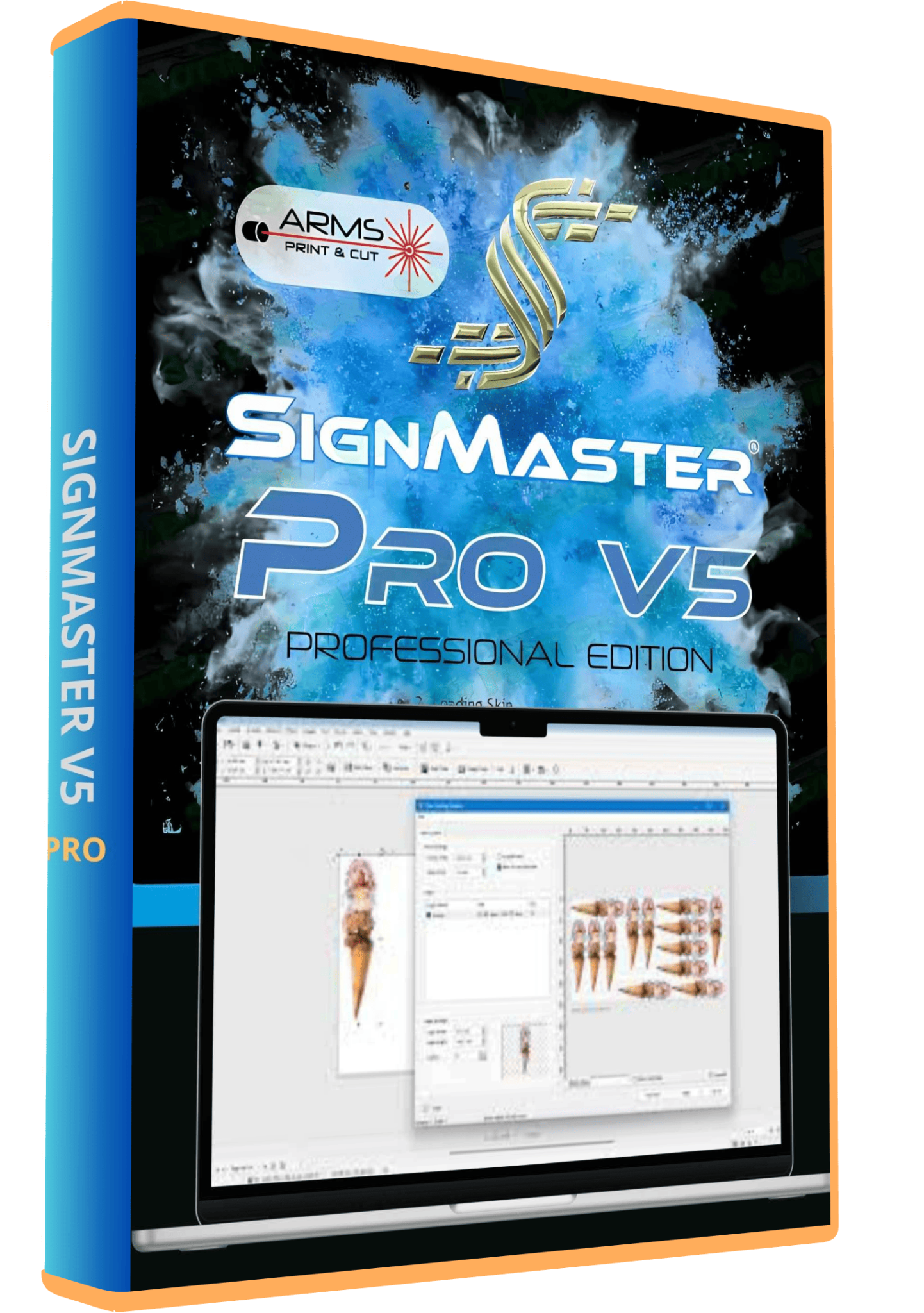
SignMaster V5 Vinyl Cutting Software Full Version Lifetime – Instant Download
Original price was: 100,00 $.60,00 $Current price is: 60,00 $.
SignMaster V5 for vinyl lettering, decals and sign design. Confirm the supplied level and exact cutter model before ordering, particularly for print-and-cut work.
- One-time payment with lifetime activation as listed.
- Digital download after payment.
- Installation guidance and remote setup support.
- Check the build, activation requirements and registration-mark support for your workflow.
SignMaster V5 for vinyl cutting and sign design
SignMaster is software for designing lettering, signs, decals and other artwork for a vinyl cutter. This listing concerns version 5. Before ordering, confirm the supplied level, complete build and compatibility with your exact cutter: the version number alone does not identify the design tools or contour-cutting functions included.
Needlic’s listed offer includes a one-time payment with lifetime activation, digital download after payment, installation guidance and remote setup support. Confirm the activation requirements and device allowance for your package before purchase. Features from another level, another OEM package or a different release are not automatically included.
CUT, CUT+ARMS and PRO: understand the difference
The official SignMaster range includes CUT, CUT+ARMS, PRO, XPT and ART. CUT focuses on basic design and cutting; CUT+ARMS adds advanced contour cutting with a compatible automatic registration-mark cutter. PRO provides additional curve, text and object tools for sign design. Higher levels have further production features.
Choose the level around the work you actually do. If you only cut lettering from solid-color vinyl, registration-mark support may not be the deciding factor. If you print stickers and cut around them, the software level, cutter sensor and registration workflow must work together.
Three common projects and what to prepare
Shop-window lettering and adhesive decals
Measure the available space, choose readable lettering and prepare clean vector paths. Check thin details at final size: a shape that looks clear when enlarged on screen may be difficult to weed as a small decal. Separate colors deliberately and retain an editable copy before preparing production outlines.
Heat-transfer vinyl for garments
Confirm the material instructions, cutting orientation and whether the design must be mirrored. Plan the layout around the usable material width and leave enough margin for reliable feeding. Test a small shape before cutting a full garment design.
Printed stickers with contour cutting
Prepare the printed artwork and its contour as distinct parts of the job. Confirm the required registration marks and page orientation for your cutter. Print at the intended scale and avoid accidental resizing in the print dialog. Test alignment on one sheet before producing a batch.
Cutter compatibility: check the model, not just the brand
The manufacturer explicitly notes that not all cutters and printers are supported. SignMaster is also offered in OEM packages, so a capability advertised for the wider product family does not establish that it is enabled for every supplied package.
- Cutter identity: provide the brand, full model number and, if relevant, the original bundled software edition.
- Connection: identify the connection method and the driver required by the cutter manufacturer.
- Cutting task: distinguish ordinary vinyl cutting from contour cutting around printed graphics.
- Registration hardware: confirm whether the cutter has an automatic sensor, a manual alignment method or no registration system.
- Output test: verify dimensions and orientation with a small test design before using valuable material.
Artwork and cut paths
A JPG or PNG is an image, not automatically a clean cutting path. Artwork may need tracing or redrawing before it is suitable for a cutter. After conversion, inspect the paths for duplicate outlines, open shapes, excessive nodes and tiny unwanted objects.
For files supplied by a customer or another designer, confirm the exact format and version accepted by the supplied SignMaster build. Preserve the source file, check physical dimensions after import and resolve missing fonts before sending the job. A successful import does not prove that the file contains the paths you intend to cut.
Installation and first-cut checklist
- Confirm the package: establish the V5 level, build, operating-system requirements and activation method before payment.
- Prepare the computer: back up existing designs and record the settings of any working cutter setup.
- Install the supported driver: follow the cutter manufacturer’s instructions and confirm that the computer recognizes the device.
- Select the exact cutter: check the model and connection settings in the supplied software.
- Make a small test cut: confirm size, orientation and material handling before a complete design.
Send Needlic your Windows version, computer specifications and cutter model for a package-specific check. Do not assume that specifications for VinylMaster or another SignMaster release apply to this installer. This page does not promise native macOS support.
V5 or V3.5: compare the workflow you need
If you already have a working setup, identify the task it cannot perform before replacing it. Compare the actual level and cutter support, then test a representative project. A newer version number is not proof that a different OEM package will support your device.
Our SignMaster V3.5 PRO guide covers that earlier offer and common cutting problems. Use it alongside this page to compare versions without treating all feature lists as interchangeable.
Frequently asked questions
Does V5 mean PRO?
No. V5 is the generation; PRO is a product level. Confirm the exact level supplied before buying for a specific tool.
Can I contour-cut printed stickers?
That depends on the supplied level and the cutter’s registration capabilities. Confirm the full print-and-cut workflow, including marks, sensor support and calibration, before ordering.
Will it work with every vinyl cutter?
No universal compatibility is promised. Check the precise cutter model and the supported devices in the supplied package.
Why does a design cut twice?
Inspect the artwork for overlapping duplicate paths and check whether multiple cutting passes are enabled. Change one setting at a time and retest a small sample.
Is installation support included?
The listed offer includes installation guidance and remote setup support. Provide your computer and cutter details so the required setup can be checked.
Related vinyl-cutting software
Browse the vinyl cutting software guide or compare VinylMaster XPT 5 and SignCut Pro 2 by cutter support and workflow. Each offer has its own version and activation terms.
Manufacturer references: SignMaster product levels and compatibility notes and SignMaster workflow overview.
2 reviews for SignMaster V5 Vinyl Cutting Software Full Version Lifetime – Instant Download
Only logged in customers who have purchased this product may leave a review.
Related products
Vinyl Cutting Software
SignMaster V3.5 PRO Vinyl Cutting Software – Lifetime Activation & Installation
RIP Software
AccuRIP Emerald & Separation Studio NXT 2024 Full Version Lifetime – RIP Software ($77)
mababy1 –
Very fast and professional! Recommend it!
sami –
Excellent provider!!! Highly recommended using services. Will definitely use again