
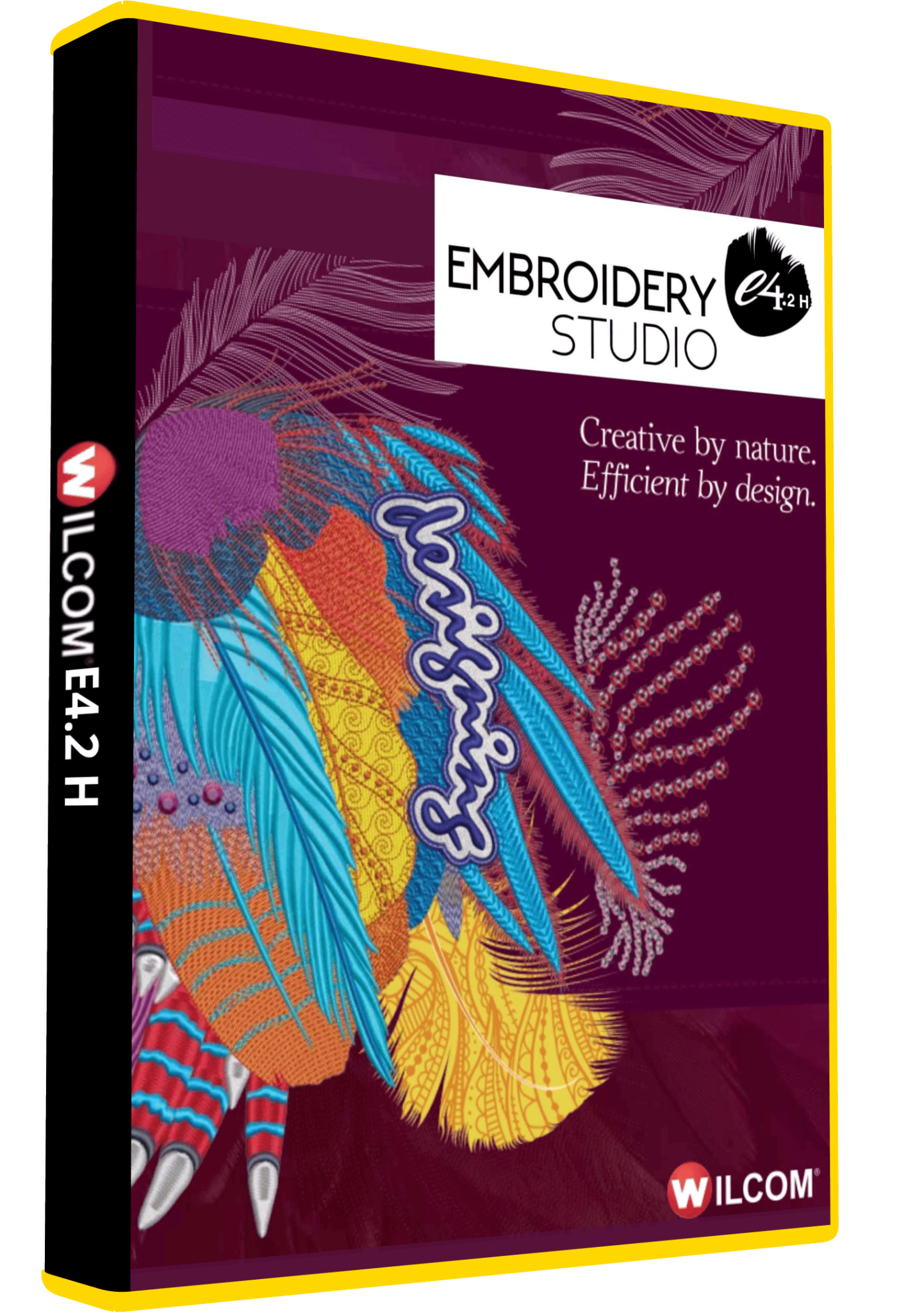
Wilcom Embroidery Studio E4 Professional Software
Original price was: 150,00 $.99,00 $Current price is: 99,00 $.
Wilcom EmbroideryStudio e4.2 for embroidery digitizing, lettering and design editing.
- Listed offer: lifetime activation for one Windows computer.
- Email delivery, installation guidance and remote support.
- Confirm the exact build, product level and enabled options.
- Check your Windows version before ordering; official e4.2 support for Windows 11 is not established by the current compatibility table.
Wilcom EmbroideryStudio e4.2 for embroidery digitizing
Wilcom EmbroideryStudio e4.2 is an earlier generation of embroidery design software for preparing artwork, creating stitches and editing designs for production. It is relevant to workshops working with existing e4 projects, commercial logos, uniforms, patches and decorative embroidery. This page describes e4.2 rather than the current EmbroideryStudio release.
Needlic’s listed offer is a one-time payment with lifetime activation for one Windows computer, email delivery, an installation guide and remote installation support. Confirm the exact build, product level, enabled options and activation requirements before purchase. The offer does not establish that later major releases or a separate CorelDRAW license are included.
What to check in the supplied edition
EmbroideryStudio features depend on the product level and enabled Elements. Wilcom’s e4.2 documentation describes the My Wilcom screen as a place to inspect the version, level and enabled options. Match those details to your required tasks instead of relying on a generic “all features” description.
- Manual digitizing: check the tools needed to create the shapes and stitch types used in your work.
- Lettering: confirm your required alphabet, characters and minimum practical lettering size. Do not select software only by a headline font count.
- Artwork conversion: check the exact bitmap or vector workflow and any required graphics integration.
- Production preparation: verify the machine output, design-size limits and editing tasks that matter to your workshop.
Stitch settings that affect the finished result
The e4 documentation explains how underlay, stitch spacing and pull compensation work together with the fabric and object shape. Underlay supports the top stitching; spacing affects coverage; pull compensation helps account for inward fabric movement. A setting that works on a stable woven sample may need adjustment on a stretch garment.
For a useful test, choose one representative design at its intended finished size. Keep the thread, fabric, stabilizer and hooping method consistent while adjusting the design. Compare the sewn result after each meaningful change, and record the final settings with the approved project. Increasing density alone is not a reliable solution to every coverage or registration problem.
EMB files, machine files and artwork
These are different parts of the workflow. Wilcom’s native EMB format stores design information such as object outlines, properties, stitches and thread colors. Machine files such as DST, EXP or PES contain production stitch data and may offer less flexibility when reopened for editing. An imported machine file is not necessarily equivalent to the original digitized project.
- Editable master: keep your original EMB and save revisions before major resizing or lettering changes.
- Machine output: confirm the format required by your exact machine model, then check the exported dimensions and stitch sequence.
- Artwork: AI, EPS and CDR are graphics formats, not interchangeable machine embroidery formats. Confirm the file version and required graphics component before relying on a particular import workflow.
VIP limitation: Wilcom’s e4.2 general-improvements documentation explicitly notes that VIP is not supported by the new 64-bit system. If you depend on a legacy format, provide a sample and verify a suitable workflow before ordering.
Preparing a logo for production
- Agree on the output: confirm artwork permission, garment, hoop, placement and embroidered dimensions.
- Simplify where needed: review tiny text, narrow gaps and fine outlines at actual size. Obtain approval for visible artwork changes.
- Plan the sequence: consider which areas should sew first and where travel or trims can be reduced without distorting the design.
- Review the design: inspect object shapes, stitch directions and overlaps. A screen preview helps find issues but cannot reproduce the behavior of every fabric.
- Test and archive: sew a sample, make controlled adjustments, and retain both the final EMB and machine output with a production reference.
Windows compatibility and setup
e4.2 introduced 64-bit support and does not support 32-bit systems. Do not assume that the compatibility of a later e4 release applies to e4.2: Wilcom’s current Windows compatibility table identifies e4.5.8 or later for Windows 11, rather than confirming e4.2.
If you use Windows 11, request a check of the exact supplied build and your setup before ordering. This page does not guarantee official Windows 11 support for e4.2. For hardware requirements, use the documentation supplied with the exact installer; requirements for EmbroideryStudio 2025 or 2026 are not an e4.2 specification.
Send support your Windows version, processor, RAM, free disk space and any installed CorelDRAW version. Back up existing designs, custom fonts and settings before making changes. Keep your current production setup available until the new installation has opened and exported a representative project successfully.
Comparing Wilcom e4.2 with Hatch Embroidery 2
Choose between these products by the supplied edition and the work you need to perform. For original digitizing, compare the actual drawing and stitch-control tools. For personalization, test the lettering and layout process. For exchanging work with another workshop, test an editable project as well as the required machine output.
Neither a general “professional” label nor a simple checkmark table proves that one package is better for your business. Review our Hatch Embroidery 2 page, then compare a representative job, supported workflow and installation requirements.
Frequently asked questions
Is e4.2 the newest EmbroideryStudio?
No. It is an earlier release. New features shown on current Wilcom product pages should not be assumed to exist in this version.
Does e4.2 have confirmed Windows 11 support?
The current official compatibility table specifies e4.5.8 or later. Confirm the exact e4.2 build and your configuration before purchase rather than relying on a blanket Windows 11 claim.
Can I turn any image into ready-to-sew embroidery automatically?
Artwork conversion still requires review. Small lettering, overlapping objects and stitch density can need manual work. Test the result on the intended fabric before production.
Will a DST file edit like the original EMB?
Not necessarily. A machine file may lack the original design structure. Ask for the original editable project when substantial reshaping or resizing is needed.
Does the offer include installation help?
Yes. The listed offer includes installation guidance and remote support for one Windows computer. Confirm activation requirements and any separate graphics software needed for your workflow.
Related software and official documentation
Compare Tajima DG16 and Melco DesignShop 11.3, or use our embroidery software guide to start with your main task.
References: Wilcom e4.2 changes and limitations; official operating-system compatibility; e4 design and machine file types.
Only logged in customers who have purchased this product may leave a review.
Related products
Embroidery Software
Tajima DGML 16 Pulse Embroidery Software Full Version Lifetime – Instant Download
Embroidery Software
Embroidery Software
Bravo Amaya OS 12.06.42 Full Version Lifetime – Embroidery Machine Software
Embroidery Software
Melco DesignShop 11.3 Pro Embroidery Software Full Version Lifetime – Instant Download
Embroidery Software
Hatch Embroidery 2 Professional Digitizing Software – 1 Key per PC Lifetime License
Embroidery Software
PE-Design 11.40 Embroidery Software Full Version Lifetime – Professional Digitizing
Embroidery Software
DesignShop V9 Professional Embroidery Software Full Version Lifetime – Instant Download
Embroidery Software
Reviews
There are no reviews yet.