

Hatch Embroidery 2 Professional Digitizing Software – 1 Key per PC Lifetime License
Original price was: 250,00 $.79,00 $Current price is: 79,00 $.
Hatch Embroidery 2 for editing embroidery, lettering and artwork-to-stitch workflows. Review the supplied product level, machine file format and computer compatibility before ordering.
- Activation for one Windows PC and lifetime access under the listed Needlic offer
- Digital download, installation guidance and setup assistance
- Listed bonus collection of 222,000+ embroidery designs
Hatch Embroidery 2: Digitizing, Editing and Lettering
Hatch Embroidery 2 is Windows embroidery software for working with designs, personalizing projects and preparing machine embroidery files. It suits users who want to move beyond downloading a finished design and take more control over the artwork-to-stitch workflow.
This Needlic package is listed with activation for one Windows PC, lifetime access, digital delivery, installation guidance and a bonus collection of 222,000+ embroidery designs. The software version on this page is Hatch 2; do not use feature lists for Hatch 3 or Hatch 4 as a description of this offer.
What You Can Work On
- Names and personalization: plan lettering for gifts, uniforms and custom garments.
- Artwork-based designs: prepare a logo or drawing for digitizing, then review the stitch result.
- Existing embroidery: recolor, combine and adjust designs, subject to the editing information retained in the source file.
- Production preparation: check the finished size, hoop fit, sequence and output file before taking the design to your machine.
Choose by the work you need to do. Editing a ready-made design, adding a name and digitizing a new logo are different tasks. Confirm the supplied product level and any essential tool with Needlic before ordering, particularly if you need a specific manual-digitizing function.
Auto-Digitizing or Manual Digitizing?
Auto-digitizing uses prepared artwork as the starting point for embroidery objects. Manual digitizing gives the operator more direct control over how a design is built. A clean, simple logo is a more useful starting project than a small screenshot with blurred edges.
The Hatch 2 guide recommends preparing artwork with distinct color areas and reducing noise before automatic conversion. Its artwork guidance favors clean, high-resolution PNG images and transparent backgrounds. Automatic conversion still needs review; an attractive image on screen is not proof that it will stitch cleanly.
For example, a business logo may contain tiny lettering, closely spaced shapes and overlapping color areas. At the intended embroidered size, simplify details that the machine and thread cannot reproduce reliably. Check the result on the intended fabric before accepting a full customer run.
EMB Design Files and Machine Formats
The Hatch 2 manual distinguishes editable design information from machine stitch data. Keep an EMB working file for future edits and export a separate machine file for stitching. Imported DST or PES files can retain less editing information than a native design.
Opening a machine file does not recover every original design decision. Make a copy before resizing or restructuring an imported design. When a large size change is required, inspect stitch density, narrow columns and small text rather than assuming the original settings will remain suitable.
For compatibility, identify the format required by your exact embroidery machine, its maximum embroidery area and how it accepts files. Brand-level compatibility alone is not enough: two machines from the same manufacturer can have different hoop limits or transfer methods.
A Practical First-Project Workflow
- Define the job: choose the finished width and height, fabric, placement and intended hoop before digitizing.
- Prepare the source: use the clearest available artwork and remove details that will be too small at the finished size.
- Build and inspect: review the design section by section, including overlaps, lettering and the order in which areas will stitch.
- Save the editable master: use a clear filename and keep the original version before making production changes.
- Export for the machine: confirm the required format and hoop fit. Recheck the exported design before transfer.
- Stitch a sample: use the intended fabric and stabilizer, then inspect puckering, gaps, thread breaks and small lettering.
- Record adjustments: keep the final file and notes with the successful sample so repeat orders can use the same setup.
Check Your Computer and Machine Before Purchase
Send Needlic support your Windows version, processor, RAM, free storage and embroidery-machine model. State whether you need to edit existing designs or digitize your own artwork, and identify any file format or tool that is essential to your work.
Because this is an older software version, confirm the exact Hatch 2 build and its installation requirements for your computer. Requirements published for a current Hatch release should not be assumed to apply to version 2. If you use a Mac, a virtual machine or a computer managed by an employer, describe that setup before ordering.
What the Needlic Package Includes
- Hatch Embroidery 2 for Windows
- Activation for one PC and lifetime access under the listed offer
- The listed bonus collection of 222,000+ embroidery designs
- Digital download
- Step-by-step installation guidance
- Setup and activation assistance
No physical item is shipped. Before using a bonus design in a customer project, check its size, file format and applicable usage rights. A collection count does not establish that every design suits your hoop or grants unrestricted commercial use.
Frequently Asked Questions
Is this the latest Hatch version?
No. This page is specifically for Hatch Embroidery 2. Review this version’s tools and requirements before purchasing rather than assuming features shown in tutorials for newer versions are included.
Can Hatch 2 turn a picture into embroidery automatically?
Hatch 2 includes artwork-to-embroidery workflows, depending on the product level. Artwork preparation, editing and a test stitch-out remain important. A photograph or low-resolution logo is not automatically a production-ready embroidery design.
Can I edit a DST or PES file?
The manual discusses imported stitch files including DST and PES. The editing possibilities depend on the information retained in the file. Preserve the original, work on a copy and test significant changes.
Will it work with my Brother, Janome or other embroidery machine?
Check the exact machine model, required file format, embroidery area and transfer method. Send those details to Needlic before purchase; a machine’s brand name alone is not a complete compatibility check.
Can I make logos, names and patches?
These are possible embroidery projects, but the result depends on the available tools, design size, digitizing decisions and physical setup. A patch or cap design may require a different construction from a flat garment design.
Are the bonus designs ready for every machine?
Do not assume every file fits your machine or hoop. Inspect the design dimensions and format and run a sample before starting a finished item.
Does the package cover more than one computer?
The listed Needlic offer is for one Windows PC. Contact support before ordering if you need another device or have an existing installation to discuss.
Compare Your Embroidery Workflow
If you are comparing software, also review PE-Design 11.40 and Wilcom Embroidery Studio E4. Compare the exact edition, required tools, machine format and installation needs instead of choosing solely by the number of advertised designs.
Version reference: Hatch 2 User Guide, including artwork preparation and supported-file guidance. Tool availability varies by product level. Needlic’s package and support terms are the offer listed on this page.
Only logged in customers who have purchased this product may leave a review.
Related products
Embroidery Software
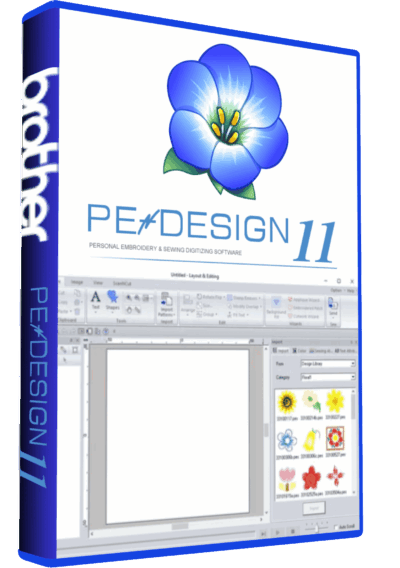
PE-Design 11.40 Embroidery Software Full Version Lifetime – Professional Digitizing
Embroidery Software
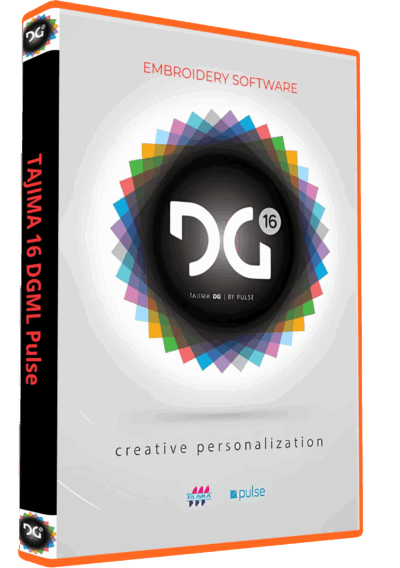
Tajima DGML 16 Pulse Embroidery Software Full Version Lifetime – Instant Download
Embroidery Software
Embroidery Software
Embroidery Software
Bravo Amaya OS 12.06.42 Full Version Lifetime – Embroidery Machine Software
Embroidery Software
Melco DesignShop 11.3 Pro Embroidery Software Full Version Lifetime – Instant Download
Embroidery Software
Embroidery Software
DesignShop V9 Professional Embroidery Software Full Version Lifetime – Instant Download
Reviews
There are no reviews yet.