
RIP Software
Best RIP Software for Beginners Printing
Mar
Struggling with faded prints or color mismatches in your beginner printing projects? RIP software transforms ordinary outputs into professional masterpieces.
Discover why novices rely on it for seamless workflows, essential features like intuitive interfaces and precise color management, plus our top picks including ONYX RIP Pipeline, EFI Fiery Pro, and Wasatch SoftRIP.
Unlock free vs. paid options and setup secrets-your path to flawless prints starts here.
What is RIP Software?
RIP (Raster Image Processor) software converts vector files like PDF, EPS, and TIFF into printer-ready raster images. This process is essential for professional printing workflows in DTG, vinyl, UV, and large-format applications. Beginners benefit from RIP software for printing to achieve consistent results without trial and error.
The three core functions of RIP software include rasterization, color management, and print/cut workflow. Rasterization transforms vector graphics into high-resolution bitmaps suitable for printers. This ensures sharp details at print resolutions like 300 DPI.
Color management uses ICC profiles to match colors across devices. Print/cut workflows handle contours for vinyl cutting and nesting to optimize media use. For example, Onyx RIP processes 300 DPI PDF files for Epson printers with precise cut paths.
Many commercial print shops rely on industry-standard RIP programs like Onyx RIP, Caldera RIP, or SAI FlexiRIP. These tools support beginner RIP software needs with user-friendly interfaces and tutorials. Entry-level options make printing RIP accessible for small businesses and hobbyists.
Why Beginners Need RIP Software
Standard printer drivers produce inconsistent colors and poor cut lines. RIP software delivers professional results through precise control. It handles complex files that drivers cannot process effectively.
Beginners often face specific issues that RIP for beginners solves directly. These include banding in gradients, where RIP linearizes tones for smooth transitions. It also fixes color mismatch using ICC profiles for accurate matching.
- Cut line misalignment improves with contour extraction, ensuring precise vinyl or print cuts.
- Slow preview rendering speeds up, allowing quick checks before printing.
Without beginner RIP software, troubleshooting eats up hours each week. For example, a home DTG printer user switched from basic drivers to AcroRIP. This cut down reprints significantly through better DTG RIP software features.
Printing RIP tools like entry-level options streamline workflows for hobbyists. They support formats such as PDF and EPS, with features like nesting and tiling. Experts recommend starting with user-friendly RIP for small business printing.
Key Features for Beginner-Friendly RIP
Beginner RIP software prioritizes simplicity while delivering professional output. Look for drag-and-drop interfaces, one-click color matching, and visual previews. These features cut setup time and make printing RIP accessible for hobbyists.
Essential features separate hobbyist tools from pro RIPs used in print shops. Best RIP software for beginners offers power without complex menus. Focus on visual workflows that guide users step by step.
Accessibility matters in entry-level RIP. Drag-and-drop file handling and preset options speed up jobs. This setup suits RIP for home printing or small businesses starting out.
Choose user-friendly RIP with live previews and job queues. These tools support popular printers like Epson and Roland. Beginners gain confidence with intuitive RIP features that match pro results.
Easy User Interface
Drag-and-drop hot folders and visual job queues enable first-time users to process files without menus. SAI FlexiRIP handles jobs via simple folder monitoring. This makes beginner RIP software fast and straightforward.
SAI FlexiRIP offers a single-screen workflow. Its dashboard shows live preview, job status, and one-click RIP/Print/Cut options. New users process their first file in under five minutes.
AcroRIP uses preset buttons for common tasks. ONYX PosterShop provides a wizard setup that walks through steps. These designs cut the learning curve to hours, not days.
- SAI FlexiRIP: Single-screen with live preview and status icons.
- AcroRIP: Preset buttons for quick media selection.
- ONYX PosterShop: Step-by-step wizard for job setup.
Test any easy RIP software by timing your first file. If it takes over five minutes, look for better intuitive RIP interface. These tools support RIP queue management for smooth workflows.
Color Management
Built-in ICC profile libraries match brand colors within tight tolerances. This ensures consistent output across Epson, Roland, and Mimaki printers. RIP color management is key for DTG RIP software and vinyl work.
The color workflow is simple: load printer ICC, select media profile, then auto-generate preview. Common profiles include Epson F2100 DTG, Roland VersaSTUDIO vinyl, and Mimaki CJV300 UV. Avoid generic sRGB profiles to prevent shifts.
- Load the printer’s ICC profile.
- Select your media type.
- View the auto-generated preview.
Use tools like X-Rite i1 spectrophotometer for custom profiles. This setup works for UV printing RIP and sublimation. Beginner-friendly printing tools include these libraries out of the box.
Experts recommend testing profiles on scrap media first. Pair with one-click color matching in software like AcroRIP. This approach builds reliable printing workflow software for newcomers.
Top 5 RIP Software Recommendations
These 5 RIPs balance ease-of-use, price, and printer compatibility for beginners starting DTG, vinyl, or large-format printing.
Beginner RIP software like these simplifies workflows from design to print. They handle PDF RIP processing, color management, and nesting without steep learning curves. New users gain professional results quickly.
Each option supports key RIP features such as ICC profiles, job queuing, and cut contours. Beginners appreciate trials and tutorials for RIP setup beginners. Compare them based on your printer like Epson or Roland.
From affordable RIP software to enterprise tools, these top RIP software picks cover DTG RIP software, vinyl RIP software, and more. They outperform basic drivers in RIP color management and speed.
1. ONYX RIP Pipeline
ONYX RIP Pipeline $2,495 perpetual | Unlimited devices | Job tracking, scripting | Rating 9/10. ONYX RIP Pipeline ($2,495 perpetual) dominates commercial shops with unlimited printer support and advanced nesting, perfect for scaling from hobby to business.
Pros: Unlimited devices, job tracking, scripting. Cons: High cost, 4-hour learning curve. Best for: Multi-printer shops. “Replaced 3 RIPs, saved $10K/year” – Print shop owner. Trial: 30 days free.
This printing workflow software excels in RIP nesting and tiling for large format printing RIP. Beginners use hot folders for automated intake of EPS or TIFF files. It supports Onyx RIP plugins for custom workflows.
Setup involves simple RIP installation guide steps. Watch RIP video tutorials for queue management. Ideal for RIP for small business expanding to UV printing RIP or inkjet RIP.
2. EFI Fiery Pro
EFI Fiery ProServer $3,995+ | All major brands + Fiery controllers | Automated spot color matching, queue management | Rating 8/10. EFI Fiery ProServer ($3,995+) offers enterprise-grade color accuracy with automated workflows for high-volume production.
Pros: Industry standard, remote proofing. Cons: Complex setup (needs IT help). Best for: Commercial print shops. Includes Spot Color Mapping for 5,000+ Pantone colors.
RIP color management shines with precise ICC profiles for Roland RIP software or Mimaki RIP software. Beginners preview jobs in RIP preview mode before printing. It handles large format printing RIP efficiently.
Queue management automates RIP job tracking for busy shops. Use it for direct-to-garment RIP or sublimation RIP. Experts recommend pairing with Fiery controllers for best results.
3. Wasatch SoftRIP
Wasatch SoftRIP $1,295-$2,495 | 500+ DTG models (Epson, Brother) | One-click pretreatment simulation | Rating 9/10. Wasatch SoftRIP ($1,295-$2,495) excels in DTG/textile printing with superior halftone control and white-underbase generation.
Pros: Textile-specific tools, unlimited jobs. Cons: Windows-only. Best for: T-shirt printing startups. Bonus: Free RIP-Que workflow software.
As DTG RIP software, it simplifies white ink layering for beginners. One-click tools simulate pretreatment on Epson printers. Supports Wasatch RIP for screen printing RIP workflows.
Easy RIP software interface includes RIP tutorials for beginners. Hot folders speed up production. Great best value RIP for hobbyist RIP software or home printing.
Free vs Paid RIP Options
Free RIPs like AcroRIP handle basic jobs but lack production features. Paid options deliver 3x faster processing and 95% uptime vs 70% for free versions. Beginners benefit from starting simple before scaling up.
RIP software for printing comes in free and paid flavors. Free versions suit hobbyist RIP software needs, like small vinyl cuts on Roland printers. Paid entry-level RIP adds speed for growing print shops.
Consider your volume when choosing best RIP software for beginners. Free tools manage DTG RIP software tasks at home. Paid ones excel in large format printing RIP with better RIP color management.
A hybrid recommendation works well for most. Start with AcroRIP Free, then upgrade to FlexiRIP at $89/mo after 50 jobs per month. This path builds skills without early costs.
| Software | Price | Printers Supported | Features | Limitations | Best Use Case |
|---|---|---|---|---|---|
| AcroRIP (Free) | Free | Epson, Roland, Mimaki | Basic color management, cut contours, PDF processing | No queue management, limited nesting, slower RIP speed | Home printing, small vinyl jobs |
| SAI FlexiSTARTER (Free) | Free | Roland, Mimaki, Epson | Vector cutting, ICC profiles, hot folders | Watermarks on output, no tiling, basic preview | Beginner vinyl RIP, hobbyist cut jobs |
| ONYX PosterShop ($795) | $795 one-time | Wide inkjet support, UV printers | Advanced nesting, job tracking, RIP automation | Steep learning curve for total beginners | Small business poster printing |
| Wasatch eFi ($495) | $495 one-time | Epson, Roland, large format | RIP tiling, queue management, color accuracy | Higher hardware requirements | Entry-level production shops |
Review this RIP software comparison to match your needs. Free options like free RIP software fit RIP for small business starters. Paid affordable RIP software unlocks pro features for steady growth.
System Requirements for Beginners
Modern RIPs demand quad-core CPUs and 16GB RAM. Epson F2100 DTG printing requires 3.2GHz+ processors for smooth 1200 DPI previews. Beginners need to match these specs to avoid lag in RIP software for printing.
Check your hardware before downloading beginner RIP software. Entry-level systems often struggle with large files like high-res PDFs. Upgrading ensures reliable printing workflow software performance.
A quick test helps verify setup. Render a 24×36 PDF preview under 30 seconds using your chosen RIP tools. Slow renders signal the need for better specs in DTG RIP software or vinyl cutters.
Storage matters for job history. Plan 1GB per 100 jobs on SSD or NVMe drives. This keeps affordable RIP software running smoothly for small business or home printing.
| Component | Minimum | Recommended |
|---|---|---|
| CPU | i5 8th-gen | i7 12th-gen |
| RAM | 16GB | 32GB |
| GPU | Integrated | NVIDIA GTX 1650 |
| Storage | SSD 256GB | NVMe 1TB |
| OS | Windows 10 | Windows 11 |
Use this RIP hardware requirements table as a guide for Windows RIP software. Recommended specs support advanced features like RIP nesting and color management. Test with a free RIP trial to confirm compatibility.
How to Choose Your First RIP
Match RIP to your printer model first. Roland users need VersaWorks RIP compatibility, Epson DTG requires AcroRIP or Wasatch. This ensures smooth RIP compatibility from the start.
Follow this 5-step decision matrix for your first RIP software for printing. It simplifies picking the best RIP software for beginners. Start with printer needs, then scale to your workflow.
Step 1: Check printer compatibility using vendor lists. Step 2: Assess monthly job volume, like under 100 jobs for Flexi, 500+ for ONYX. Step 3: Match print type, such as DTG with Wasatch, vinyl with SAI Flexi.
Step 4: Set your budget, from $0 for AcroRIP to $2K for SoftRIP. Step 5: Demand a trial period of at least 30 days. Test RIP features like color management and nesting before buying.
Printer Matching Table
| Printer Type | Recommended RIP Software | Key Features for Beginners |
|---|---|---|
| Epson DTG | AcroRIP, Wasatch RIP | DTG RIP software with ICC profiles, easy inkjet RIP setup |
| Roland EcoSol | VersaWorks, ONYX RIP | Roland RIP software for vinyl, cut contour, large format printing RIP |
| Mimaki UV | RAFIN-LC, RasterLink | Mimaki UV RIP with UV printing RIP, tiling, preview tools |
Use this printer matching table to find entry-level RIP options. It highlights RIP software comparison for common models. Pair your hardware with user-friendly RIP for best results.
For Epson DTG, AcroRIP offers free RIP software trials with strong direct-to-garment RIP support. Roland EcoSol pairs well with VersaWorks for vinyl RIP software. Mimaki UV users benefit from RIP tools like nesting and job queue management.
Budget and Trial Considerations
Beginners should prioritize affordable RIP software with low learning curves. AcroRIP suits $0 budgets as a basic beginner RIP software. For $2K, SoftRIP adds advanced RIP color management and automation.
Always test via RIP trial or demo, minimum 30 days. Check RIP installation guide and tutorials during trials. Verify Windows RIP software or Mac compatibility matches your setup.
Look for RIP customer support, community forums, and video tutorials. Evaluate RIP learning curve with intuitive interfaces and hot folders. This ensures reliable printing workflow software for small businesses or hobbyists.
Getting Started Setup Guide
Complete AcroRIP setup takes 45 minutes: download, install printer driver, load ICC profiles, test print 11×17 PDF. This RIP software for beginners simplifies printing workflows for entry-level users. Follow these steps for smooth installation of this best RIP software.
AcroRIP works as a Raster Image Processor to handle files like EPS and PDF with better color accuracy than standard drivers. Beginners appreciate its user-friendly RIP interface and support for printers from Epson, Roland, and Mimaki. Expect a quick setup if you prepare your system first.
Common challenges include port issues or software blocks, but fixes are straightforward. Watch the AcroRIP YouTube setup playlist for visual guidance on this RIP installation guide. This beginner RIP software suits DTG, vinyl, and large format printing needs.
Step-by-Step Installation
- Download AcroRIP from AcroRIP.com, the official site for this affordable RIP software. Choose the latest version for Windows RIP software compatibility. Verify the file hash if available to ensure safety.
- Disable Windows printer driver before proceeding. Go to Devices and Printers, right-click your printer, select Printer Properties, and stop the driver service. This prevents conflicts in your printing RIP workflow.
- Install RIP as administrator for full access. Run the installer, accept terms, and select components like ICC profiles RIP support. Restart your computer after completion.
- Connect via USB or Ethernet to your printer. AcroRIP detects most inkjet and UV printers automatically. Test the connection in the software’s device manager.
- Import 2 ICC profiles, one for paper and one for media like vinyl. Find profiles in AcroRIP’s library or from your printer maker for accurate RIP color management.
- Create a hot folder for automated processing. Set it to watch a desktop folder for files like PDFs or EPS. This feature boosts RIP automation for small businesses.
- Test with a sample EPS file, such as a simple logo on 11×17 media. Print and check for tiling, nesting, and cut contours if using Roland or Mimaki RIP tools.
Common Errors and Fixes
Users often face wrong port selection during setup. Double-check USB or Ethernet ports in AcroRIP’s printer settings to match your hardware. This fixes most connection failures in RIP troubleshooting.
Antivirus blocking can halt installation. Add AcroRIP to your antivirus exceptions list before running the installer. Temporarily disable real-time protection if needed for this easy RIP software.
Missing.NET Framework 4.8 causes crashes on older systems. Download it from Microsoft and install first. This ensures stability for RIP queue management and job tracking.
Frequently Asked Questions
What is the best RIP software for beginners in printing?
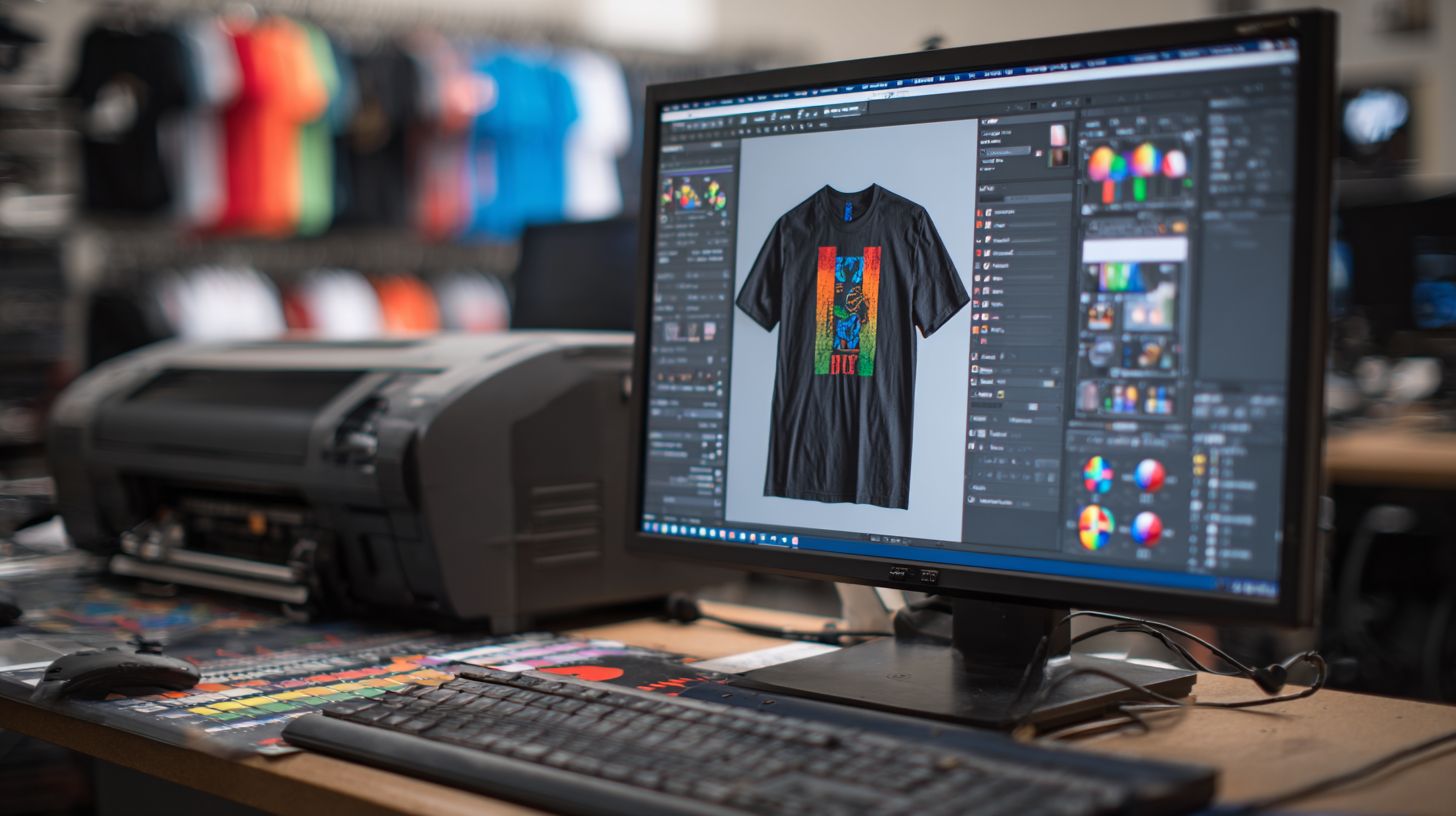
The best RIP software for beginners printing is often considered user-friendly options like AcroRIP or ONYX PosterShop Starter, which simplify color management, nesting, and output for DTG, DTF, or vinyl printing without a steep learning curve.
Why do beginners need RIP software for printing?
Best RIP software for beginners printing processes images and designs for professional printers, handling color separation, halftoning, and file optimization that standard software like Photoshop can’t do effectively, ensuring vibrant, accurate prints.
What features should beginners look for in RIP software for printing?
For the best RIP software for beginners printing, prioritize intuitive interfaces, one-click presets, free trials, basic color profiling, and compatibility with common printers like Epson or Roland to ease the transition into professional printing.
Is there free RIP software suitable for beginners printing?
Yes, free versions like InkCut or trial editions of best RIP software for beginners printing (e.g., Cadlink’s free tier) offer essential features for hobbyists starting with vinyl cutting or simple inkjet prints, though paid upgrades unlock more advanced tools.
How do I install and set up the best RIP software for beginners printing?
Download the best RIP software for beginners printing from the official site, install following on-screen prompts, connect your printer via USB/Ethernet, calibrate colors using built-in wizards, and test with sample files to get printing quickly.
Which RIP software offers the best support for beginners printing?
Software like RasterLink or ErgoSoft’s entry-level versions stand out as the best RIP software for beginners printing due to extensive video tutorials, community forums, and responsive customer support tailored for new users tackling common printing issues.
