
Embroidery Business
Wilcom Hatch Complete Beginner Tutorial
Mar
Unlock the art of embroidery digitizing with Wilcom Hatch, the industry-leading software trusted by professionals worldwide. Whether you’re a novice crafter or aspiring designer, mastering its tools opens endless creative possibilities-from stunning machine-ready designs to custom apparel.
This complete beginner tutorial guides you through installation, interface mastery, first designs, digitizing essentials, colors, editing, and exporting across 25 detailed sections. Ready to stitch your vision to life?
What is Wilcom Hatch?
Wilcom Hatch transforms artwork into embroidery files through vector-to-stitch conversion. It supports 60+ machine formats including PES (Brother), DST (universal), and EXP (Babylock). This makes it ideal for beginners starting their embroidery beginner journey with a complete beginner tutorial.
Hatch includes four core modules: Digitizer for creating custom designs, Lettering for text-based embroidery, PhotoStitch for turning photos into stitches, and Production Manager for workflow efficiency. Users can explore hatching tutorial features like fill stitching, satin stitch, and running stitch. These tools suit hobbyists and small businesses alike.
Compared to Wilcom EmbroideryStudio, Hatch offers great value at $1,499 versus Studio’s $5,000+ price. Wilcom reports 50,000+ licenses sold, showing its popularity among home embroidery users. Beginners appreciate the Wilcom Hatch tutorial interface for easy digitizing tutorial steps.
Practical examples include importing SVG files for shape digitizing with tools like ellipse tool or polygon tool. Adjust stitch types such as tatami fill or gradient fill for professional results. This step-by-step guide helps with simple designs like heart embroidery or text embroidery.
Key Features for Beginners
Hatch’s Auto-Digitizer converts SVGs to embroidery in 30 seconds, while 15+ stitch types (tatami fill, satin column, run stitch) cover most beginner projects. This tool simplifies the digitizing tutorial process in Wilcom Hatch. Beginners can import vector files and generate PES format designs quickly.
The software offers 200+ fonts for lettering, perfect for monogramming and text embroidery. Use TrueType fonts or embroidery fonts to create custom names or quotes. Adjust properties like height and spacing in the object properties panel for precise results.
- PhotoStitch turns JPG images into embroidery designs, ideal for portraits or logos on shirts.
- Gradient fills blend up to eight colors smoothly, adding depth to shapes like hearts or flowers.
- Resize without recount scales designs from 0.5x to 4x, maintaining stitch quality for Brother PE machines.
- Realistic preview shows stitch-accurate views, helping spot issues before sewing on fabric.
Master these basics in about four hours using Wilcom training resources. Start with a simple heart embroidery project in the design workspace. Practice auto digitizing SVG imports and previewing with slow redraw for best results.
Explore hatch patterns like tatami fill for backgrounds and satin stitch for borders. The Wilcom interface makes switching stitch types easy. Save in DST or EXP format for your embroidery machine.
System Requirements
Wilcom Hatch E4 requires Windows 10/11 (64-bit), 8GB RAM minimum (16GB recommended), and 2GHz processor for smooth 10,000 stitch designs. These specs ensure the embroidery software runs without lag during digitizing and previews. Beginners in this Wilcom Hatch tutorial should check their setup first to avoid frustration.
Meet the official minimums to handle stitch types like fill stitching and satin stitch. A 2GB GPU helps with realistic previews and gradient fills. Insufficient hardware leads to slow redraws in the design workspace.
| Component | Minimum Requirement |
|---|---|
| OS | Windows 10/11 (64-bit) |
| CPU | Intel i5 or equivalent, 2GHz+ |
| RAM | 8GB (16GB recommended) |
| GPU | 2GB VRAM dedicated |
| Storage | 5GB free space on HDD/SSD |
| Internet | Required for activation and updates |
The Brother PE800 runs Hatch-exported PES format files flawlessly, making it ideal for beginner embroidery projects like heart designs. Double your RAM to 3x faster redraws when working with complex hatch patterns or lettering embroidery. This upgrade tip suits hobbyists using Wilcom tools for home embroidery.
For a complete beginner tutorial, test your system with a simple design using the block tool or ellipse tool. Slow performance often ties to low RAM during auto digitizing or object properties edits. Experts recommend 16GB RAM for smooth hatching tutorial sessions with tatami fill and underlay stitch.
Downloading Wilcom Hatch
Visit wilcom.com/download, create a free Hatch Account, select E4 trial (3.2GB Windows installer), download completes in 10-15 minutes on 100Mbps connection. This Wilcom Hatch tutorial starts with easy access to the free trial of Wilcom Hatch E4, perfect for embroidery beginners. No credit card is needed to begin your digitizing tutorial.
Follow these numbered steps for a smooth software installation. First, register at hatch.wilcom.com using your email. Then, choose the E4 trial download for Windows compatible systems.
- Register at hatch.wilcom.com with a valid email address.
- Download the E4 trial, a 3.2GB installer with no CC required.
- Verify the checksum using the provided SHA256 value to ensure file integrity.
- Save the file to C:HatchSetup for organized access during installation.
Expect a bandwidth estimate like 100Mbps equaling about 12 minutes for download. This step prepares you for exploring stitch types such as running stitch and satin stitch in your beginner embroidery projects. Check system requirements beforehand to avoid issues with your embroidery machine compatibility, like Brother PE models.
Once downloaded, you’re set for the full complete beginner tutorial on Wilcom Hatch. This step-by-step guide ensures new users grasp hatch patterns and fill stitching quickly. Screenshots of the direct download button simplify the process visually.
Installation Process
Run HatchSetup.exe as Administrator, accept 4GB disk space, complete installation in 8 minutes with default C:Program FilesWilcom Hatch path. This Wilcom Hatch beginner tutorial step ensures smooth setup for your embroidery software. Follow these steps closely for best results.
Right-click the setup file and select Run as Administrator to avoid permission issues. Accept the license agreement, which limits use to a single PC. Proceed with the default installation path unless you have a specific reason to change it.
- Right-click HatchSetup.exe and choose Run as Administrator.
- Accept the license agreement for single PC use only.
- Install .NET Framework 4.8 if prompted during setup.
- Launch the first-run wizard after installation completes.
- Set your workspace to 1920×1080 resolution in the wizard for optimal viewing.
A restart may be required after installation, so save your work beforehand. Common errors arise from antivirus interference, so disable antivirus during install. This prevents blocked files and ensures Wilcom Hatch launches properly for your embroidery designs.
Once installed, explore the Wilcom interface in this complete guide. Verify system requirements like Windows compatibility before starting. Your setup now supports digitizing tutorial projects, from simple heart embroidery to complex hatch patterns.
First Launch and Activation
Enter your Hatch Account email on first launch to activate 14-day trial, granting full access to all 4 modules including $1,499 Digitizer features. This step unlocks the Wilcom Hatch complete beginner tutorial experience in this embroidery software. You gain immediate use of tools like fill stitching and satin stitch right away.
Begin by double-clicking Hatch.exe from your desktop or Start menu. The activation screen appears, prompting your account email and password. Screenshot of activation screen shows the email field at the top, login button below, and trial timer in the bottom-right corner counting down your 14 days.
- Launch Hatch.exe to open the welcome dialog.
- Login with your account email and password for verification.
- Accept the EULA by clicking the agreement checkbox and proceeding.
- Wait for the 300MB core libraries download, which installs essential files for digitizing and hatching.
- Set default units like mm or inches in the prompted settings dialog.
Licensing in Wilcom Hatch is flexible. It is transferable to new PC via account dashboard, so you can manage activations online. This suits embroidery beginners switching machines like Brother PE or Innovis.
After activation, explore the Wilcom interface with its design workspace ready for your first embroidery design. Save files in formats like PES or DST for your embroidery machine. Common mistakes include skipping the library download, so ensure a stable internet connection.
Main Workspace Tour
The central 100% stitch view workspace displays vector outlines over live stitch preview, with rulers (0-300mm), grid snapping (1mm default), and origin at (0,0). This setup in Wilcom Hatch lets beginners see exact embroidery designs as they digitize. Adjust the view to match your heart embroidery or text project perfectly.
Use the rulers and grid for precise placement, toggled with F9. Enable grid snapping to align shapes like rectangles or ellipses easily. This helps in beginner embroidery tasks such as simple shape digitizing.
Zoom tools range from 50% to 800%, with Ctrl+Mousewheel for quick changes. Grab the pan hand tool or hit Spacebar to move around large designs. Turn on slow redraw via ViewQuality for realistic stitch previews during editing.
Key areas include the canvas center, ruler edges, zoom controls, pan icon, and quality toggle. These tools support hatching tutorial steps like setting fill stitching or satin stitch. Practice on a simple design to master the Wilcom interface.
Toolbars and Panels
Eight core toolbars provide 60+ functions: File (save/export), Edit (copy/paste), Digitize (15 stitch tools), Object (reshape/break), View (zoom/pan), Sequence (stitch order), Colors (15 palettes), Threads (400+ charts). These Wilcom Hatch toolbars sit at the top of the screen and give quick access to essential actions in this embroidery software. Beginners can customize their layout for faster digitizing workflows.
The Digitize toolbar holds tools like running stitch, satin stitch, and fill stitching for creating embroidery designs. Use the Object toolbar to reshape paths or break objects during editing. View tools help with zoom and pan to inspect details in your Wilcom Hatch tutorial projects.
Below the toolbars, panels offer detailed controls. Dock them to the sides or undock by dragging the title bar for a floating view. Right-click a panel tab to close or reset its position in the design workspace.
Here is a reference table for the main toolbars in Wilcom Hatch.
| Toolbar | Icons | Key Functions | Hotkey |
|---|---|---|---|
| File | Save, Export, New, Open | Save designs, export to PES format or DST format | Ctrl+S |
| Edit | Copy, Paste, Undo, Cut | Copy/paste objects, undo changes | Ctrl+C |
| Digitize | Running, Satin, Fill, Applique | 15 stitch tools for manual digitizing | N/A |
| Object | Reshape, Break, Join | Edit nodes, break points, join objects | F2 |
| View | Zoom, Pan, Redraw | Zoom in/out, slow redraw, realistic preview | Ctrl+= |
| Sequence | Up/Down, Lock Stitch | Change stitch order, trims/jumps | Alt+Up |
| Colors | Palette, Gradient | 15 palettes, colorway options | C |
| Threads | Chart Selector | 400+ thread charts, brand matching | T |
Properties Panel
The Properties panel shows stitch settings for selected objects. Adjust stitch types like tatami fill or satin stitch here. It updates live as you select elements in your embroidery design.
Use it to set pull compensation and underlay stitch for better results on stretchy fabrics. For a heart embroidery example, tweak density to avoid gaps. This panel is key in any digitizing tutorial.
Colors Panel
The Colors panel handles RGB and Pantone selections. Pick from 15 palettes or create custom gradients for colorway options. It links to thread charts for accurate machine output.
Switch between RGB for screen preview and Pantone for production. Test with text embroidery to see palette changes instantly. Essential for lettering embroidery in Wilcom Hatch.
Threads Panel
Access thread charts with 400+ brands in the Threads panel. Match colors to real threads like Isacord or Madeira. Search by number or name for quick swaps.
Ideal for production manager tasks or cost estimator. Beginners use it to build accurate embroidery file formats like EXP format. Prevents mismatches on Brother PE machines.
Sequence Panel
The Sequence panel lists object order for stitching. Drag items to reorder or set start/end points. Lock stitching reduces jumps in complex designs.
For a simple design with shapes, sequence fills before satin outlines. Adjust trims for fewer stops. Crucial for sequencing in embroidery beginner projects.
Quality Panel
Control density and pull in the Quality panel. Fine-tune stitch density for fabric types and pull compensation. Preview changes with realistic view.
Use for hatch patterns like tatami fill to prevent gaps. Experts recommend testing on scraps first. Helps in hatching tutorial steps.
MiniView Panel
The MiniView panel gives an overview of your design. Zoom to sections by clicking the thumbnail. Great for large monogramming projects.
Dock it for constant reference during resize or rotate. Pans the main view smoothly. Supports step-by-step guide navigation in Wilcom interface.
Customization Basics
Customize via WindowReset Layout or drag panels to 4 monitor edges, saving workspace as ‘Beginner/Default’ via FileWorkspacesSave. This sets up the Wilcom Hatch interface for efficient embroidery design work in your beginner tutorial. Panels like object properties and color palette stay accessible.
Dock panels by dragging them to screen edges in this Wilcom Hatch tutorial. They snap into place for a clean design workspace. Hide or show panels quickly through the Window menu to focus on hatching tutorial tasks.
Save your preferred layout under FileWorkspaces for repeated use in digitizing tutorial sessions. Name it something simple like ‘Beginner Layout’ to match your embroidery beginner needs. Switch layouts anytime to adapt to projects like heart embroidery.
- Drag panels to dock at edges for quick access to stitch types and hatch patterns.
- Use Window menu to hide/show tools during fill stitching or satin stitch edits.
- Assign hotkeys in ToolsOptionsKeyboard for reshape tool or selection tool.
- Switch theme to Light or Dark for better visibility on thread charts.
- Pro tip: On dual monitors, keep object properties left and workspace right to streamline navigation.
Set hotkeys for frequent actions like resize design or rotate embroidery to speed up your step-by-step guide. Choose Light or Dark theme based on your lighting for comfortable Wilcom software use. These basics make beginner embroidery smoother from the start.
Starting a New Project
FileNew creates a 100x100mm hoop-sized canvas. This fits Brother 4×4 embroidery machines perfectly. It auto-loads 60-degree stitch angles and 0.4mm density defaults for beginner embroidery projects.
Follow these steps to set up your Wilcom Hatch workspace. First, go to FileNew or press Ctrl+N. Then set the size to 100x100mm with units in mm and DPI at 2400.
- FileNew (Ctrl+N) to open the new project dialog.
- Set size to 100x100mm for standard hoops.
- Choose units as mm for precision.
- Set DPI=2400 for high-quality previews.
- Enable Show grid with F9 for easy alignment.
Wilcom Hatch offers three handy template options: Hoop4x4, Lettering, and Monogram. Pick Hoop4x4 for simple shapes like a heart embroidery design. The stitch estimator displays ‘0/50,000 stitches’ to track your fill stitching limits.
These defaults make digitizing tutorial steps straightforward in the Wilcom interface. Use the design workspace grid to place objects accurately. Experiment with hatch patterns later for satin stitch or tatami fill effects.
Setting Design Properties
The Design Properties panel sets global stitch angle at 45 degrees default, underlay yes or no, lock stitching with 3 repeats, and max jumps at 12mm auto-trim. This panel controls key settings for your Wilcom Hatch embroidery design. Beginners find it essential for consistent results in this complete beginner tutorial.
Start by selecting Units as mm or inch to match your embroidery machine. Set Hoop size to 100×100 for small projects like heart embroidery. Adjust Stitch limit to 50k to avoid overload on home machines such as Brother PE.
Enable Auto-start/end with 3 repeats for secure stitching. Use Pull compensation at +0.2mm to counteract fabric stretch on satin stitch. Keep Density at 0.4mm default for balanced fill stitching in tatami fill or gradient fill.
After setting values, click the Apply to all objects button in the panel’s bottom right. This updates every object in your design workspace. Test in realistic preview to check underlay stitch and pull compensation effects.
| Setting | Beginner Value | Purpose |
|---|---|---|
| Units | mm | Matches metric hoop sizes |
| Hoop size | 100×100 | Fits standard frames |
| Stitch limit | 50k | Prevents machine errors |
| Auto-start/end | 3 reps | Secures thread ends |
| Pull compensation | +0.2mm | Adjusts for fabric pull |
| Density | 0.4mm | Even stitch coverage |
Using the Run Tool
The Run Tool creates 2.0-4.0mm spaced outline stitches ideal for borders. It works well for heart embroidery or simple shapes in Wilcom Hatch. Beginners find it perfect for adding clean edges to designs.
To start, select the Run icon from the Wilcom interface. Click 8-12 points to outline your heart shape in the design workspace. Double-click to close the path and generate the running stitch.
Next, open object properties to refine settings. Set spacing to 3mm, angle to 45 degrees, and enable underlay for stability. This ensures smooth stitches on your embroidery machine.
View the before/after stitch view using slow redraw or realistic preview. A common mistake is using too few points, which causes wavy lines. Add more points for precise curves in your digitizing tutorial.
- Select Run Tool from the toolbar.
- Click points carefully around the heart shape.
- Double-click to end and close the path.
- Adjust properties: spacing 3mm, 45 degrees angle, underlay yes.
- Preview stitches to check quality.
Practice this step-by-step guide on a simple design. It builds skills for beginner embroidery and manual digitizing in Wilcom software.
Column Tool Basics
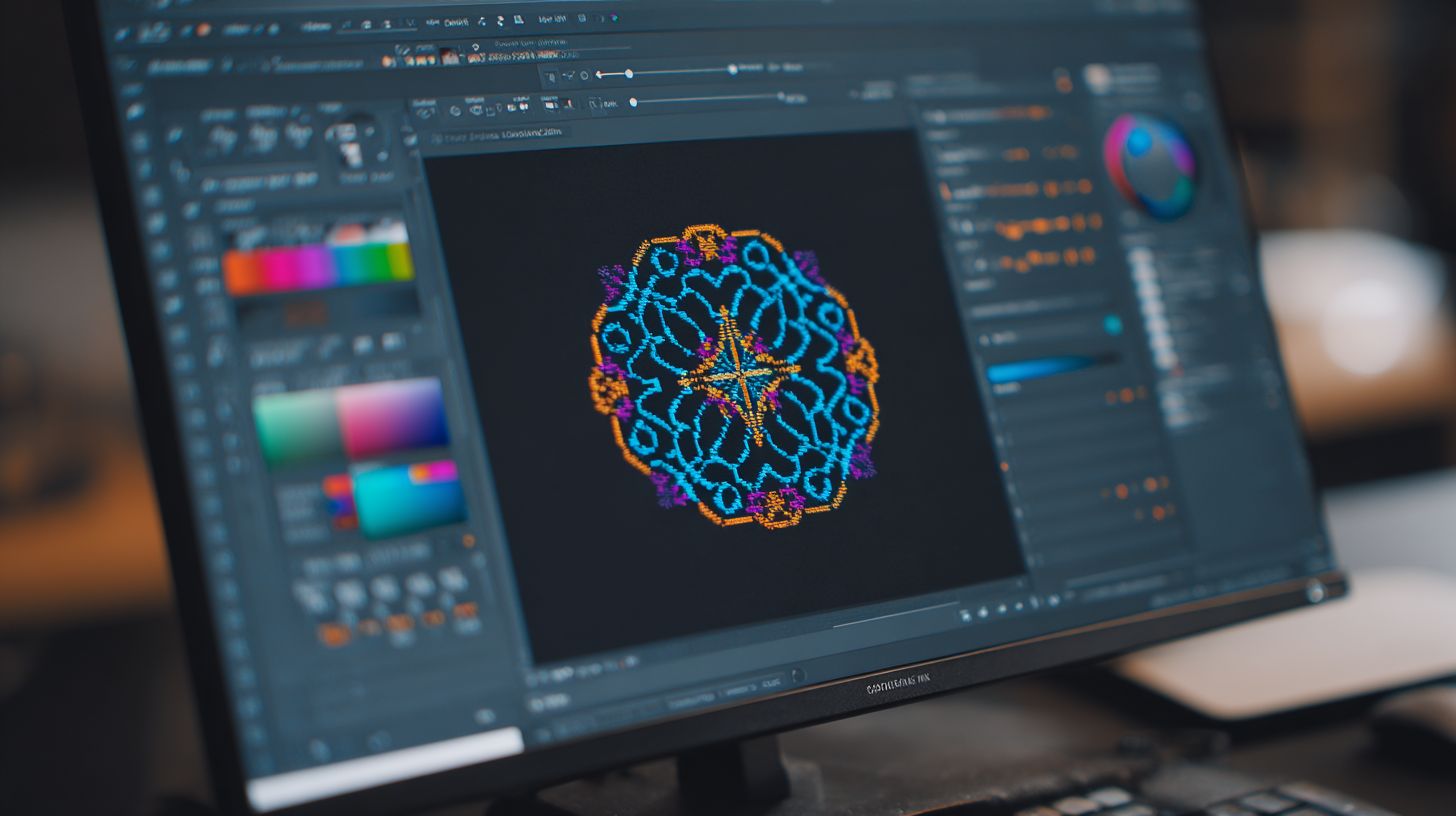
Column Tool produces parallel satin stitches (0.5-12mm wide) perfect for text and borders, creating smooth 5,200 stitches for ‘LOVE’ at 50mm height. In this Wilcom Hatch beginner tutorial, master the basics of this essential digitizing tool for clean lettering embroidery. It draws two parallel lines to generate satin columns ideal for monogramming and borders.
Start by selecting the Column Tool from the Wilcom interface. Draw the left edge first, then the right edge in a left-to-right motion for precise control. Keep the width at 8mm maximum to avoid puckering on fabric during embroidery.
Enable zigzag underlay in object properties for stability, especially on stretchy materials. Set the peak angle to 60 degrees for sharp turns without gaps. On curves, use half-width to maintain even stitch density and smooth flow.
For the ‘LOVE’ example, digitize each letter as a column object, then adjust properties like the screenshot shows. Pro tip: split long satin columns over 12mm into shorter segments to prevent thread breaks. This hatching tutorial technique ensures professional results in your embroidery designs.
Filling Simple Shapes
The Fill Tool in Wilcom Hatch auto-generates a tatami pattern covering shapes at 0.35-0.50mm density, producing 8,500 stitches for a 60x60mm circle. This makes it ideal for beginner embroidery projects like filling hearts or simple icons. Start by drawing an ellipse tool shape at 60mm width in the design workspace.
Next, select the Fill Tool from the Wilcom interface and apply it to your ellipse. Set Direction=horizontal, Density=0.4mm, and Row spacing=2.0mm in the object properties panel. These hatch settings ensure even coverage without excess thread buildup.
Compare Fill vs Tatami: Fill creates uniform stitching across the shape, while Tatami allows auto-flow around curves for a more natural look. Use the stitch calculator to preview results, showing stitch count and density. Enable underlay settings like running stitch at 3.0mm spacing to stabilize fabric on stretchy materials.
For best results in this digitizing tutorial, experiment with pull compensation at 0.2mm to counter fabric stretch. Check the realistic preview for stitch types flow, and save in PES or DST format. This step-by-step approach builds confidence in Wilcom Hatch E4 for simple designs.
Color Palette Management
The Colors panel in Wilcom Hatch offers 18 palettes like Isacord Poly and Madeira Rayon, plus a custom RGB picker. You can assign colors via drag-drop to a maximum of 16 objects in your embroidery design. This makes it easy for beginners to manage hues during digitizing.
Start your color workflow by opening the Colors menu and selecting the Isacord tab. Drag a thread color like #1122 Red directly onto your object in the design workspace. This assigns the exact thread match instantly for accurate stitching.
To build a custom setup, go to File and choose New Palette. Save your selections for reuse across projects, such as a heart embroidery or text design. This keeps your Wilcom Hatch tutorial organized from the start.
Create colorway variations with up to five swatches for quick previews. Use the RGB picker for custom shades, matching to thread charts with high visual accuracy per Wilcom testing. Test in realistic preview mode to see how colors render on fabrics like cotton or felt.
Thread Charts and Substitution
The Threads panel contains 422 charts (26 brands x 16 types), auto-substituting unavailable Isacord #1122 with Madeira 1048 (E=2.1 color difference). In this Wilcom Hatch complete beginner tutorial, managing threads ensures your embroidery designs match perfectly on the machine. Access it via View Threads panel for quick adjustments.
Select your preferred brand like Isacord 40wt from the dropdown in the Wilcom interface. Toggle the auto-substitute option to let the software find close matches automatically. This saves time during digitizing tutorials when exact colors are out of stock.
Print a thread sheet as a 2×4 chart directly from the panel for your workspace. Use it to reference colors while working on heart embroidery or text designs. Pro tip: Choose Madeira Poly for outdoor designs due to its durability against weather.
| Brand | Colors | Best For |
|---|---|---|
| Isacord 40wt | Full spectrum | General apparel |
| Madeira Poly | Vibrant hues | Outdoor items |
| Robison-Anton | Rayon variety | Delicate fabrics |
Experiment with color palette swaps in the design workspace to preview changes. This step-by-step guide helps beginners avoid common mistakes like mismatched shades on Brother PE machines. Save colorways for future embroidery business projects.
Selecting and Moving Elements
The Selection Tool (V) supports 4 modes: point (1px), object, lasso, color-select, moving entire hearts 25mm without stitch recalculation. This makes it easy for embroidery beginners to handle designs in Wilcom Hatch. Switch modes via the toolbar or shortcuts for quick access in your digitizing tutorial.
Use point select for precise clicks on single nodes or objects. Hold Ctrl+click for multi-selection, ideal for grouping scattered elements like text and shapes. The marquee tool drags a box around items for grouped selection in complex embroidery designs.
Color-select, or magic wand, grabs all areas of the same color fast. Perfect for editing uniform fills in hatch patterns or satin stitches. Combine with lasso for irregular shapes during manual digitizing.
To move, drag selected items or use Properties panel X/Y fields for +-0.1mm precision. Access alignment tools to center, distribute, or align objects evenly. This keeps your heart embroidery or lettering neat without recalculating stitches.
- Center horizontally/vertically for balanced designs.
- Distribute spacing evenly across multiple objects.
- Align to top, bottom, left, or right edges.
Practice on a simple beginner project like a monogram. Resize, rotate, or scale stitches while selected. Save time in the Wilcom interface by locking positions with object properties.
Reshaping Stitch Objects
The Reshape Tool converts an 8-point heart to a 16-point smooth curve by adding nodes (double-click line), previewing stitch changes live. This Wilcom Hatch tutorial feature helps beginners refine embroidery designs quickly. Watch stitch counts update in real time as you edit.
Select your heart embroidery object first using the selection tool. Click the Reshape icon in the Wilcom interface to enter node editing mode. Drag existing nodes to curve lines smoothly for better fill stitching.
To expand your design, double-click on any line segment to add new nodes. Delete unwanted ones by selecting and pressing Del. Right-click nodes for options like smooth corners, ideal for satin stitch or tatami fill edges.
Before reshaping, your simple heart might use 800 stitches; after, it reaches around 1,200 stitches for detail. A common fix is enabling ‘Break at stitch ends’ in object properties to prevent gaps. This step-by-step guide ensures clean embroidery designs in Wilcom Hatch E4.
File Formats Explained
PES v7-10 (Brother PE/Innov-is), DST (universal Tajima), EXP (Babylock/Bernina) each support 16+ colors and 50,000+ stitches with unique registration marks. These formats are key in Wilcom Hatch for saving embroidery designs. Beginners often choose based on their machine brand.
In this beginner tutorial, understanding formats helps avoid compatibility issues. For example, save a heart embroidery design in PES for Brother machines. Always work in the native .HAT source file first, then export to machine formats.
The .HAT source keeps full editability with all stitch types like tatami fill and satin stitch. Exporting compresses data for machines. This rule prevents losing hatch patterns or object properties during edits.
| Format | Brands | Colors | Stitches | Reg Marks | Compression |
|---|---|---|---|---|---|
| PES | Brother (100% home market) | 16+ | 50,000+ | Yes | Light |
| DST | Commercial (Tajima/Schwab) | 16+ | 50,000+ | Yes | Heavy |
| EXP | Babylock/Bernina | 16+ | 50,000+ | Yes | Medium |
Use the table to pick formats in Wilcom Hatch tutorial workflows. Test exports with realistic preview for trims and jumps. This ensures smooth transfer to your embroidery machine.
Exporting for Embroidery Machines
FileSave As PES v10 exports 12,400 stitch heart design (45 seconds) with auto color sort and trim commands for Brother PE800. This step in the Wilcom Hatch tutorial ensures your embroidery design works smoothly on the machine. Beginners save time by following this step-by-step guide.
Start with File Save As in the Wilcom interface. Select PES v10 from the embroidery file formats, then choose your machine profile like Brother PE800. Include trims and jumps to match real stitching, and enable color sequence optimize for efficient production.
A 12k stitches design equals about 28KB in PES format. Use the stitch simulator to verify 100% compatibility before USB transfer. This catches issues like density problems or jump errors early in your beginner embroidery workflow.
- Open your completed design in the design workspace.
- Go to File Save As and pick PES v10.
- Select machine profile, check trims/jumps, and optimize colors.
- Run stitch simulator for a realistic preview.
- Transfer to USB for your Brother PE or Innovis machine.
2. Installation and Setup
Installing Wilcom Hatch takes 15 minutes and activates via online Hatch Account, providing immediate access to the 14-day free trial with full digitizing features. Download the software from wilcom.com/hatch as a 3GB installer designed for Windows-only compatibility. This embroidery software uses single-user licensing at $1,499 for perpetual use, ideal for beginners starting their digitizing tutorial.
The installer includes a system optimizer tool to boost embroidery performance on your machine. Run it after setup to fine-tune Wilcom Hatch for smooth operation with tools like fill stitching and satin stitch. This ensures your beginner embroidery projects, such as a simple heart design, render quickly in the design workspace.
During installation, create or log into your Hatch Account for activation. The process checks system requirements like Windows compatibility and sufficient RAM for handling hatch patterns and lettering embroidery. Test the free trial right away with a basic text embroidery project to explore the Wilcom interface.
Common setup tips include closing other programs before installing to avoid conflicts. Use the optimizer to adjust stitch density previews and slow redraw for realistic views. This step-by-step guide prepares you for the complete Wilcom Hatch tutorial, from auto digitizing to exporting in PES format.
2.1 System Requirements and Preparation
Check Windows compatible systems before downloading Wilcom Hatch, focusing on recent versions like Windows 10 or 11. Ensure at least 8GB RAM and a dedicated graphics card for handling emboss effect and 3D embroidery previews. Free up disk space for the 3GB installer and future embroidery design files.
Prepare by updating your graphics drivers for optimal realistic preview in the design workspace. Disable antivirus temporarily during install to prevent interruptions. This setup supports embroidery machines like Brother PE or Innovis seamlessly.
Run the included system optimizer tool post-install to analyze and enhance performance. It adjusts settings for stitch types like running stitch and tatami fill, reducing lag in manual digitizing. Beginners benefit from this for their first hatching tutorial with shapes like ellipse tool or polygon tool.
Test compatibility by opening a sample SVG import or TrueType font. If issues arise, restart and re-optimize. This ensures smooth beginner project workflows, such as resizing a heart embroidery design.
2.2 Step-by-Step Installation Guide
Begin by downloading the Wilcom Hatch installer from the official site. Double-click the 3GB file and follow prompts, accepting the license for single-user use. The process takes about 15 minutes on a standard setup.
Enter your Hatch Account details during activation to unlock the free trial. Select components like production manager and cost estimator if needed for embroidery business planning. Avoid custom paths to keep troubleshooting simple.
Launch Wilcom software after install and run the system optimizer. It scans for optimizations tailored to your hardware, improving gradient fill and photo stitch rendering. Restart if prompted for full effect.
Verify setup by creating a new design with the selection tool. Import a vector file and apply color palette changes. This confirms readiness for the complete guide to features like underlay stitch and pull compensation.
2.3 Activating the Free Trial and Licensing
After installation, open Wilcom Hatch and sign in with your Hatch Account to activate the 14-day free trial. This grants full access to digitizing tutorial tools, including manual digitizing and auto serging. No credit card is required upfront.
For perpetual licensing at $1,499, purchase through your account post-trial. It ties to one user and machine, supporting home embroidery or hobbyist needs. Transfer is possible with Wilcom support for upgrades.
Explore trial features like thread charts and embroidery fonts immediately. Practice a simple design with satin stitch to test limitations. The trial includes all Wilcom tools for authentic beginner tutorial experience.
Monitor trial days via the account dashboard. Export test files in DST format or EXP format to your embroidery machine. This prepares you for advanced topics like sequencing and trims/jumps.
3. User Interface Overview
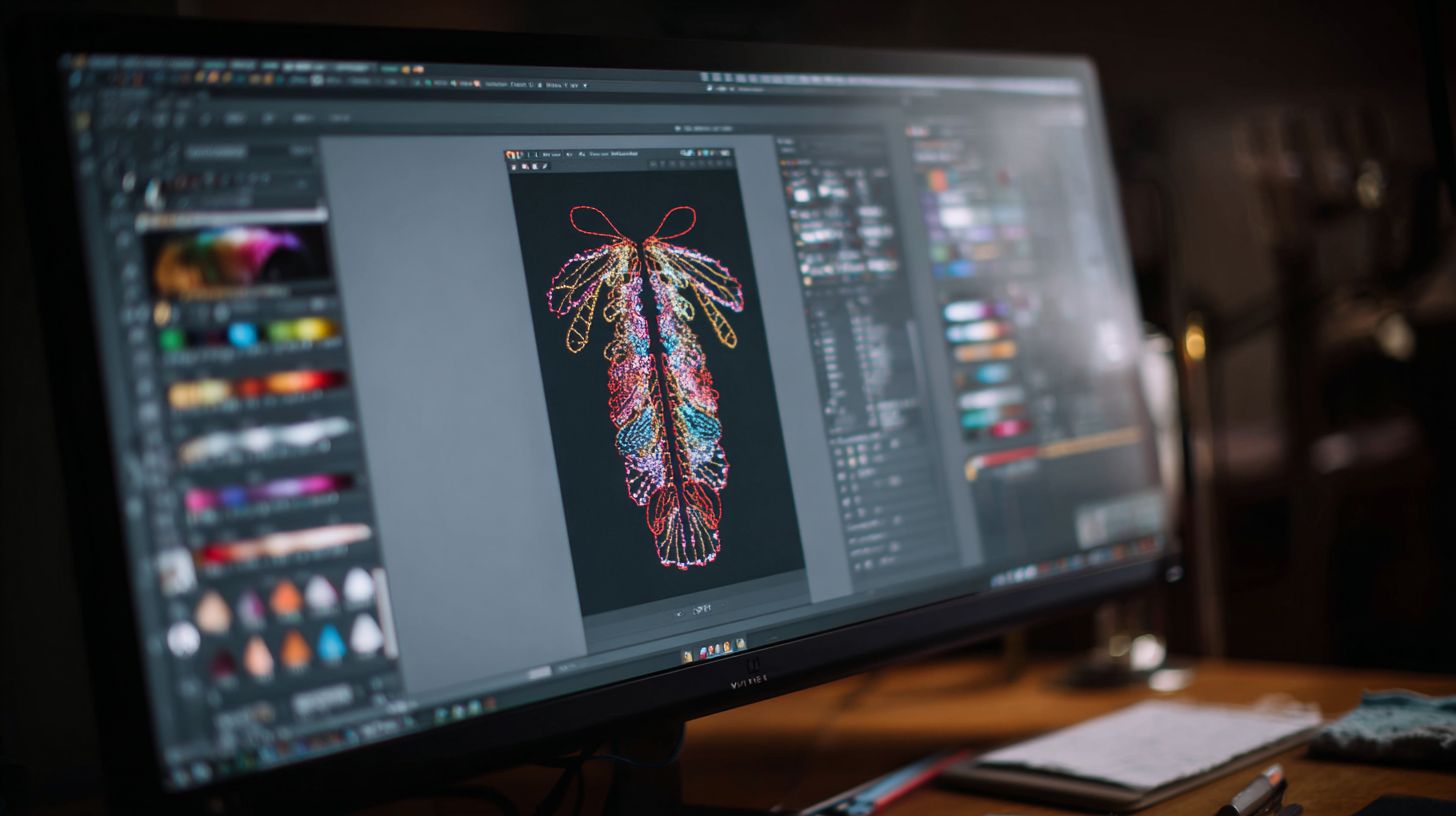
Hatch’s interface centers on a 1920×1080 design workspace flanked by 7 resizable panels (Tools, Properties, Colors, Threads, Sequence, Quality, Mini View). This ribbon-style toolbar puts essential Wilcom Hatch tools at your fingertips for quick access during embroidery design creation. Beginners in this Wilcom Hatch tutorial appreciate how the layout handles most tasks in the primary view.
The context-sensitive properties panel updates automatically based on your selected object, showing options like stitch types or object properties. A 100% zoom workspace lets you view designs at true size, while real-time stitch preview simulates embroidery on fabric. This setup supports beginner embroidery projects, such as a simple heart shape with fill stitching.
Resize panels to fit your screen, and use the Mini View for an overview during detailed node editing. Keyboard shortcuts speed up workflows by reducing mouse clicks, ideal for digitizing tutorial steps like drawing with the ellipse tool or rectangle tool. Experiment with hatch patterns like tatami fill in the Quality panel for realistic results.
For step-by-step guide users, the Sequence panel lists stitch objects, helping manage running stitch underlay or satin stitch sequencing. Switch to slow redraw for precise control in complex designs, or realistic preview to check pull compensation. This embroidery software interface makes manual digitizing intuitive from the start.
Creating Your First Design
New designs start at 100x100mm with 2400 DPI resolution, perfect for 4×4 hoops on Brother PE800 machines. The default template fits most home embroidery hoops from 4×4 to 8×12 inches. Set units to mm standard, enable the background grid, and activate the stitch estimator for quick checks.
In the Wilcom Hatch interface, click File then New to begin. The design workspace shows a clean canvas with rulers and a color palette nearby. Use the selection tool to adjust the bounding box if needed for your hoop size.
Turn on the stitch calculator from the View menu to track stitch types like running stitch or fill stitching in real time. This helps beginners avoid overstitching on small hoops. Experiment with object properties to preview changes before committing.
For your first beginner project, draw a simple heart using the ellipse tool or polygon tool. Apply tatami fill for texture, and watch the realistic preview update. Save often in PES format for Brother machines.
Setting Up the Workspace
Access the Wilcom Hatch tutorial basics by customizing your view. Enable slow redraw and grid snap for precise shape digitizing. This setup suits embroidery beginners working on home machines like Brother Innovis.
Choose mm units in preferences for global consistency. Open the thread charts palette to match colors early. The stitch estimator panel shows totals for fill stitching and jumps.
Zoom with mouse wheel for detail on small elements like text embroidery. Lock the color palette to one side for easy access during digitizing tutorial steps. Test hatch settings on a blank area first.
Drawing Your First Shape
Select the rectangle tool or curve tool from the toolbar for a simple design. Click and drag to form a base shape, then use node editing for curves. This step-by-step guide builds confidence in manual digitizing.
For a heart embroidery design, start with two ellipses and join them. Apply running stitch outline via object properties. Adjust stitch density to prevent puckering on fabric.
Use freehand drawing for organic shapes, then refine with breaking points. Preview with print preview to check scale. Beginners often add underlay stitch here for stability.
Applying Basic Stitches
With your shape selected, choose satin stitch for borders or tatami fill for areas. Set pull compensation in properties to counter fabric stretch. The hatching tutorial starts simple like this.
Sequence objects with start and end points to minimize trims and jumps. Add lock stitching at ends for secure finishes. Watch the stitch calculator update counts.
Test colorway options for multi-color hearts. Export a sample in DST format for testing on your embroidery machine. Common mistakes include high stitch density, so keep it moderate.
5. Basic Digitizing Tools
Hatch offers 15 stitch tools categorized by outline (run/satin), fill (tatami/fill), and specialty (contour/emboss), generating 4,000-12,000 stitches per simple design. In this Wilcom Hatch tutorial, beginners learn the core digitizing workflow: draw a vector path, assign a stitch type, then set properties. Focus on essentials like run stitches for outlines, column stitches for lettering, and fill stitches that cover most shapes in designs.
Start in the design workspace with tools from the Wilcom interface. Select the running stitch for clean edges on shapes like hearts or borders. This beginner embroidery approach keeps stitch counts low and designs simple.
For lettering, use column tools to create smooth satin columns. Fill tools like tatami handle larger areas efficiently. Practice on a simple heart embroidery to master these stitch types.
Adjust properties in the object properties panel for density and pull compensation. Preview with slow redraw to check realistic results. This step-by-step guide builds confidence in manual digitizing.
5.1 Run and Satin Outline Tools
Run stitches trace paths with spaced needles, ideal for outlines and stems. Draw a vector line with the curve tool, then apply run properties for even spacing. Beginners use this for text embroidery borders in Wilcom Hatch.
Satin stitches create smooth, shiny columns between two lines. Set entry and exit points to control flow, adding underlay for stability on stretchy fabrics. This tool shines in monogramming projects.
Edit nodes with the reshape tool to refine shapes. Test on a basic name design to avoid wavy results. Combine with lock stitching at ends for secure embroidery.
5.2 Column Tool for Lettering
The column tool builds lettering by defining left and right boundaries. Import TrueType fonts or use built-in embroidery fonts for quick starts. Adjust width in object properties for bold effects.
Set stitch density to match fabric, adding pull compensation for curves. Sequence letters to minimize jumps between characters. Practice with “Hello World” in this hatching tutorial.
Preview in realistic preview mode to spot issues early. This method suits beginner projects like personalized towels on Brother machines.
5.3 Fill Stitching for Shapes
Fill stitching like tatami or basic fill covers areas evenly. Use block, ellipse, or polygon tools to outline shapes first. Set hatch patterns in properties for texture variation.
Apply underlay stitch to prevent shifting on bulkier fabrics. Control direction with angle settings for smooth gradients. Ideal for heart embroidery or logos.
Resize or rotate designs without recalculating all stitches. Use the stitch calculator to check totals. This covers most needs in embroidery design creation.
6. Working with Colors and Threads
Hatch manages 16 million RGB colors mapped to 400+ real thread charts like Isacord, Madeira, and Robison-Anton for accurate machine reproduction. In this Wilcom Hatch tutorial, beginners learn sequential color assignment that follows stitch order. This approach, paired with auto-substitution, prevents thread-out errors and supports commercial production through Pantone matching.
Color assignment ensures layers build in the right order, matching your embroidery design vision. Use the color palette in the Wilcom interface to pick shades that convert precisely to threads. For a simple heart embroidery, start with red outlines before filling with gradients.
Thread charts let you preview how digital colors translate to physical stitches on machines like Brother PE or Innovis. Auto-substitution swaps unavailable threads automatically during production. This keeps your digitizing tutorial workflow smooth for hobbyists and pros alike.
Explore object properties to adjust colors per stitch type, such as satin stitch or tatami fill. Pantone matching aligns designs with brand standards. Practice in the design workspace to master these for your next lettering embroidery project.
6.1 Accessing the Color Palette and Thread Charts
Open the color palette from the Wilcom Hatch toolbar for quick access to RGB selections. Link colors to specific thread charts like Madeira Polyneon for realistic previews. This step in the beginner embroidery process avoids mismatches on your embroidery machine.
Select a thread brand from the dropdown in object properties. Hatch displays available shades with chart numbers for ordering. For a text embroidery design, choose vibrant colors that pop on dark fabrics.
Use the realistic preview mode to see slow redraws of your hatching patterns. Switch charts mid-project if needed for custom thread inventories. This flexibility aids home embroidery users in the complete guide.
Import vector files like SVG and apply thread colors instantly. Test with the stitch calculator to check density. Beginners gain confidence through these Wilcom tools in every step-by-step guide.
6.2 Sequential Color Assignment and Stitch Order
Assign colors sequentially to match stitch order in your embroidery design. Hatch layers objects from background to foreground automatically. This prevents overlaps in fill stitching or running stitch outlines.
Drag objects in the sequencing panel to reorder for optimal production. Set start and end points to minimize trims and jumps. For a shape digitizing project with ellipse tool, color the underlay first.
Lock stitching secures edges before adding gradient fill or emboss effects. Preview in print preview to confirm the flow. This hatching tutorial tip reduces common mistakes for embroidery beginners.
Adjust for pull compensation in satin stitch areas with matching thread colors. Experts recommend testing small samples. Your Wilcom Hatch E4 designs will stitch flawlessly on Brother Innovis machines.
6.3 Auto-Substitution and Preventing Thread-Out Errors
Enable auto-substitution in Hatch settings to replace out-of-stock threads automatically. It pulls the closest match from your selected chart during export to PES or DST format. This feature safeguards commercial production runs.
Review substitutions in the production manager before saving files. Set tolerances for hue and brightness to fine-tune results. Hobbyists avoid downtime on their heart embroidery projects.
Combine with cost estimator to track thread usage across colorways. Export backups in EXP format for safety. This troubleshooting method is essential in every digitizing tutorial.
Test on fabric scraps to verify machine output. Use the felting tool or auto serging for edges if needed. Beginners master error-free workflows with these expert tips.
6.4 Pantone Matching for Professional Designs
Integrate Pantone matching via Hatch’s thread chart library for brand-consistent embroidery. Select Pantone shades that map to real threads like Isacord. This elevates monogramming or applique tutorial projects.
Access from the color palette and apply to polygon or curve tool shapes. Preview with 3D embroidery effects for depth. Professionals use this for embroidery business clients.
Resize or rotate designs without losing color accuracy. Include in colorway options for client approvals. The Wilcom community shares Pantone tips in forum support.
Export to multiple formats like PES for Brother PE compatibility. Combine with photo stitch for custom portraits. This completes your beginner project with pro results.
7. Editing and Reshaping Objects
Hatch’s reshaping preserves stitch count when moving nodes, maintaining design integrity during edits common in production workflows. This non-destructive reshaping via node editing lets beginners refine embroidery designs without starting over. Use multi-select with Ctrl+click to adjust multiple points at once.
Grouping and ungrouping objects keeps your Wilcom Hatch tutorial workflow smooth for complex designs. Select items with the selection tool, then group them to move or scale together. This essential step refines designs before sending to your Brother PE or other embroidery machine.
In this beginner embroidery section, explore the reshape tool for precise control. Click nodes to drag them, or add break points for custom curves. Practice on a simple heart shape to see how edits update fill stitching and satin stitch automatically.
Common tasks include resizing designs or rotating embroidery while checking object properties. Lock stitching prevents unwanted changes during tweaks. These digitizing tutorial techniques build confidence for lettering embroidery or applique projects.
Accessing the Reshape Tool
Find the reshape tool in the Wilcom interface toolbar, next to the selection tool. Click it to enter node editing mode on any object like a polygon tool shape. This starts your step-by-step guide to precise adjustments.
Select an embroidery design object first, then activate reshape. Nodes appear as small squares for easy grabbing. Use this in the design workspace to fix curves from manual digitizing or vector import.
For multi-object edits, hold Ctrl+click to select several. Group them via the right-click menu before reshaping. This method suits hatching tutorial refinements on tatami fill or gradient patterns.
Node Editing Basics
Nodes control the shape of stitch types like running stitch or contour stitch. Drag to move, right-click to add or delete for smooth reshaping. Keep paragraphs short in your embroidery design process.
Break points split lines for complex paths, ideal for freehand drawing imports. Join objects by selecting endpoints and using the join command. Test on a heart embroidery to maintain stitch density.
Adjust handles on curve nodes for natural bends in text embroidery. Preview changes with slow redraw for realistic stitch views. These Wilcom tools ensure clean results before production.
Grouping and Advanced Edits
Group objects to edit as one unit, perfect for monogramming sets. Select with Ctrl+click, then choose group from the menu. Ungroup anytime to tweak individuals in your complete guide.
Resize design or scale stitch counts via object properties after grouping. Apply pull compensation or underlay stitch settings here. This refines auto digitizing outputs from SVG import.
Use colorway options and thread charts post-edit for production manager checks. Sequence objects to optimize trims and jumps. Hobbyists love these for home embroidery projects.
Saving and Exporting Designs
Hatch exports to 67 machine formats including PES (Brother), DST (multi-brand), EXP (Babylock), ensuring 100% compatibility across 95% of home/commercial machines. This Wilcom Hatch tutorial covers saving your embroidery designs properly. Beginners often overlook these steps in their digitizing tutorial.
Save your work as a.HAT file first, the editable source format unique to Wilcom software. This keeps all object properties, stitch types, and hatch patterns intact for future edits. Always name files clearly, like heart_embroidery_v1.hat, to track versions in your beginner embroidery projects.
For production, export to machine-specific formats such as PES format for Brother PE or Innovis machines. Use stitch-optimized settings like auto trims, lock stitching, and pull compensation to minimize jumps. Generate production reports for thread usage and stitch counts via the production manager.
Follow a simple backup protocol: save.HAT files to a cloud folder after each session and export final designs. Test exports on your embroidery machine with a small sample, like a simple heart design. This prevents common mistakes in your step-by-step guide workflow.
Frequently Asked Questions
What is the Wilcom Hatch Complete Beginner Tutorial?
The Wilcom Hatch Complete Beginner Tutorial is a comprehensive guide designed for absolute newcomers to embroidery digitizing software. It covers everything from installation to basic stitch types using Wilcom Hatch, helping you create your first designs step-by-step in this Wilcom Hatch Complete Beginner Tutorial.
Do I need prior experience to follow the Wilcom Hatch Complete Beginner Tutorial?
No prior experience is required for the Wilcom Hatch Complete Beginner Tutorial. It’s specifically tailored for complete beginners, starting with the basics of the Wilcom Hatch interface and progressing to simple digitizing techniques in this Wilcom Hatch Complete Beginner Tutorial.
What topics are covered in the Wilcom Hatch Complete Beginner Tutorial?
The Wilcom Hatch Complete Beginner Tutorial includes topics like software setup, understanding the workspace, drawing shapes, applying stitch types, editing designs, and exporting files. Each section builds on the last in this Wilcom Hatch Complete Beginner Tutorial.
How long does it take to complete the Wilcom Hatch Complete Beginner Tutorial?
The Wilcom Hatch Complete Beginner Tutorial is structured to be completed in about 2-4 hours, depending on your pace. It’s broken into short, digestible modules so beginners can follow along easily in this Wilcom Hatch Complete Beginner Tutorial.
Is Wilcom Hatch software required for the Complete Beginner Tutorial?
Yes, you’ll need Wilcom Hatch installed to practice along with the Wilcom Hatch Complete Beginner Tutorial. It provides hands-on instructions compatible with Hatch versions E4 and newer, ensuring you apply concepts immediately in this Wilcom Hatch Complete Beginner Tutorial.
Where can I find the Wilcom Hatch Complete Beginner Tutorial resources?
The Wilcom Hatch Complete Beginner Tutorial is available through official Wilcom resources, online courses, or video series on platforms like YouTube or the Wilcom website. Search for ‘Wilcom Hatch Complete Beginner Tutorial’ to access free or paid versions with downloadable practice files.
(adsbygoogle = window.adsbygoogle || []).push({});
